Filter Sites and Customize Columns
The Manage Sites module provides flexible tools to help administrators navigate and organize site data. You can filter sites by status or customer and customize which columns are visible, allowing you to focus on the information most relevant to your workflow.
Understand Site Filters
Within Manage Sites, there are two filters available to help narrow down the site list.
Site Status
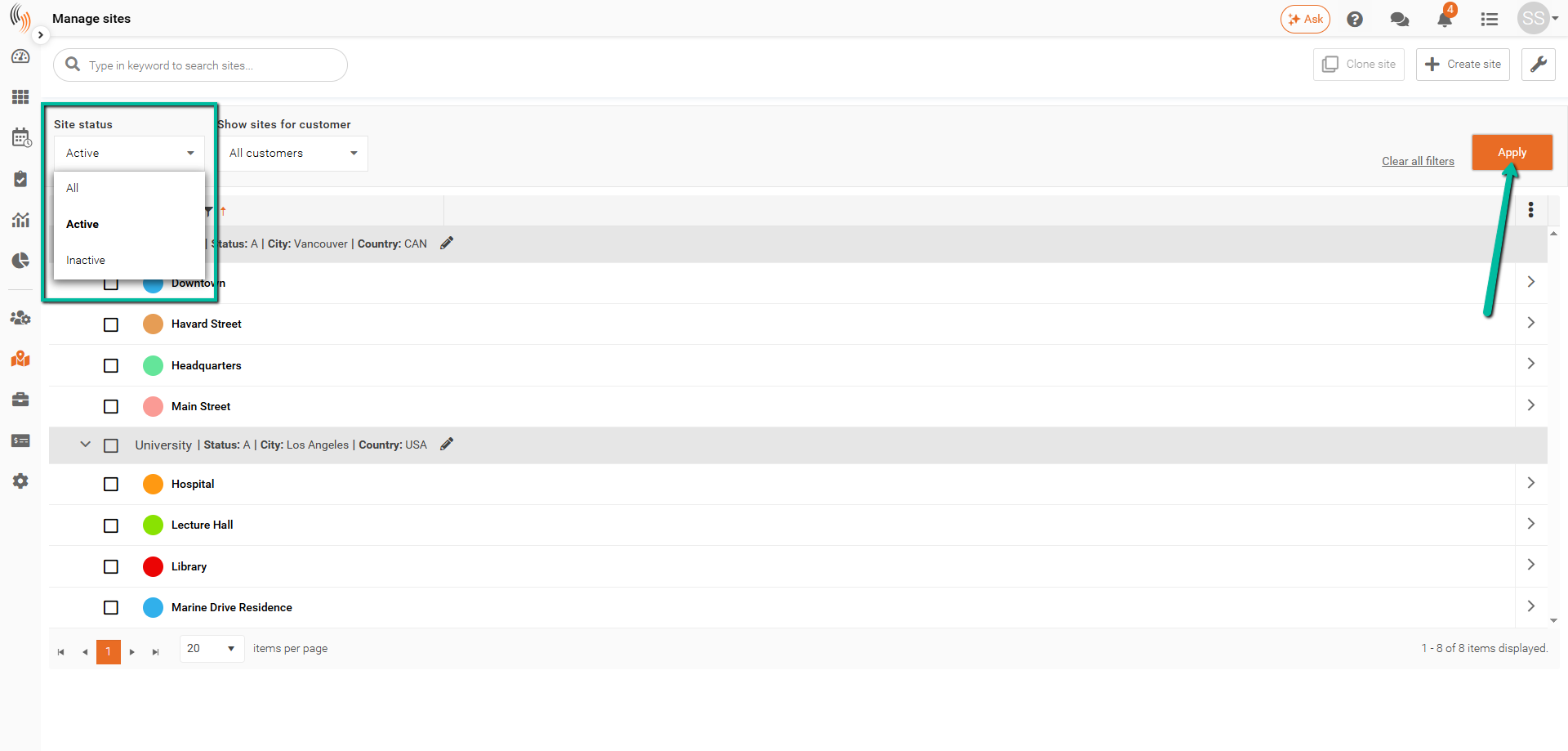
The Site Status filter allows you to control which sites are displayed based on their current status.
Available options include:
- All Sites – Displays both active and inactive sites.
- Active Sites – Displays only active sites.
- Inactive Sites – Displays only inactive sites.
To apply the filter:
- Select a status from the dropdown.
- Click Apply.
To remove the filter, click Clear All Filters. The site list will return to displaying active sites.
Show Sites for Customer
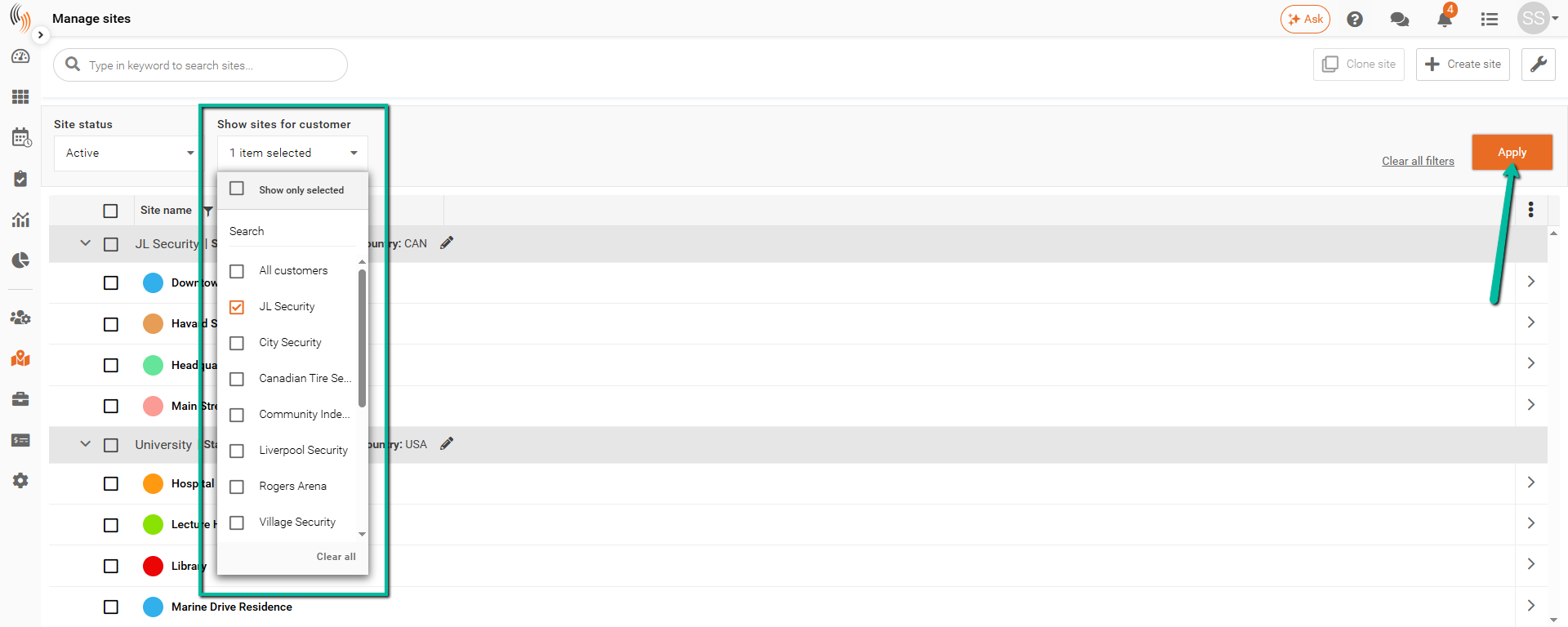
The Show Sites for Customer filter allows you to display sites associated with specific customers.
To apply the filter:
- Select one or more customers from the dropdown.
- Click Apply.
This filter is useful when working with sites for a specific customer or group of customers.
To remove the filter, click Clear All Filters. The site list will return to displaying all customers.
Clear All Filters
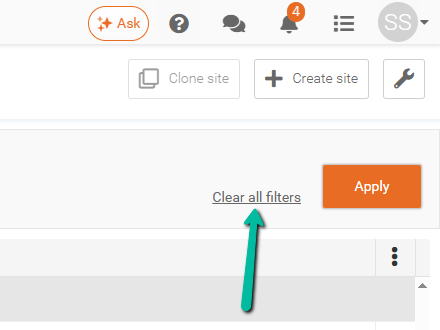
To remove all applied filters and return to the default view, click Clear All Filters.
Customize Site Display Columns
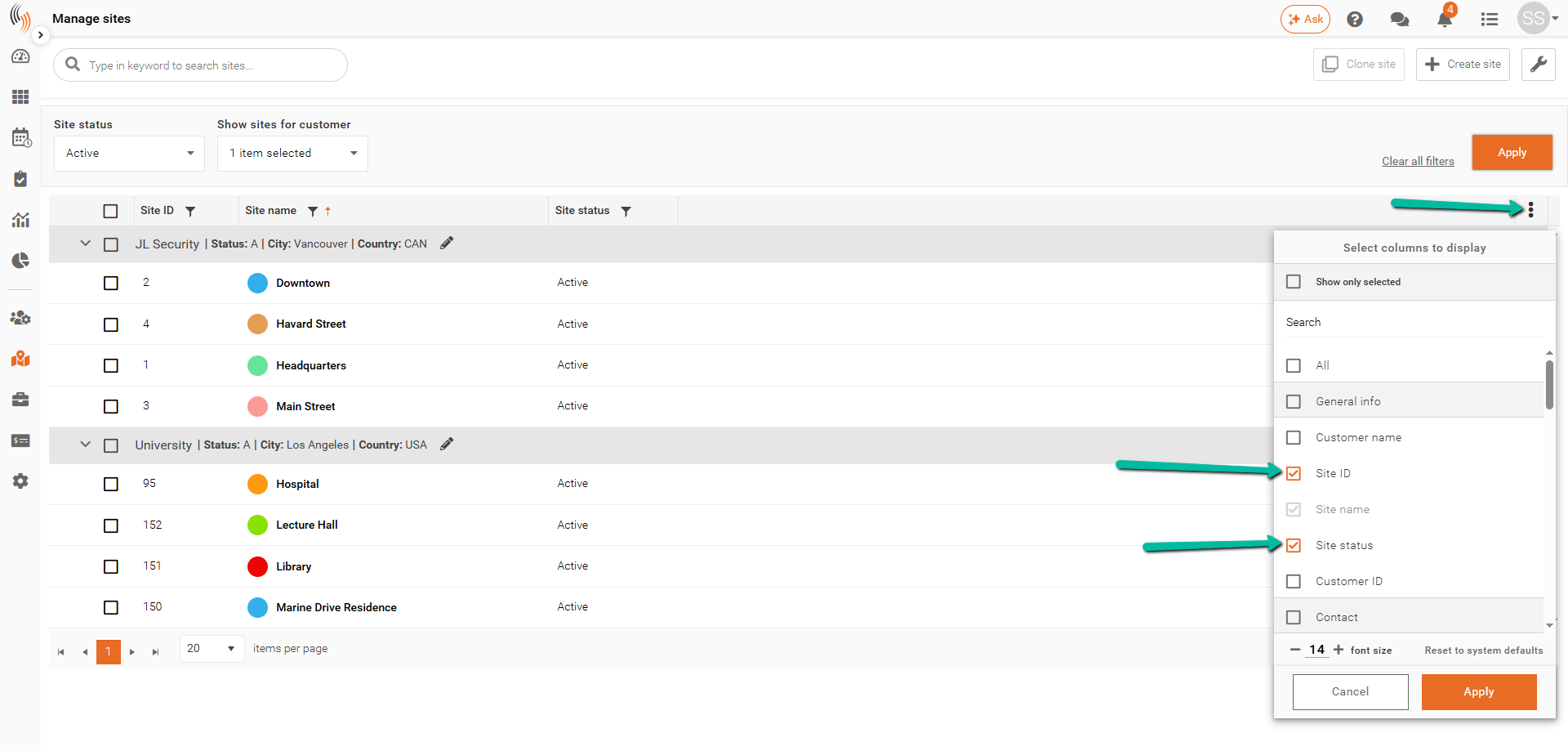
You can customize which columns appear in the Manage Sites list to display the information most relevant to your workflow.
To customize the displayed columns:
- Click the Three Dots (⋮) in the top-right corner of the table.
- Select or deselect the columns you want to display.
- Click Apply.
The selected columns will immediately appear in the site list, allowing you to focus on the information most important to your organization.