Add Customers
Admins can efficiently add customers to Schedule Xpress through a streamlined process. With just a few simple steps, you can register new customers in the system, each representing an actual client or customer account.
Add Customers
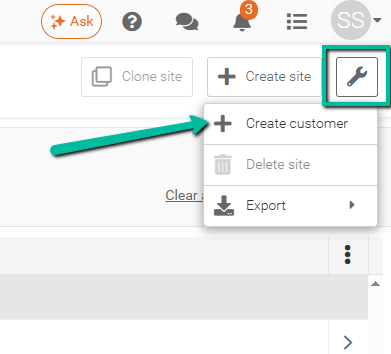
To create a customer, click the Wrench Icon at the top-right corner of the Manage Sites section, then select Create Customer.
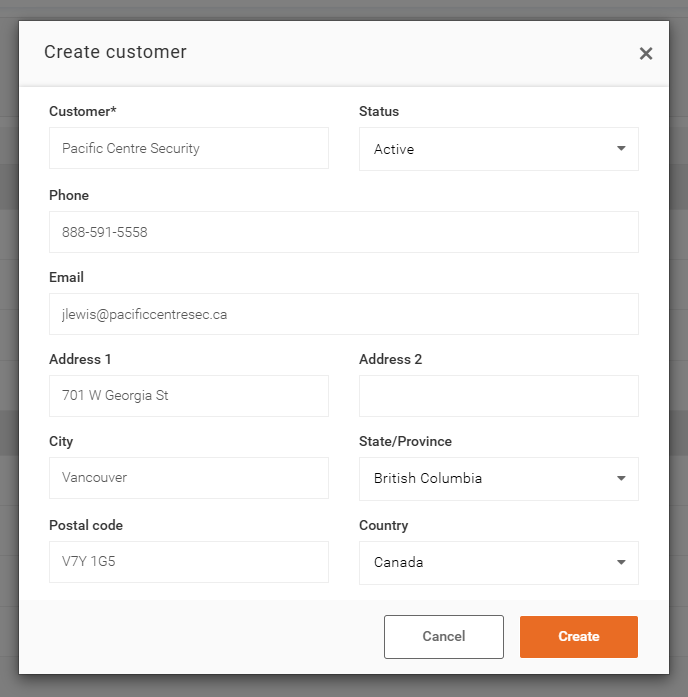
Enter the Customer Name along with any required contact details. To ensure the customer can be used in the system, make sure their status is set to Active.
Note: A newly created customer will not appear in the Manage Sites list until at least one site has been associated with it. While the customer will be visible in the Show Sites for Customer filter, selecting it will not display any results until a site has been added.