Find Shift Replacements
Use the Find Replacement tool to quickly match shifts with qualified employees and update your schedule efficiently.
Before You Begin
Before using Find Replacement, ensure you have:
- Created an Employee Search Rule
- Created a Find Replacement Filter
Locate Find Replacement
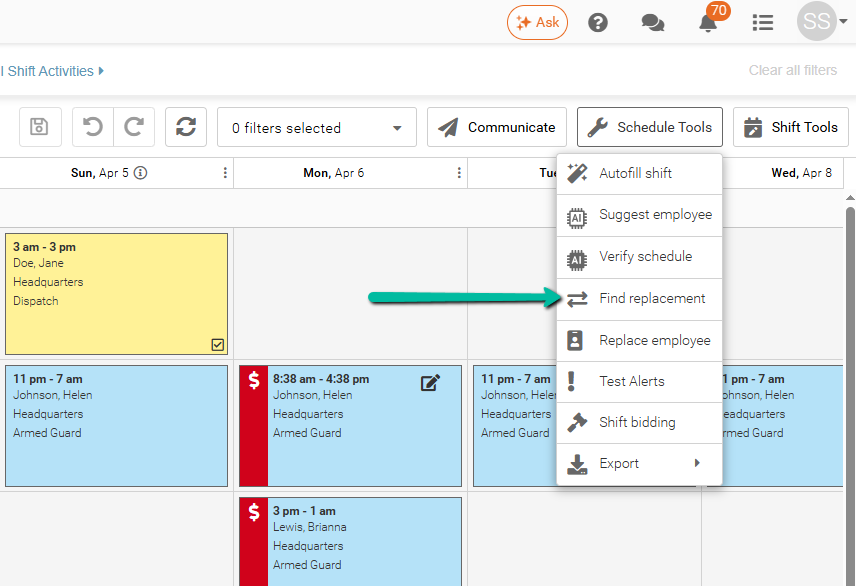
To access the tool, go to Schedule Tools → Find Replacement.
At least one shift must be selected for the option to become available.
Find and Assign a Replacement
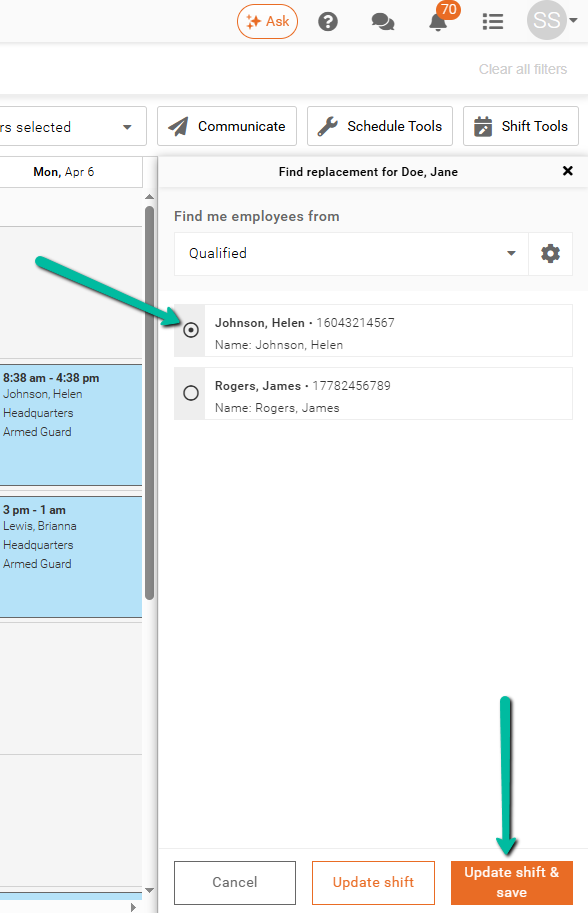
After selecting Find Replacement, choose a filter to display eligible employees.
Employees are automatically filtered to exclude double bookings and site restrictions. The order of results is based on the Employee Sort Order in the selected search rule.
To assign a replacement:
- Select the circle next to the employee’s name
- Click Update & Save
Replace Multiple Shifts
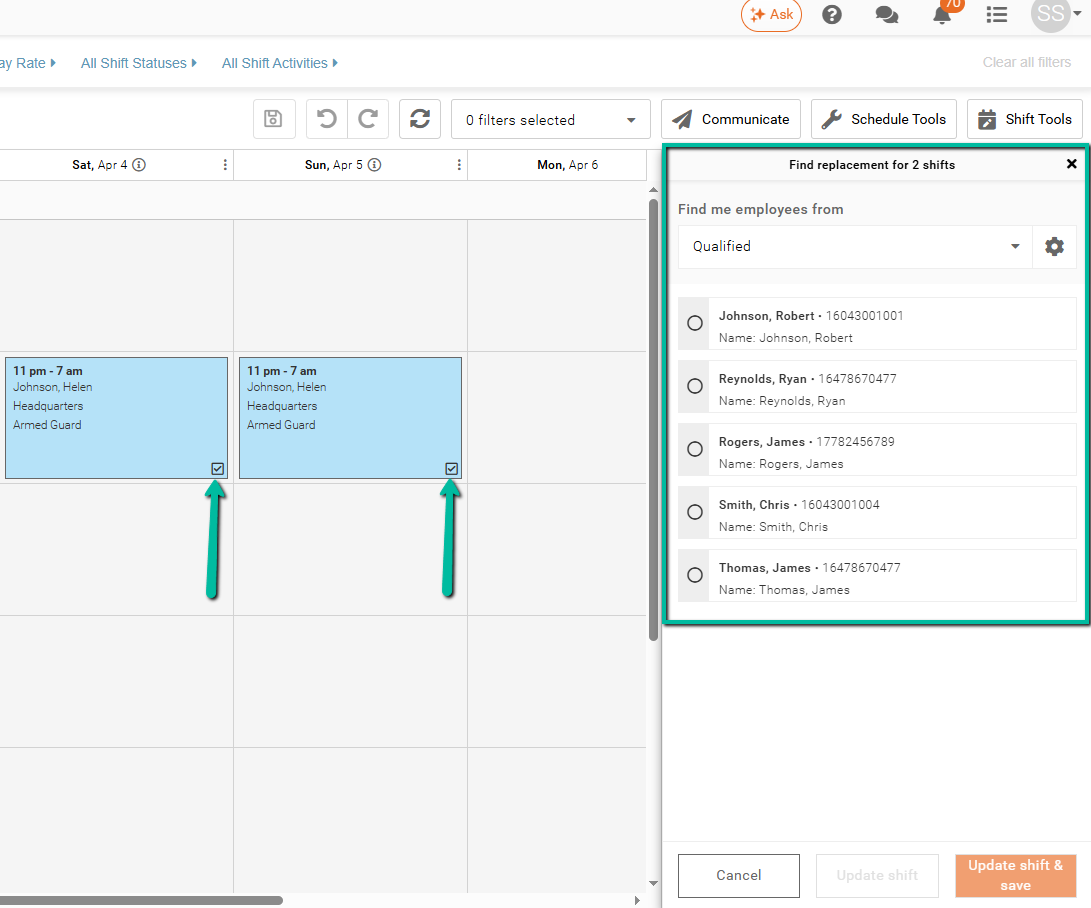
To replace multiple shifts, select more than one shift before opening Find Replacement, as long as the selected filter does not have Process One Shift at a Time enabled.
An employee will only appear if they are eligible to work all selected shifts. If they are not eligible for any one shift, they will not be shown.
The example below shows the employees that qualify to work both shifts.