Manage Employee Check-In and Check-Out (Mobile)
This article explains how administrators can manage employee check-in and check-out times using Schedule Xpress Mobile. You can review shift details and manually update worked times to ensure accurate time tracking when employees forget to check in or out or when adjustments are required.
Access Shifts in Schedule Xpress Mobile
To manage check-in and check-out times, first locate the relevant shift.
- Open Schedule Xpress Mobile
- Navigate to the Schedule view
- Search for the employee's shift
Further details are provided below.
Find Specific Records
If you are looking for a specific shift or employee, use the available search options.
Search by Employee
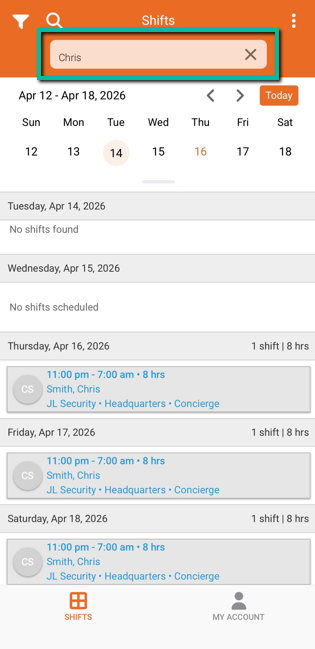
Use the search function to locate a specific employee and view their scheduled shifts.
Review Shift Status
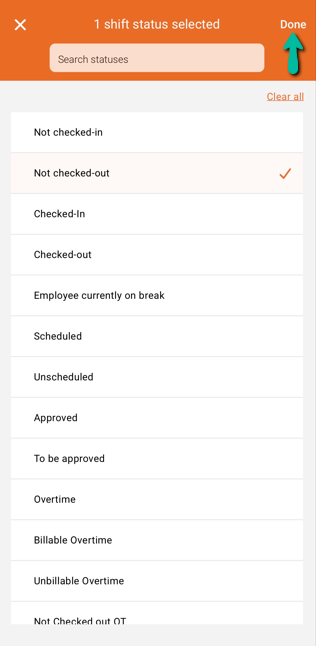
Click the filter in the top-left corner → select Shift Statuses → choose Not Checked-Out → press Done → select Apply to find shifts that are still not complete.
Edit Check-In and Check-Out Times
Use this method to manually adjust worked times for a shift.
- Tap the employee’s shift to open the details panel
- Tap the pencil icon in the top-right corner or select Shift Actions → Edit Shift
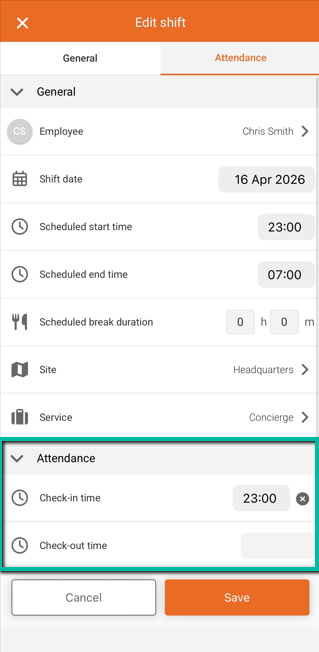
- Navigate to the Attendance section at the bottom of the screen
- Enter or adjust:
- Check-In Time
- Check-Out Time
- Tap Save or Update
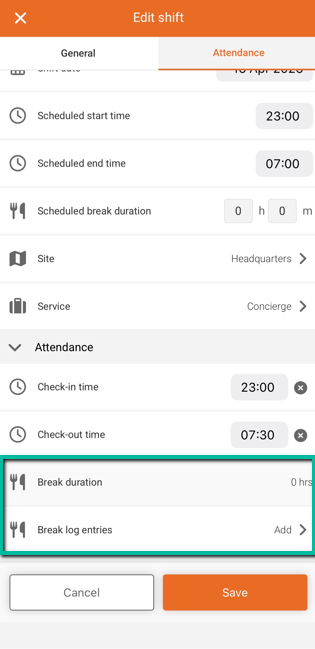
Break Adjustments (Optional)
Within the Attendance section, you can also:
- View Break Duration
The Break Duration reflects the total time from break log entries and is automatically deducted from the shift total. - Add Break Log Entries
Enter break start and end times to record and deduct break time from the shift total, if needed.
When to Use Manual Updates
Scenario | Action |
|---|---|
Employee forgot to check in/out | Manually enter times |
Employee worked different hours than scheduled | Adjust times |
Missing or incorrect time data | Update shift details |
Remove Check-In and Check-Out Times
You can remove check-in and check-out times individually within the shift.
- Tap the employee’s shift to open the details panel
- Tap the pencil icon or select Shift Actions → Edit Shift
- Navigate to the Attendance section
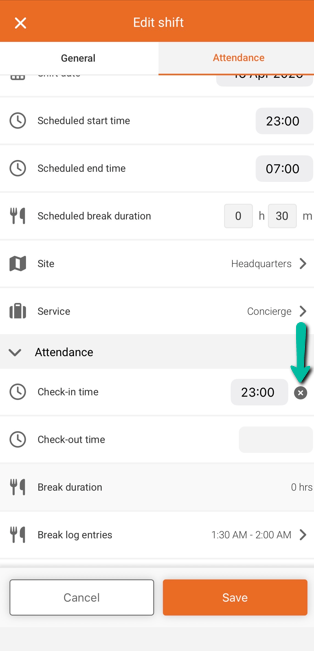
- Tap the X next to the Check-In Time and/or Check-Out Time to remove the value
- Tap Save or Update