Check In Using Facial Recognition
Facial recognition helps confirm that the correct person is completing a shift action, adding an extra layer of security for employees and worksites.
When enabled, you may be required to verify your identity using the Team Xpress app before completing certain actions.
Set Up Facial Recognition
If facial recognition is enabled by your company, you must first add a profile photo to verify your identity.
To add your photo:
- Open the Team Xpress app
- Tap the person icon to open My Account
- Select Profile
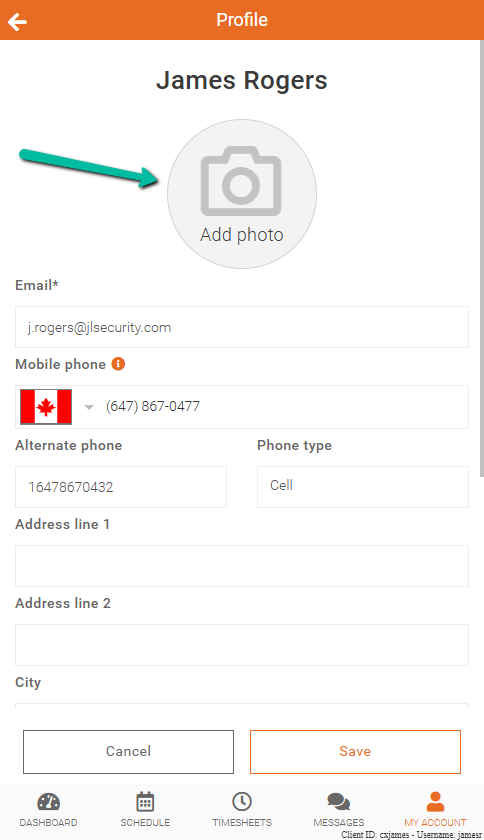
- Tap Add a Photo
- Follow the prompts to capture or upload your photo
- Click Save
Note: For best results, ensure your face is clearly visible and the photo is taken in good lighting.
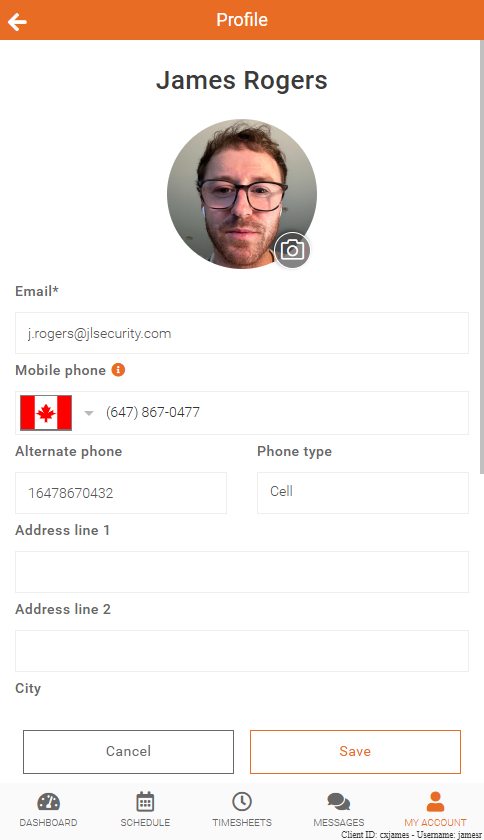
Once added, your profile photo will be used for identity verification and may be visible to your company’s management team.
When Facial Recognition Is Required
When enabled, facial recognition may be required for:
- Checking in
- Performing a safety check
- Starting or ending a break
- Checking out
You will be prompted automatically when verification is required.
Check In Using Facial Recognition
When facial recognition is required, you will be prompted to verify your identity before completing an eClock action.
To check in:
- Start your eClock action in the Team Xpress app
- Follow the prompt to take a photo
- Wait for the system to verify your identity
- Complete the action once verification is successful
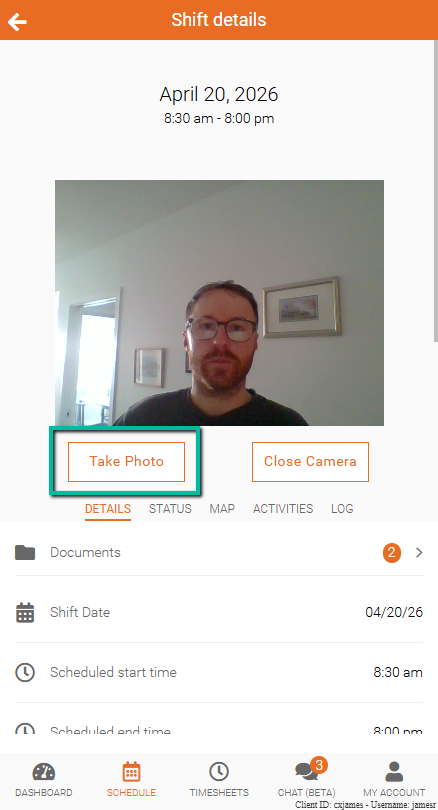
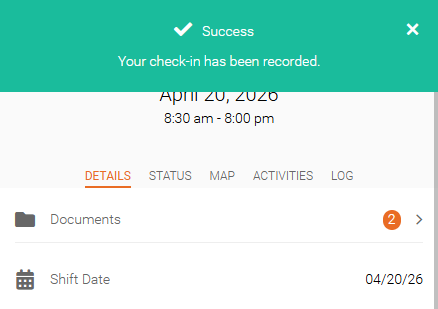
Upon success, a green success banner will appear.
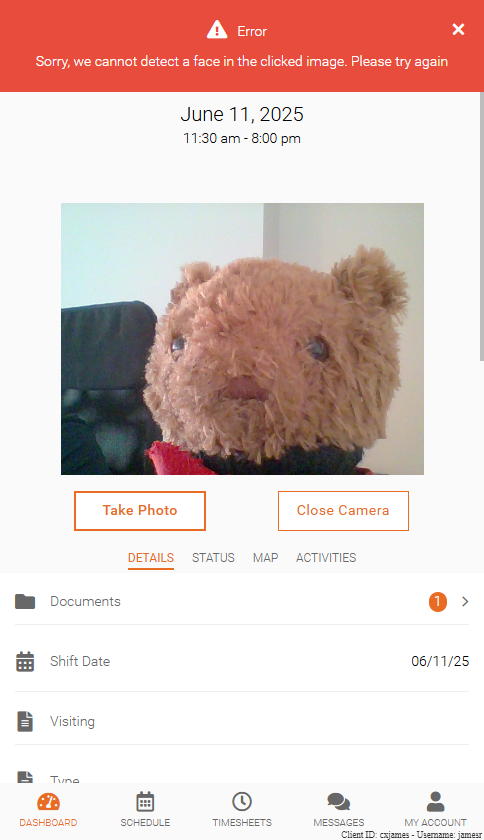
If Verification Fails
If your face cannot be detected or verified:
- You will receive a notification that verification was unsuccessful
- Follow the prompt to try again
Make sure your face is clearly visible and properly aligned with the camera before retrying.