
Reset Team Xpress Password
Reset or update your Team Xpress password to regain access to your account or keep your login secure.
Need to reset your Team Xpress password? You can quickly regain access from the login page, or update your password from within the app if you’re already signed in.
Reset Password from Login Page
To reset your password, follow the steps below:
- Go to the Team Xpress login page
- Click Get help logging in
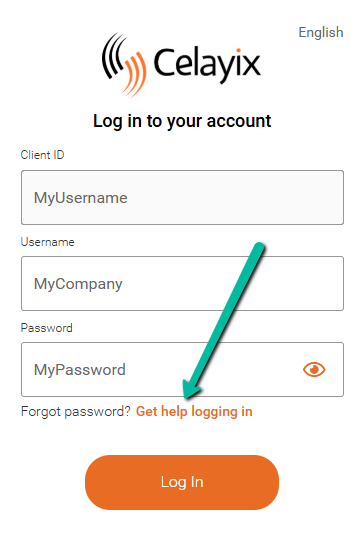
Next, enter your account details:
- Enter your Client ID
- Enter your Username or Email address
- Click Reset Password
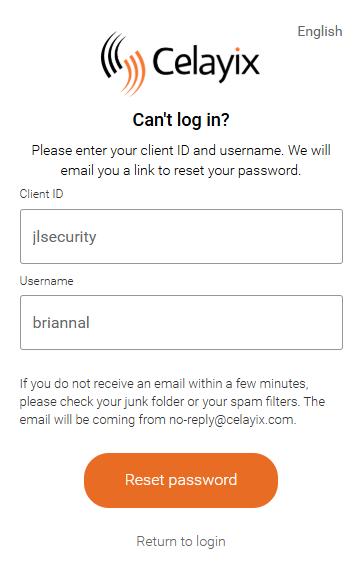
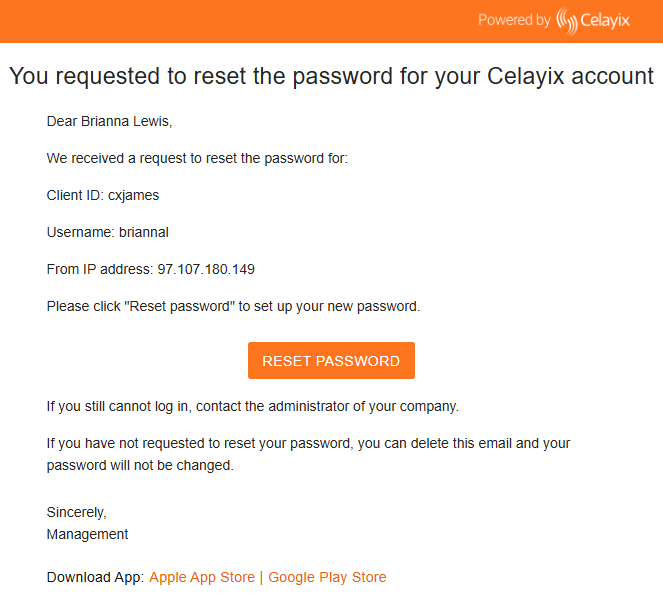
Then, complete the password reset process:
- Check your email for the reset link
- Open the link and enter your new password
- Confirm your password and click Reset Password
Once complete, you can sign in using your new password.
Update Password in Team Xpress
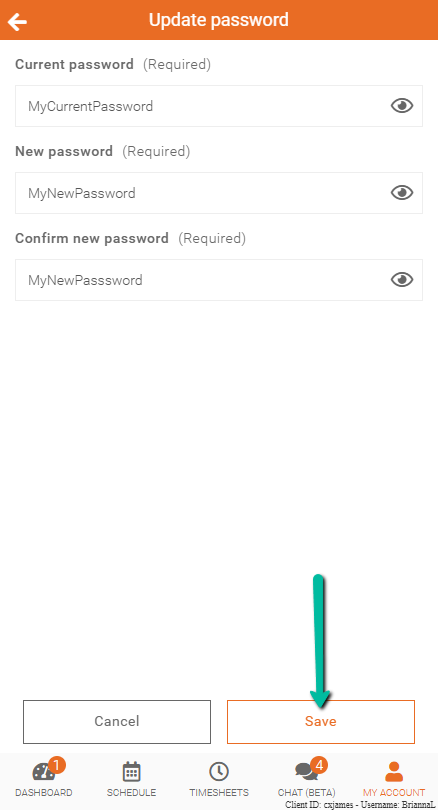
If you are already signed in and want to change your password:
- Go to My Account
- Select Update password
- Enter your current password
- Enter and confirm your new password
- Save your changes
Note: You must know your current password to update it from within the app. If you don’t remember it, use the reset option from the login page instead.
Need Additional Help?
If you’re unable to reset your password or access your account, contact your supervisor for assistance.