
View Your Location on Map
Use the Map feature to confirm your work site location and ensure you are in the correct area to check in.
Map shows your shift location, the geofence boundary, and your current position, helping ensure accurate check-ins and time tracking.
Open Map in Team Xpress
You can access Map from:
- Schedule → Select a shift → Tap Map
- Dashboard → Open Current Shift → Tap Map
Geofence Requirements
If geofencing is enabled, you must be within the designated area to check in.
If you are outside the geofence:
- You may be unable to check in until you move within range
- Or, you may be able to check in if your company allows supervisor authorization
What You Can View
The Map feature allows you to view:
- Your shift site location
- The geofence radius
- Your current location relative to the site
This helps you confirm whether you are in the correct area before checking in.
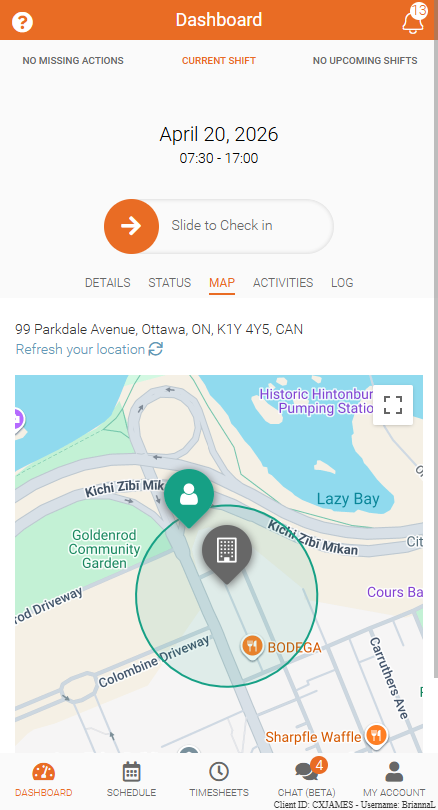
Red Marker (Outside Geofence)
A red marker indicates that you are outside the required geofence for your shift.
If your marker appears red, you may not be able to check in until you move within the designated area. Once you are within range, your location will update and allow you to proceed with check-in.
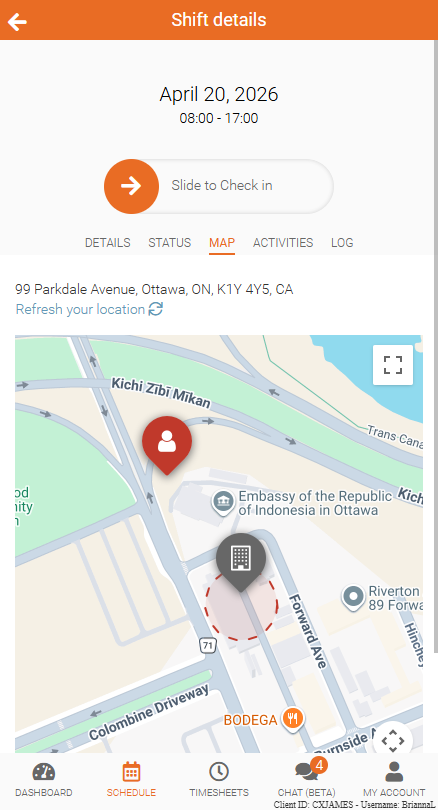
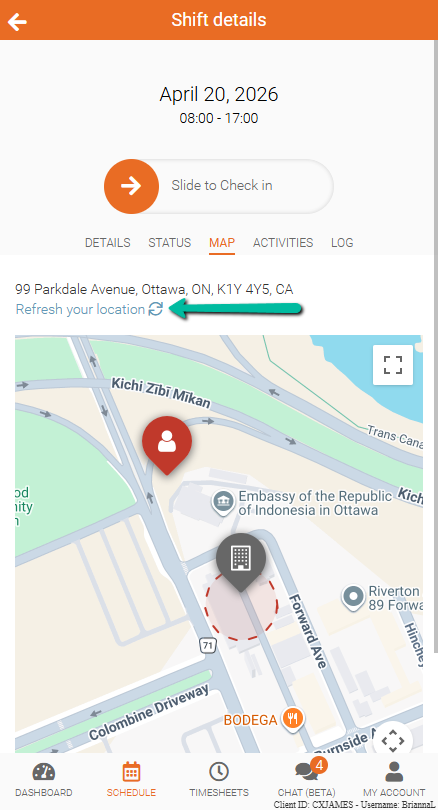
Refresh Your Location
If your location is not accurate, you can refresh it:
- Tap Refresh your location below the site address
This updates your real-time position and confirms whether you are within the required range.
Location Not Showing
If your location does not appear on the map:
- Ensure Location Services are enabled for the Team Xpress app