Pick Up Shifts in Self-Scheduling
View and pick up available shifts that fit your schedule.
Self-Scheduling allows available shifts to be searched and selected directly in Team Xpress. Once enabled, shifts that are open and match qualifications can be picked up quickly from the Schedule section.
Note: This feature must be enabled by the company. If not visible, contact an admin.
Find Available Shifts
To search for available shifts:
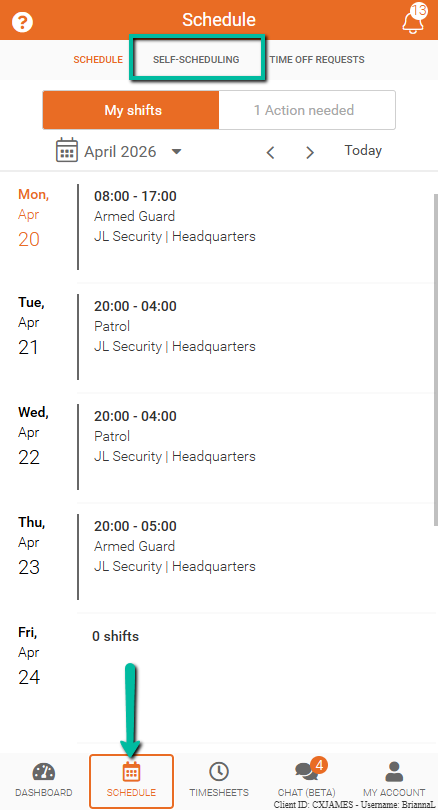
- Go to Schedule
- Click Self-Scheduling
Next:
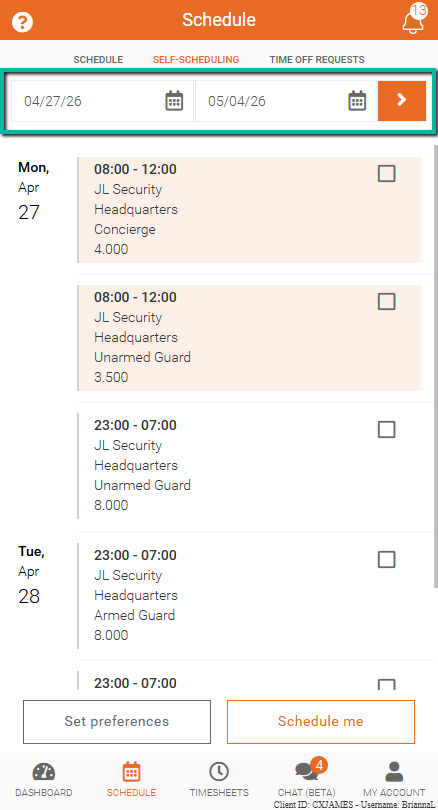
- Select a date range
- Tap the orange arrow to search
Shifts that you meet the search criteria for will be displayed.
Note: Shifts that match your Self-Scheduling Preferences will be highlighted in orange.
Pick Up Shifts
To assign shifts:
- Select the checkbox next to one or more shifts
- Tap Schedule me
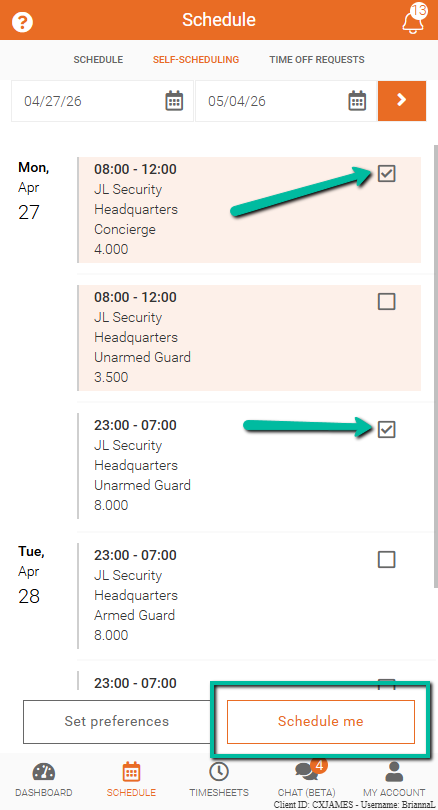
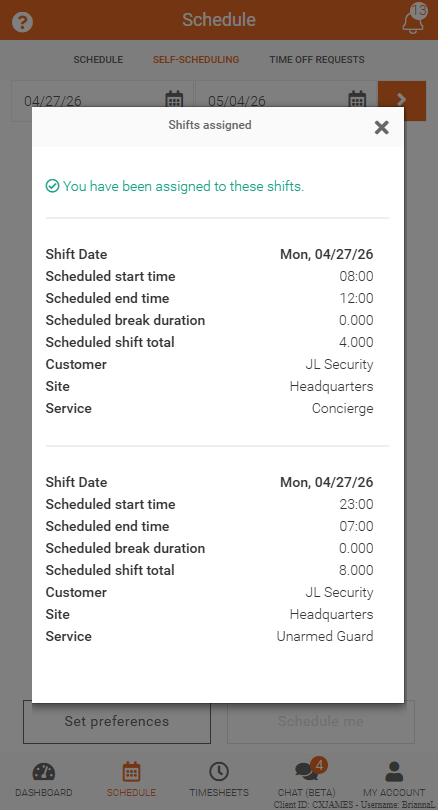
Once successful, a confirmation message will appear indicating the shifts have been assigned.
If a Shift Cannot Be Scheduled
In some cases, a selected shift may not be assigned.
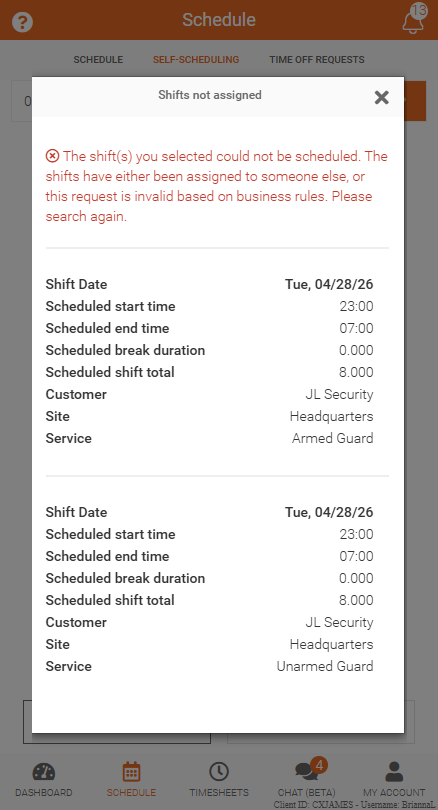
A message will appear:
“The shift(s) you selected could not be scheduled.”
This can happen if:
- Another employee selected the shift first
- The shift conflicts with an existing schedule
- Maximum hours or rest period rules are exceeded
- Company scheduling rules are not met
Example: Overlapping Shifts
If two shifts occur at the same time, only one can be selected.
The system will prevent scheduling overlapping shifts and display an error if attempted.