Employee Qualifications
Employee qualifications can be assigned and tracked in Schedule Xpress, allowing administrators to maintain compliance and gain visibility into workforce credentials for more effective scheduling.
Add Qualifications Tab to Employee Form
If the Qualifications tab is not visible in employee profiles, it must be enabled in the Employee Form.
To access this:
- Click the settings (gear) icon at the top of an employee profile next to the section tabs, or
- Navigate to Settings → Branch defaults → Employee form
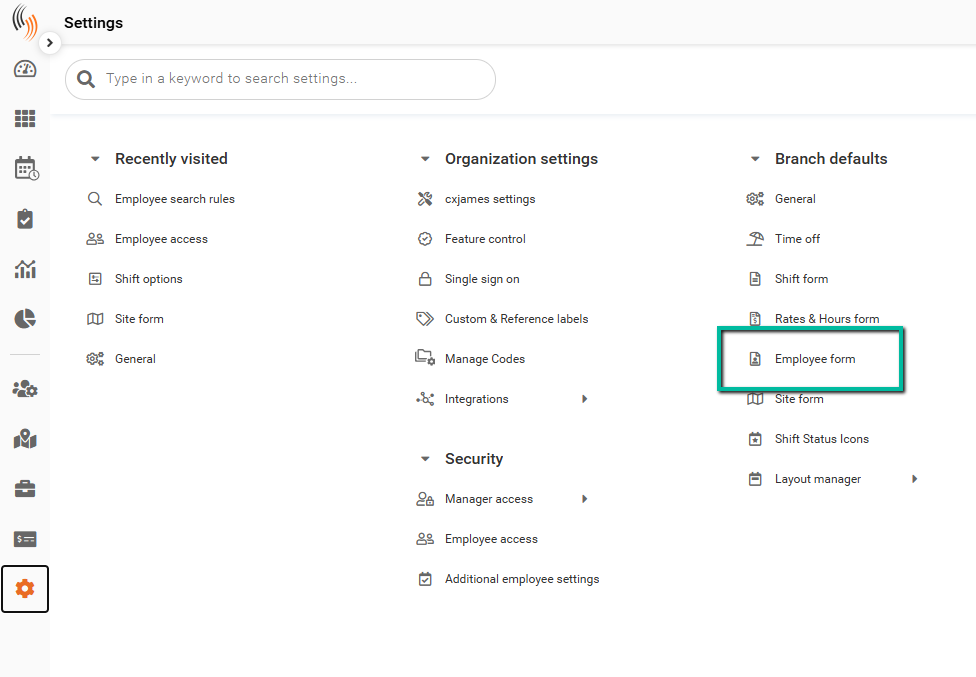
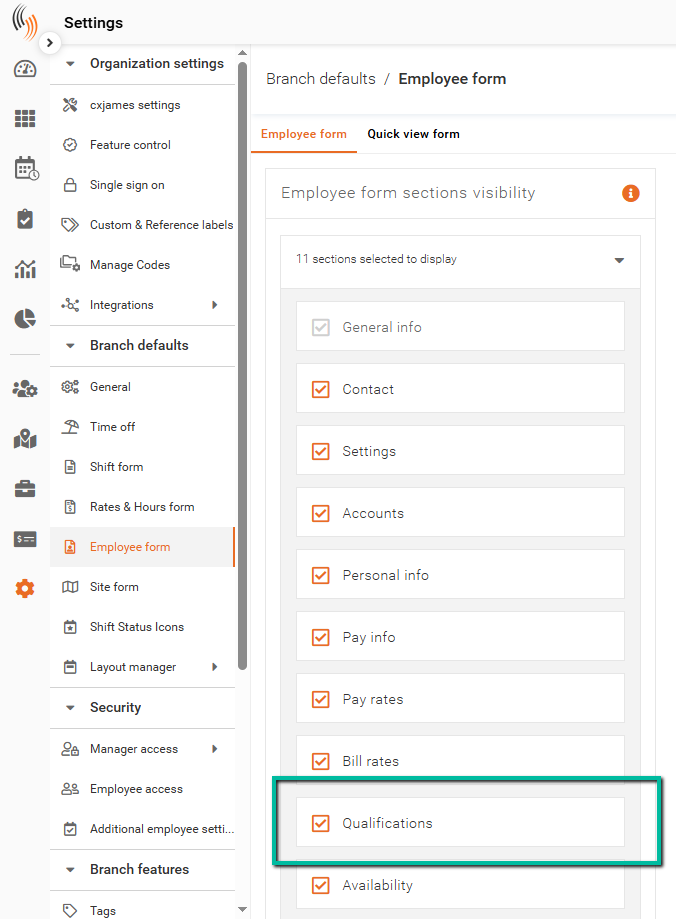
Ensure the Qualifications section is selected as a visible section in the form.
If it is not visible, use the dropdown to select and add it.
Once enabled, the Qualifications tab will appear in employee profiles.
Apply Qualifications to an Employee
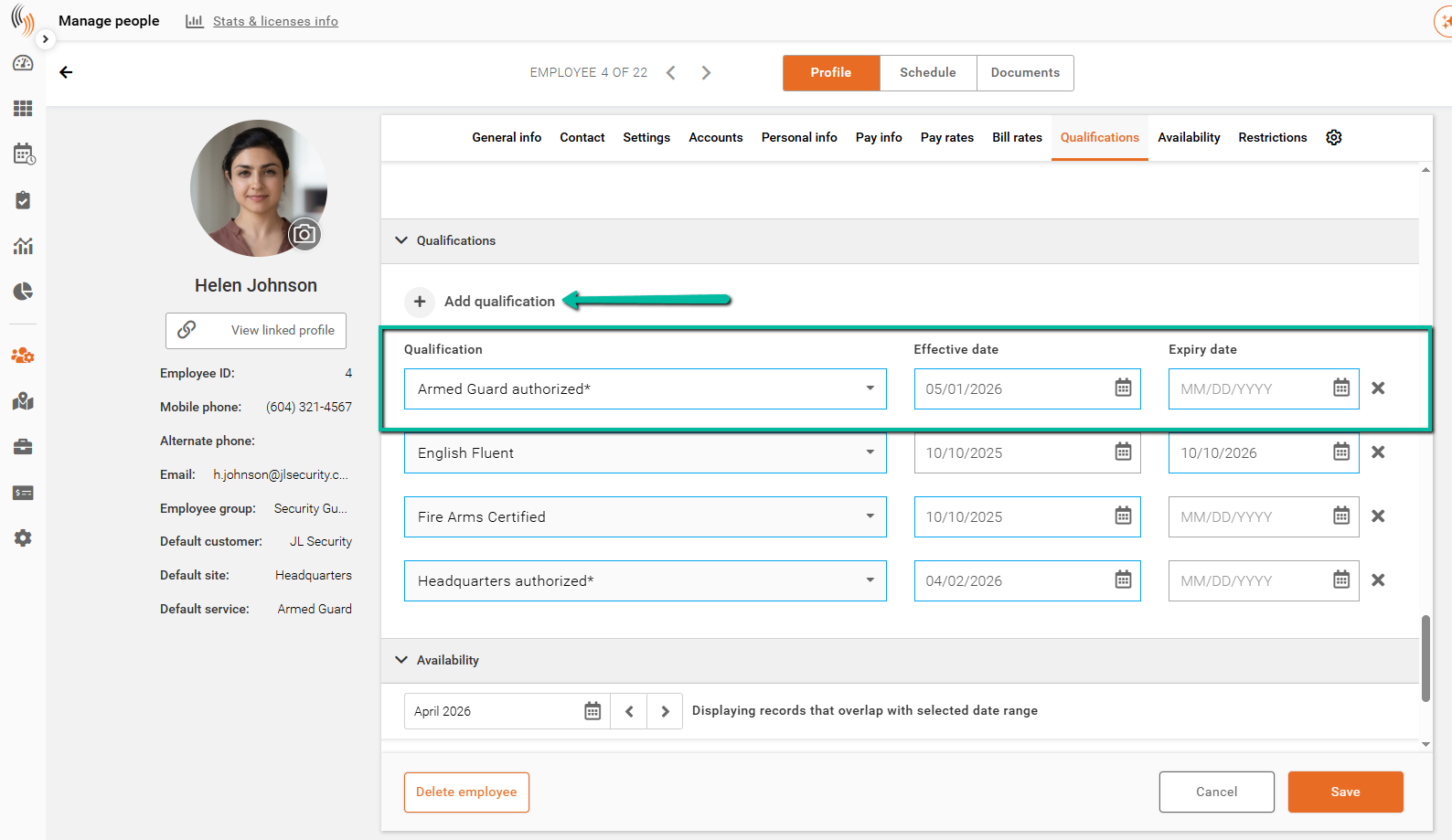
To add a qualification:
- Navigate to the employee’s profile
- Go to the Qualifications section
- Click Add Qualification
Select the qualification and enter the effective date and expiry date, then click Save.
Note: The expiry date is optional.
Matching Qualifications
Employees can only be scheduled for shifts that require specific qualifications if they have those qualifications assigned.
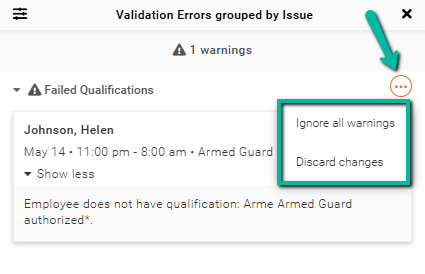
If an employee does not meet the required qualifications, the system will display a warning when scheduling. This warning can either be ignored to proceed, or configured as an error, in which case the shift cannot be assigned until the qualification requirements are met.
Remove a Qualification
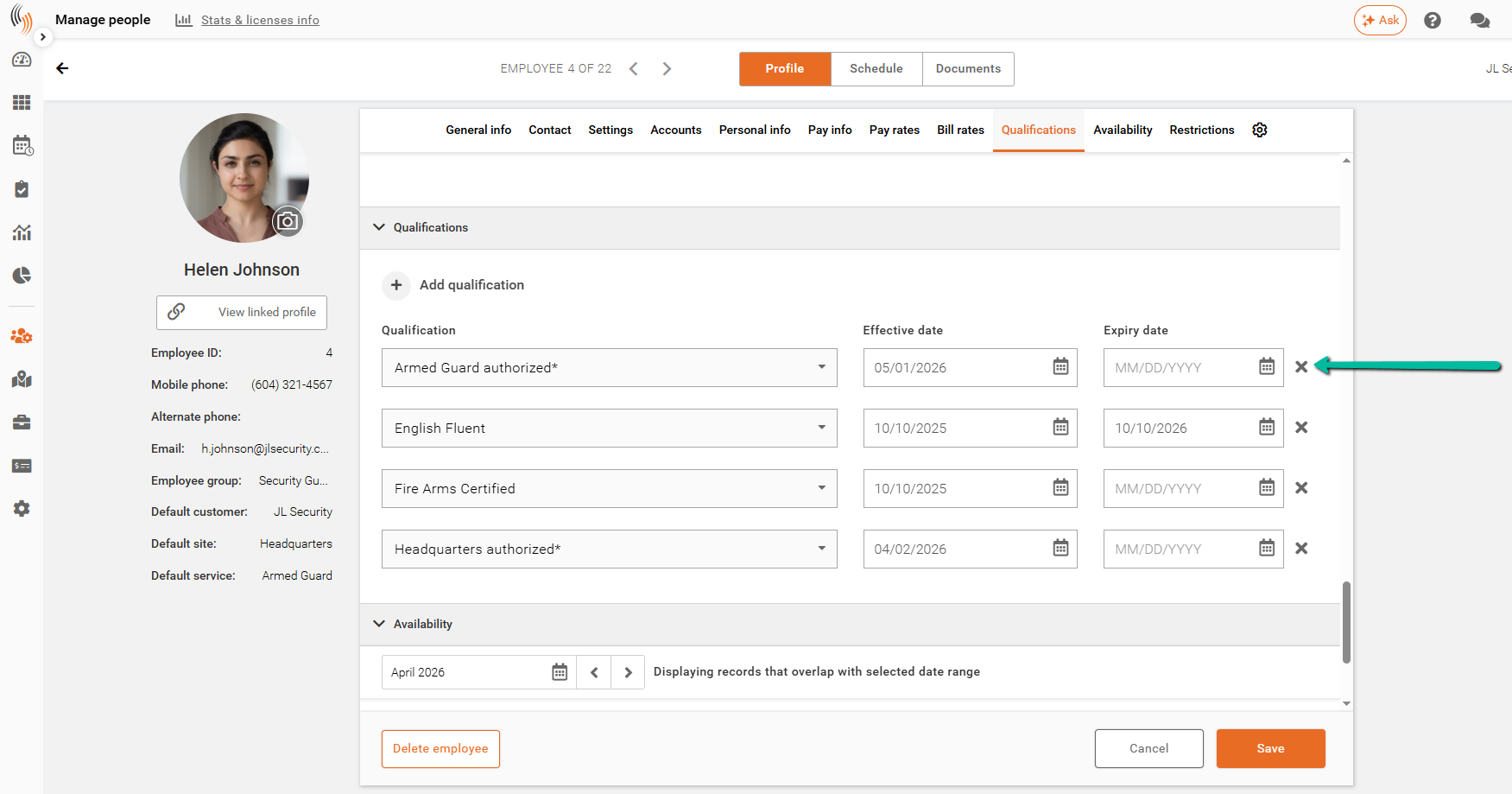
To remove a qualification, click the X next to the qualification in the employee profile.
View Qualifications in Manage People
Employee qualifications can be viewed in two places:
- Employee profile
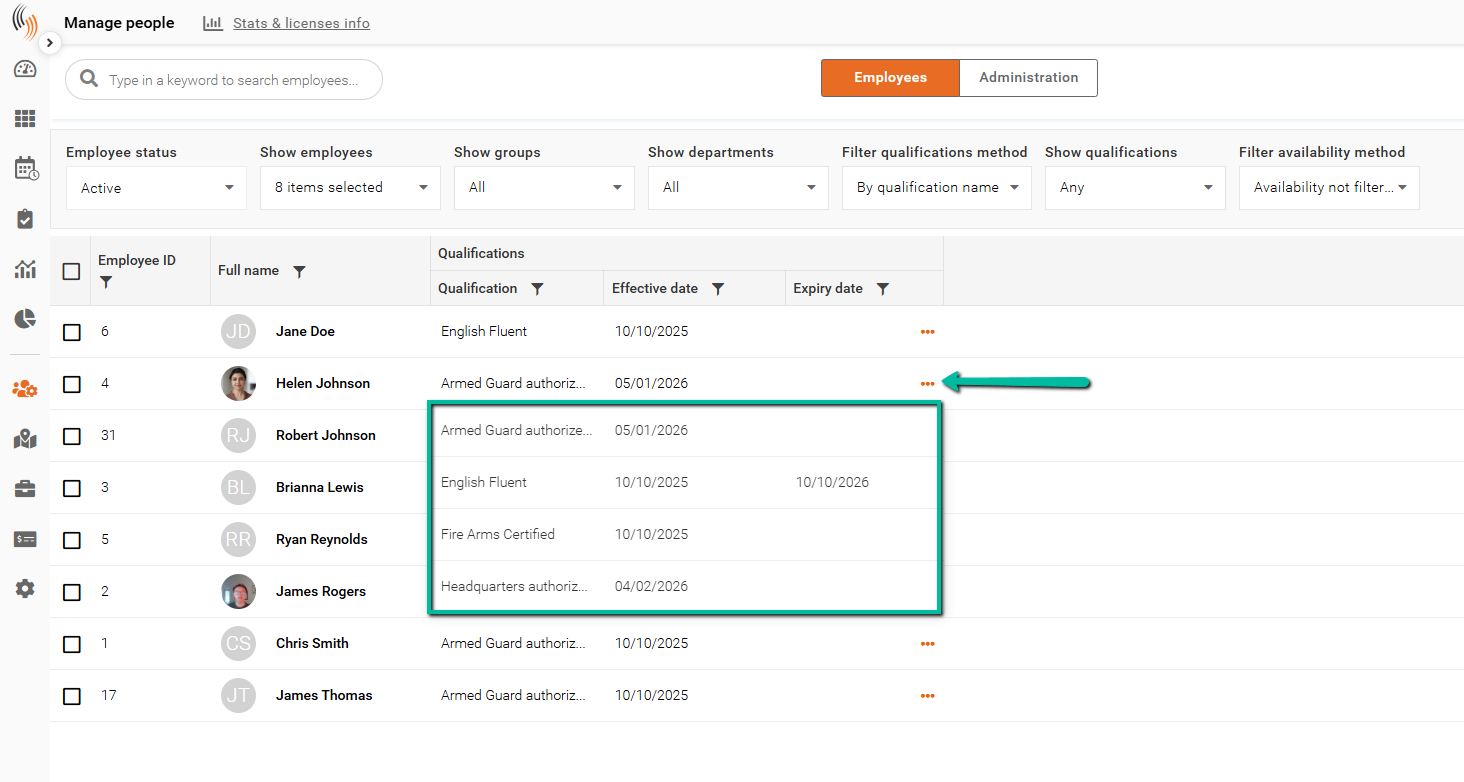
- Manage People column
If an employee has multiple qualifications, click the three dots to view the full list.
Notifications for Expiring Qualifications
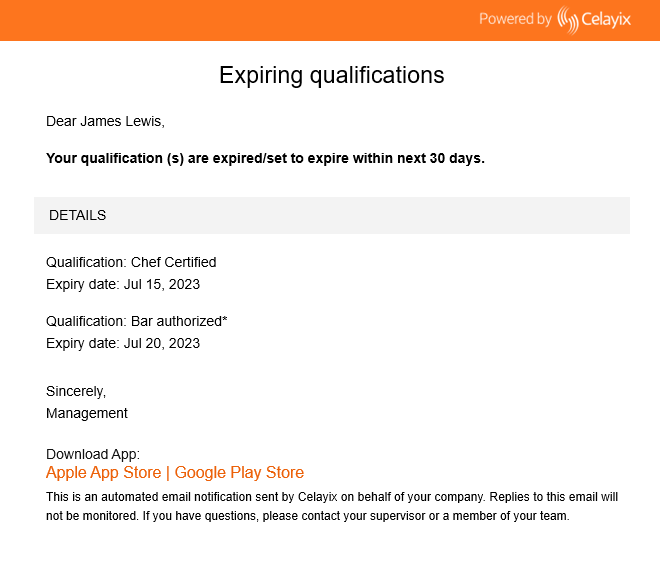
Admins and employees receive automated notifications when qualifications are approaching expiration.
These notifications include a CSV file with detailed information about expiring qualifications to support tracking and compliance.
For more details, refer to the Expiring Qualifications settings article.