Check In and Out with Celayix Kiosk
Employees can use the Celayix Kiosk to quickly record attendance by entering their Employee ID (PIN) and selecting the appropriate clock action. The kiosk interface is designed to provide a simple and efficient check-in experience on shared devices.
Employee Check-In to Kiosk
Once the kiosk is set up, employees can enter their Employee ID and tap the orange arrow button to proceed to the eClock Actions page, where they can select the appropriate punch option.
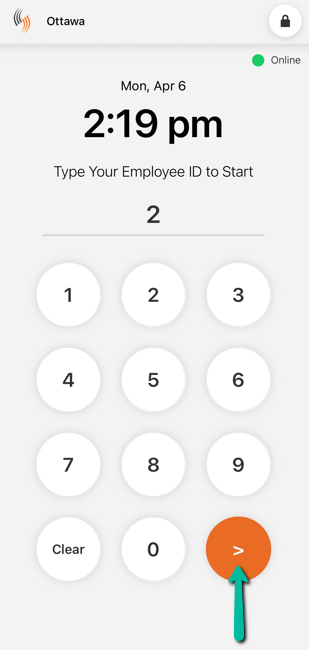
Valid Employee ID
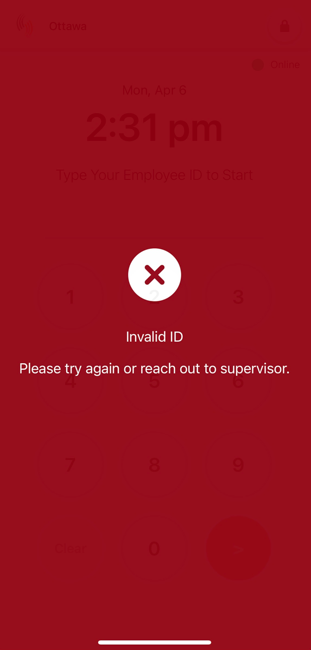
If a correct Employee ID is entered, they will be directed to the eClock Actions page.
Available actions may include:
- Check In
- Check Out
- Start Break
- End Break
Invalid Employee ID
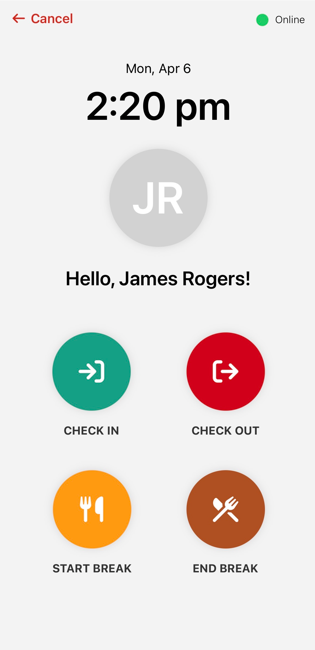
If an incorrect Employee ID is entered:
- A red error screen is displayed
- Message shown:
“Invalid ID. Please try again or reach out to supervisor.” - The error message will automatically dismiss after 3 seconds
- The PIN input field is cleared automatically
eClock Actions Page
The eClock Actions page is displayed after a valid Employee ID is entered on the kiosk. From this screen, employees can select the appropriate action to record their time, including check-in, check-out, and break activities.
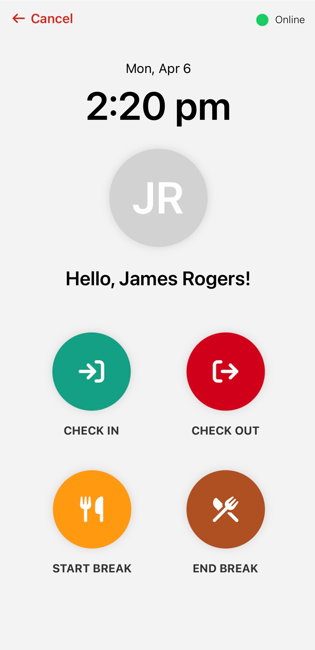
Available Actions
The eClock Actions page provides the following options:
- Check In
Records the start of the employee’s shift. - Check Out
Records the end of the employee’s shift. - Start Break
Records the beginning of a break period. - End Break
Records the end of a break period.
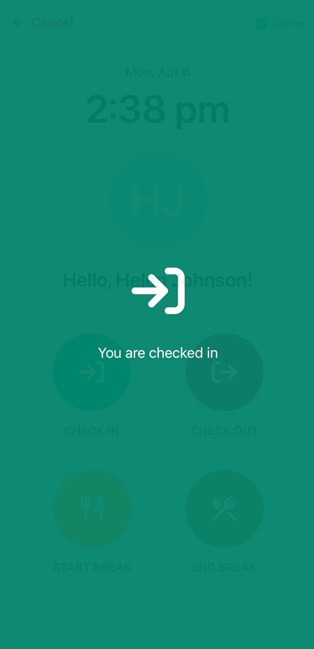
When an action is selected, a confirmation screen is displayed to indicate the action has been successfully recorded.
Please note: Depending on your setup, if an employee does not have a shift that matches the setup parameters, an unscheduled shift may be created.