Send Shift Bidding Invitations
As an administrator, you can publish shifts for bidding, invite eligible employees, and control when invitations are sent. This helps ensure employees are aware of available opportunities while maintaining appropriate staffing levels.
Publish Shifts for Shift Bidding
Before employees can submit bids, shifts must first be published for Shift Bidding.
Shifts can be published individually or in bulk.
Publish a Single Shift for Shift Bidding
To publish a single shift for Shift Bidding:
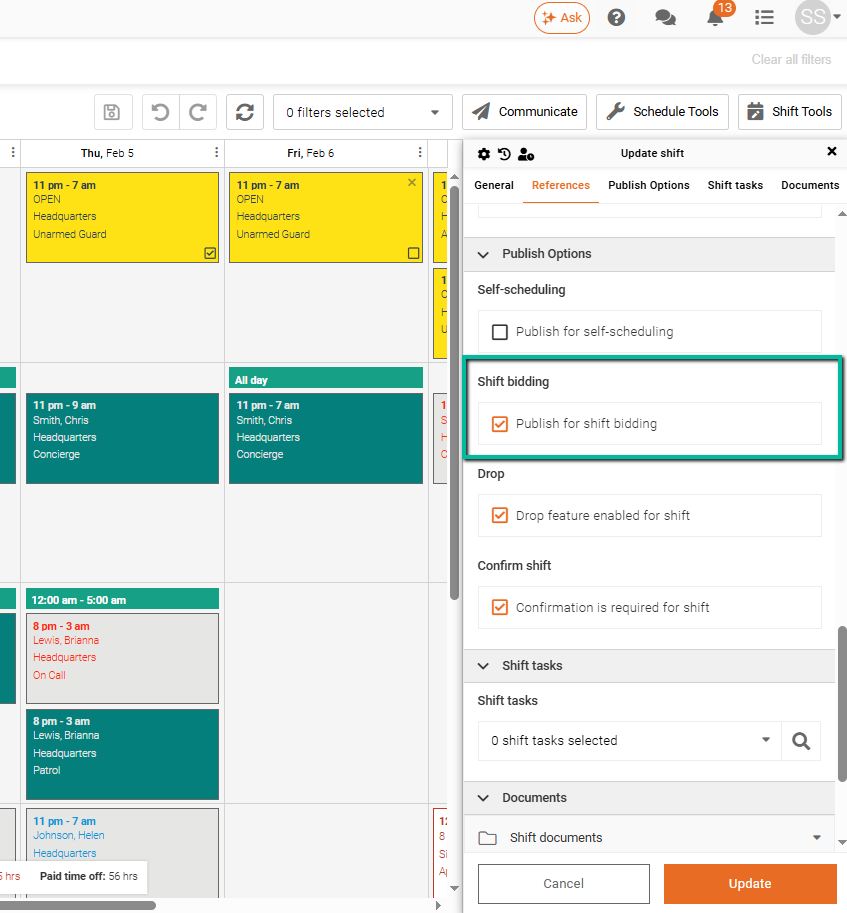
- Open the shift panel.
- Select Publish for Shift Bidding.
- Save the shift.
Publish Multiple Shifts for Shift Bidding
To publish multiple shifts at once:
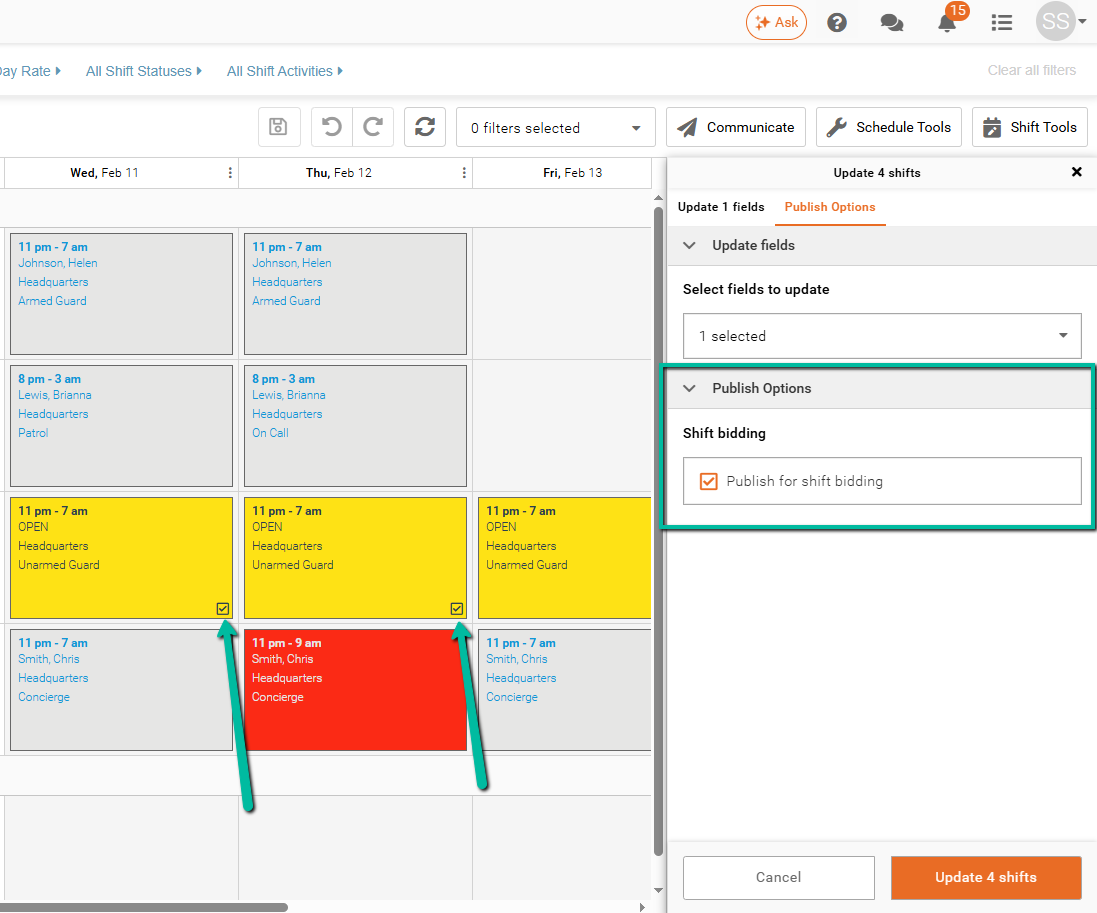
- Select the required shifts.
- Click Update # Shifts.
- Under Select Fields to Update, choose Shift Bidding.
- Select Publish for Shift Bidding.
- Click Update.
- Click Save.
Identify Shifts Published for Shift Bidding
There are two ways to identify shifts that have been published for Shift Bidding.
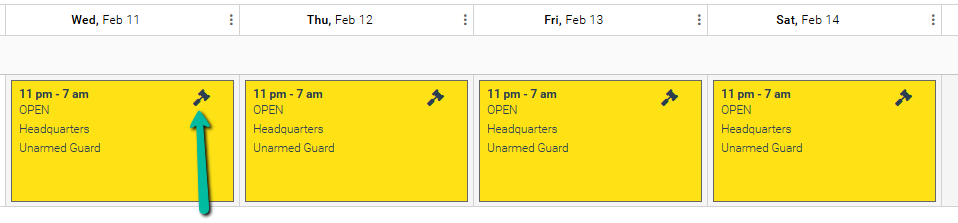
Mallet Shift Status Icon
Published shifts display a Mallet icon within the shift.
If the icon is not visible, verify that Shift Status Icons are enabled.
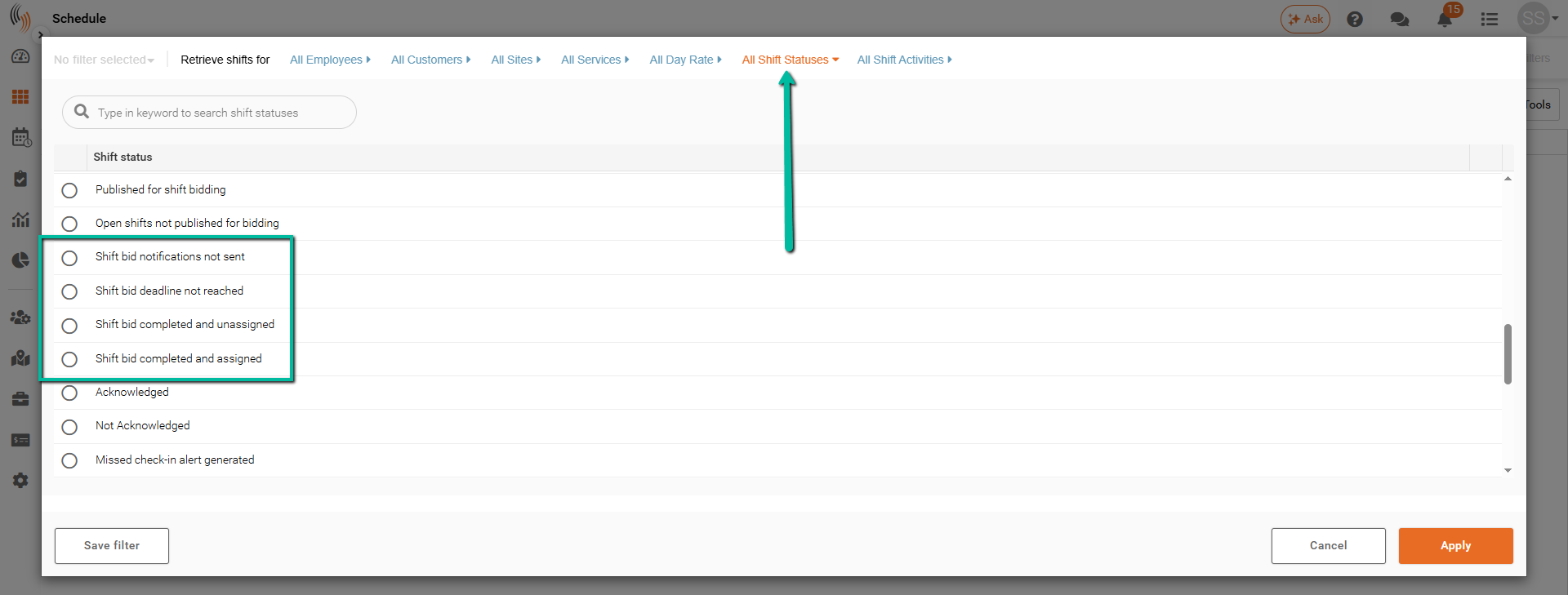
Shift Bidding Filter Under All Shift Statuses
Within the All Shift Statuses filter, you can view shifts based on their bidding status.
Available filters include:
- Published for Shift Bidding – Displays shifts currently available for bidding.
- Open Shifts Not Published for Shift Bidding – Displays open shifts that have not been published.
- Shift Bid Notifications Not Sent – Displays shifts where invitations have not been sent.
- Shift Bid Deadline Not Reached – Displays shifts with an active bidding period.
- Shift Bid Completed and Unassigned – Displays shifts where bidding has ended without an assignment.
- Shift Bid Completed and Assigned – Displays shifts where bidding has ended and the shift has been assigned.
Send Shift Bidding Invitations
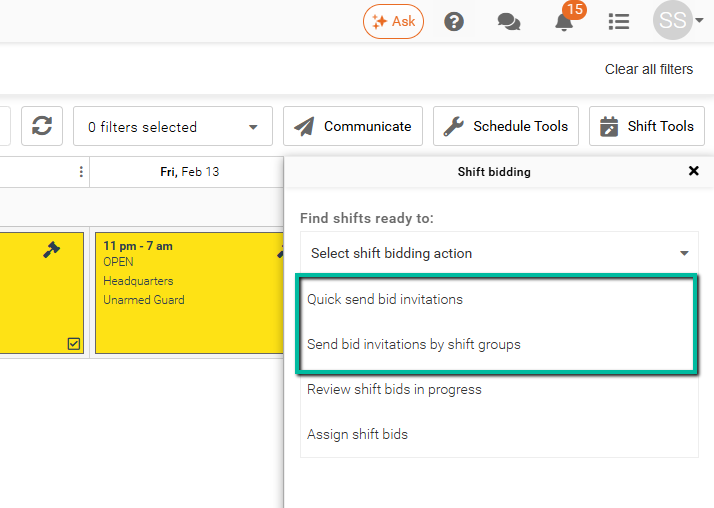
To send Shift Bidding invitations:
- Select the shifts you want to include.
- Click Schedule Tools → Shift Bidding.

You will then be prompted to choose one of the following actions:
- Quick Send Bid Invitations
- Send Bid Invitations by Shift Groups
Quick Send Bid Invitations
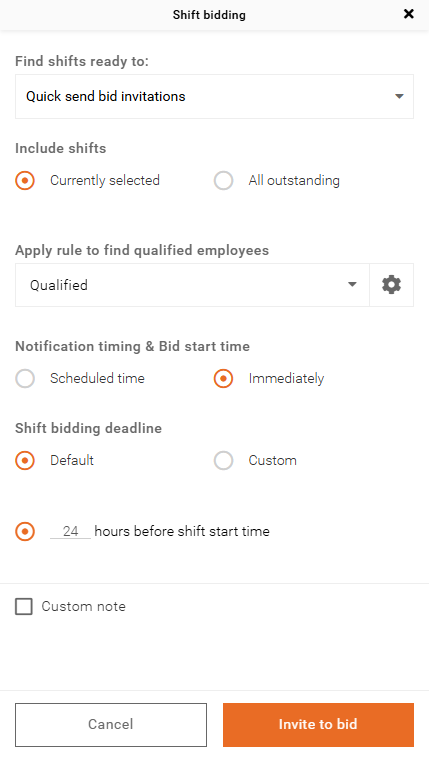
This option allows you to choose one Employee Search Rule to send bid invitations without viewing the list of employees beforehand.
To successfully send bid invitations, configure the following:
- Include Shifts – Choose which shifts to include in the bid invitation. Currently Selected includes only the selected shifts, while All Outstanding includes all open shifts.
- Apply Rule to Find Qualified Employees – Select an Employee Search Rule (such as Qualified) to automatically identify eligible employees.
- Notification Timing & Bid Start Time – Decide when bid invitations are sent. Immediately sends them right away, while Scheduled Time defaults to the following day at 12:00 PM local time.
- Shift Bidding Deadline – Define when bidding closes. Default uses the configured system deadline, while Custom allows you to specify a deadline.
- Custom Note – Add an optional message that will be included with the bid invitation sent to employees.
Send Bid Invitations by Shift Groups
This option allows you to use Employee Search Rules to send bid invitations based on your configured Shift Grouping setup.
To begin, navigate to:
Schedule Tools → Shift Bidding → Send Bid Invitations by Shift Groups
From there, configure the following:
- Include Shifts – Choose which shifts to include in the bid invitation. Currently Selected includes only the selected shift groups, while All Outstanding includes all open shift groups.
- Shift Bid Groups – Select the Shift Bid Group you want to send invitations to by clicking on it.
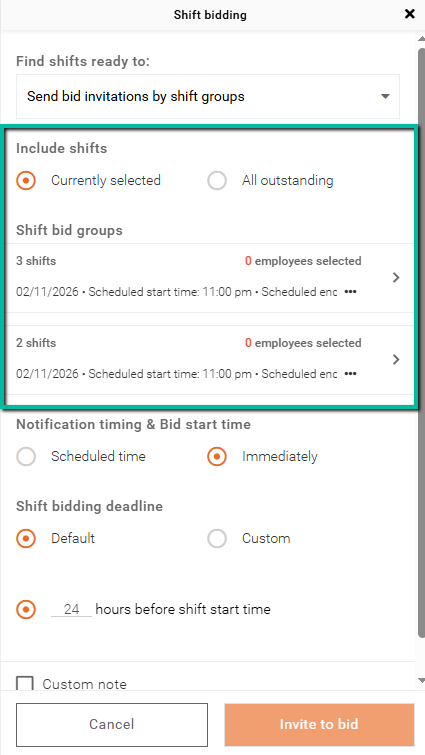
Once you have selected a Shift Bid Group, choose an Employee Search Rule to identify the most suitable employees to invite for the shift(s).
To exclude specific employees from the invitation, simply clear the checkbox beside their name.
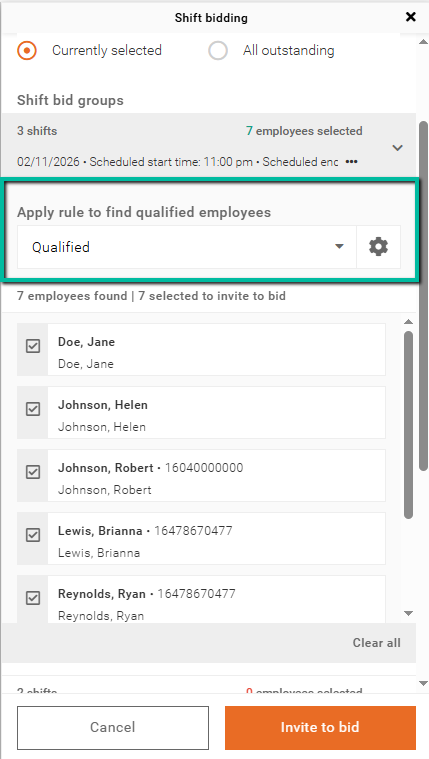
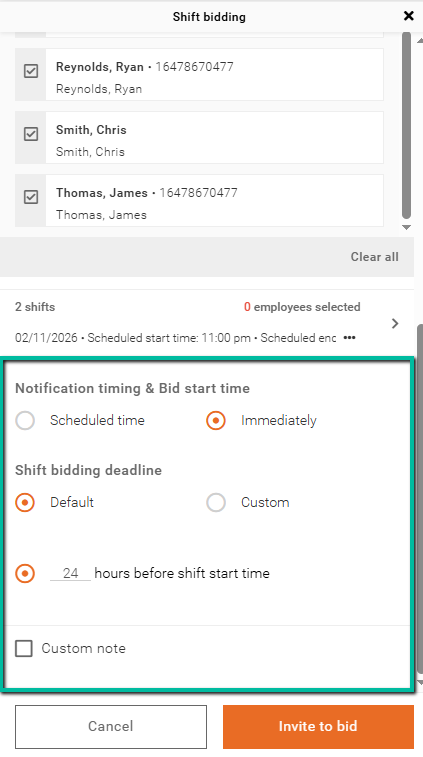
To complete and send the bidding invitations, configure the following:
- Notification Timing & Bid Start Time – Decide when bid invitations are sent. Immediately sends them right away, while Scheduled Time defaults to the following day at 12:00 PM local time.
- Shift Bidding Deadline – Define when bidding closes. Default uses the configured system deadline, while Custom allows you to specify a deadline.
- Custom Note – Add an optional message that will be included with the bid invitation sent to employees.
Note: You can send bid invitations to multiple Shift Bid Groups at the same time by selecting a rule for each group before clicking Invite to Bid.
How Employees Bid on Shifts
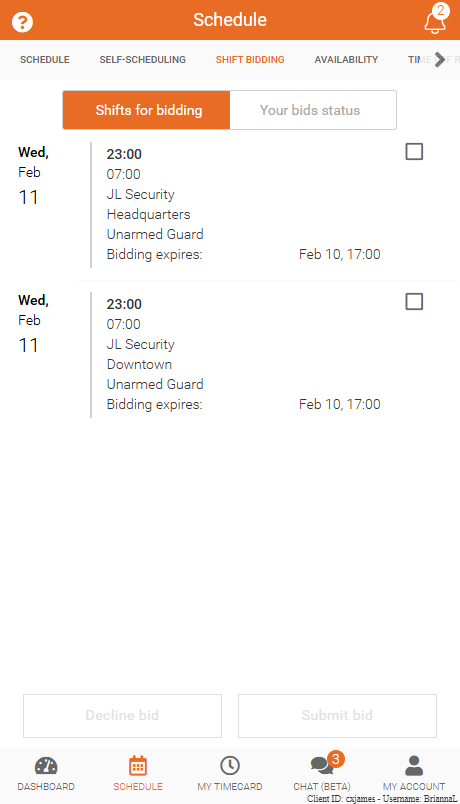
Employees can review bidding invitations, submit bids, and track bidding results through Team Xpress.
For more information, see Bid on Shifts in Shift Bidding.