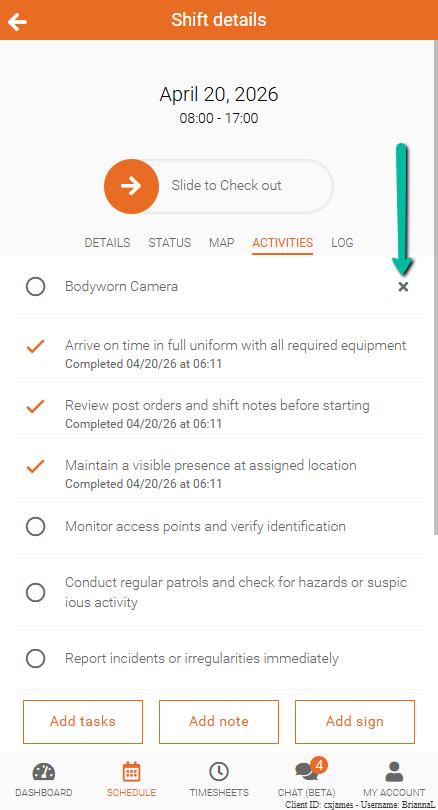
Mark Shift Tasks Complete
Mark tasks as complete to track your progress and keep your shift activities up to date.
Shift Tasks can be assigned by your admin or added by you. As you complete each task, you can mark it complete to maintain an accurate record of your work.
Note: Tasks assigned by your admin cannot be removed.
Access Shift Tasks
To view and manage your tasks:
- Open Team Xpress
- Go to Schedule
- Select your shift
- Open the Activities tab
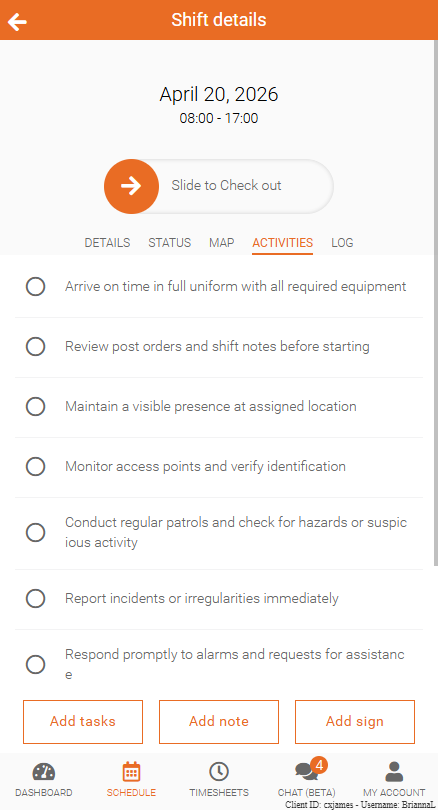
Mark a Task Complete
To mark a task as complete:
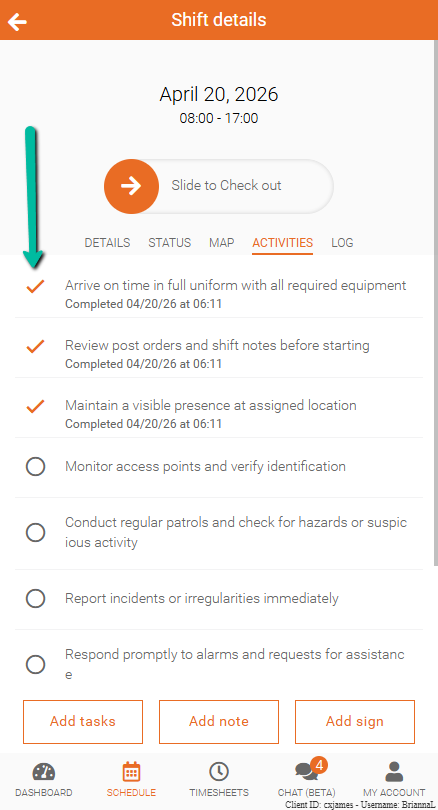
Select the checkbox next to the task to mark it complete
A check mark will appear once the task is complete
All updates are recorded in the Activity Log.
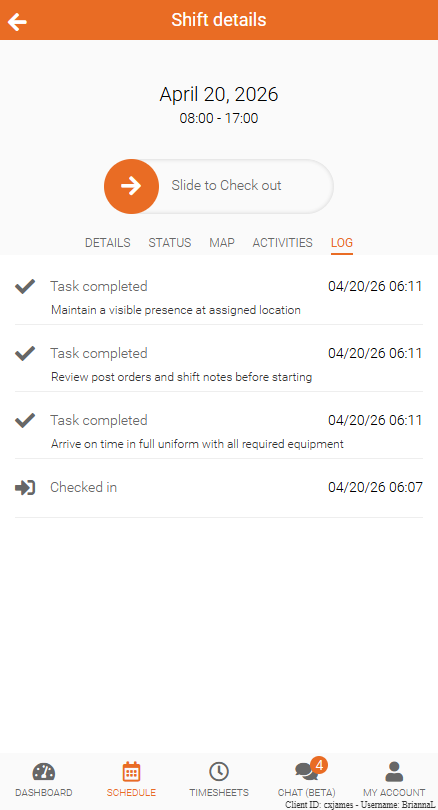
View Task Completion Time
When a task is marked complete, the system records the date and time of completion.
This provides a clear record of when each task was finished.
Add Tasks
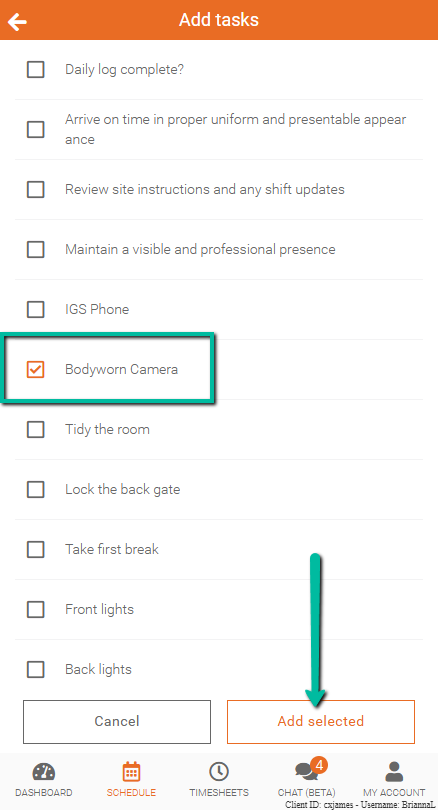
You can add tasks to your shift from the list created by your admin.
To add tasks:
- Open Shift Details
- Go to the Activities tab
- Click Add Tasks
- Select the tasks
- Click Add selected
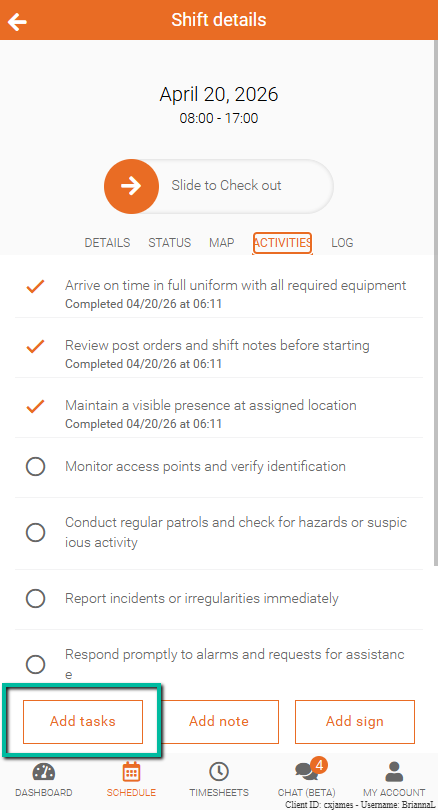
The selected tasks will appear in your shift task list.
Note: Only tasks already created by your admin can be added. If a task is missing, contact your admin.
Remove Tasks
You can remove a task only if you added it yourself.
To remove a task:
- Click the X icon next to the task
Note: Tasks assigned by your admin cannot be removed.