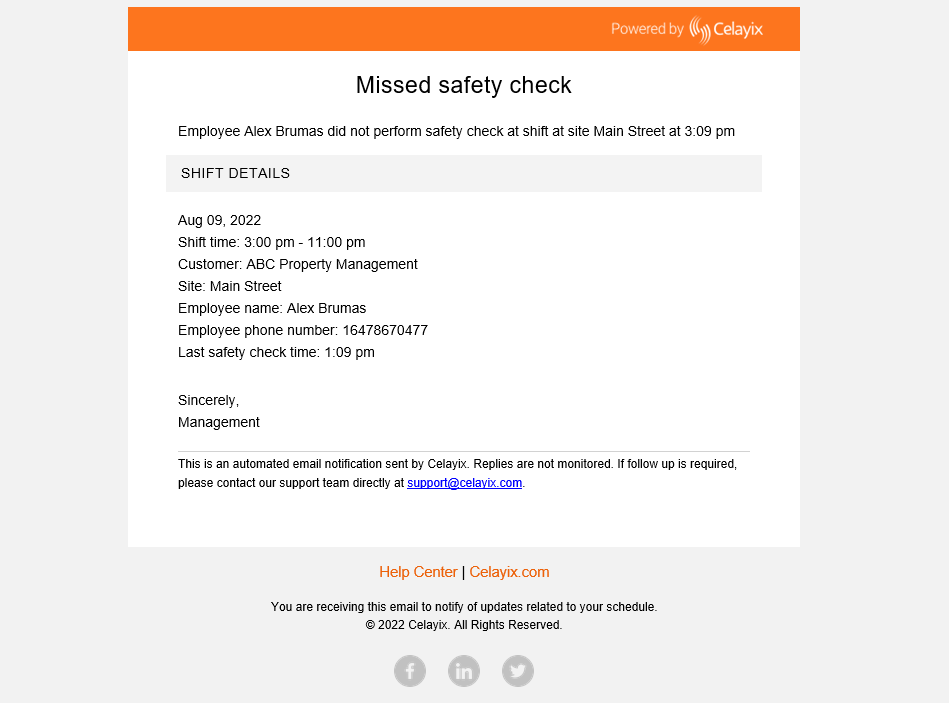
Enable Safety Checks
Safety Checks can be enabled in Schedule Xpress to monitor employee presence and well-being throughout a shift, helping ensure employees are safe, alert, and on-site—especially in lone-worker or high-risk environments.
How Safety Checks Work
Safety Checks use the same geofencing technology as check-in and check-out, ensuring employees can only complete a check when physically present at the worksite.
Employees must complete safety checks at defined intervals during their shift to confirm they are on-site.
Access Safety Check Settings
To configure Safety Checks:
Settings → Security → Employee access
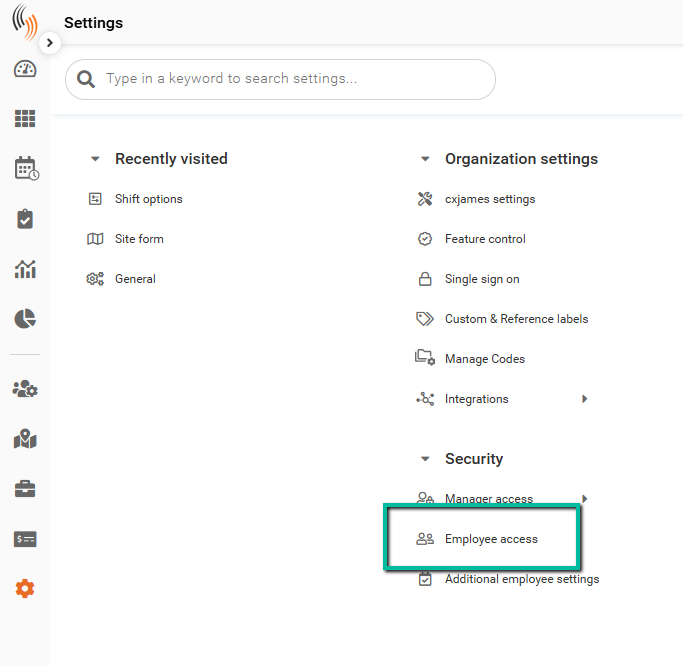
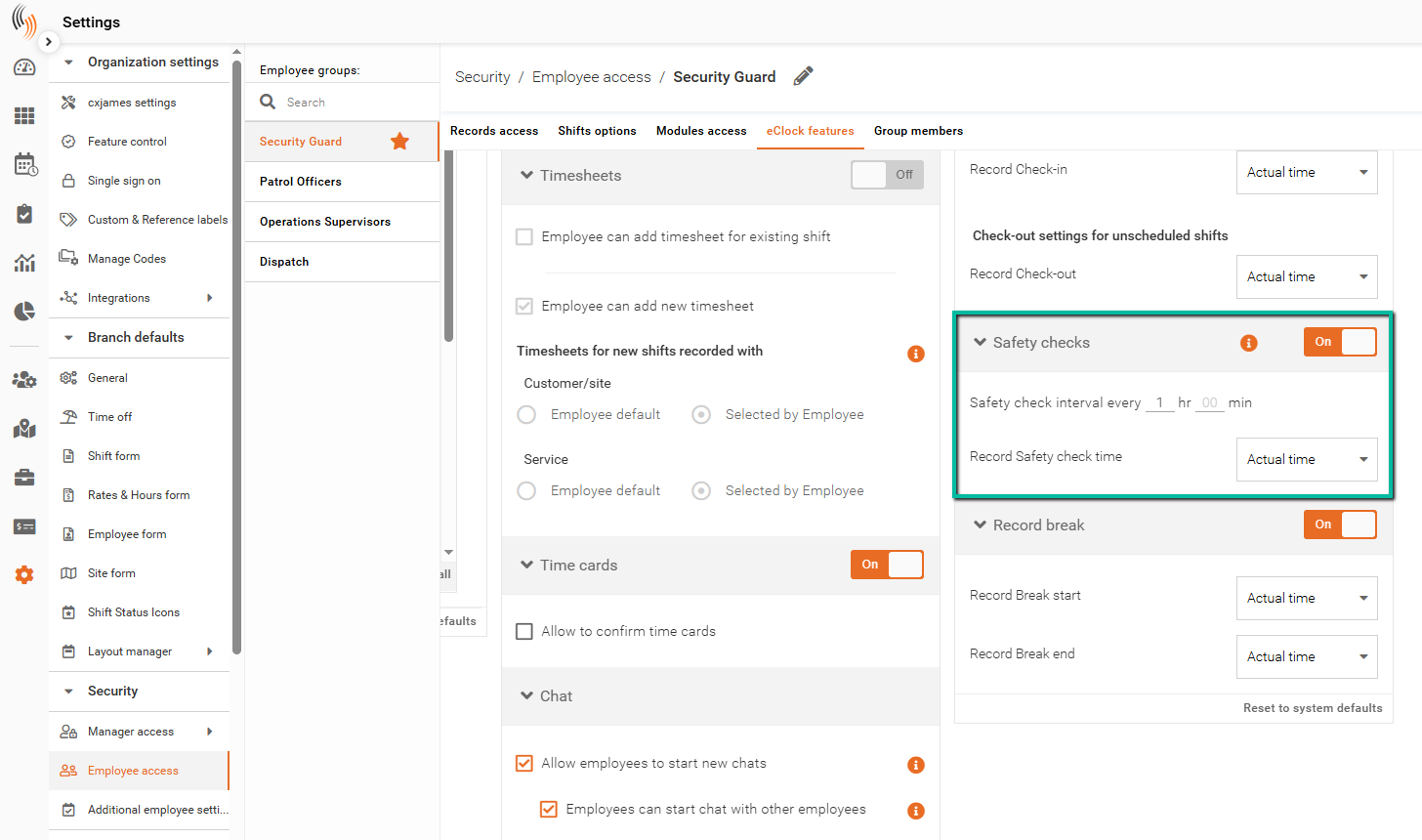
Enable Safety Checks
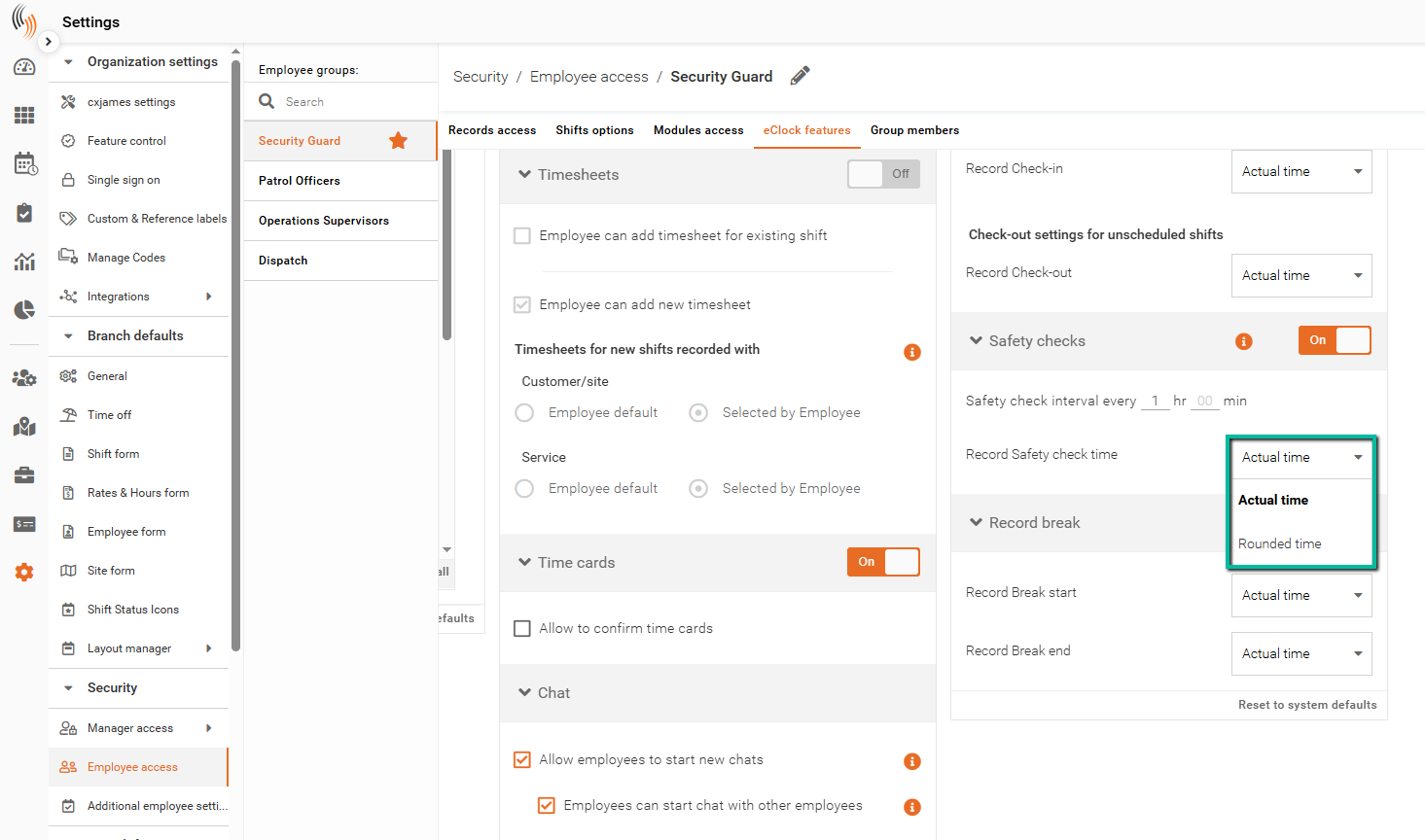
Within Employee access, locate the Advanced Check In/Out Options section and toggle Safety Checks to On.
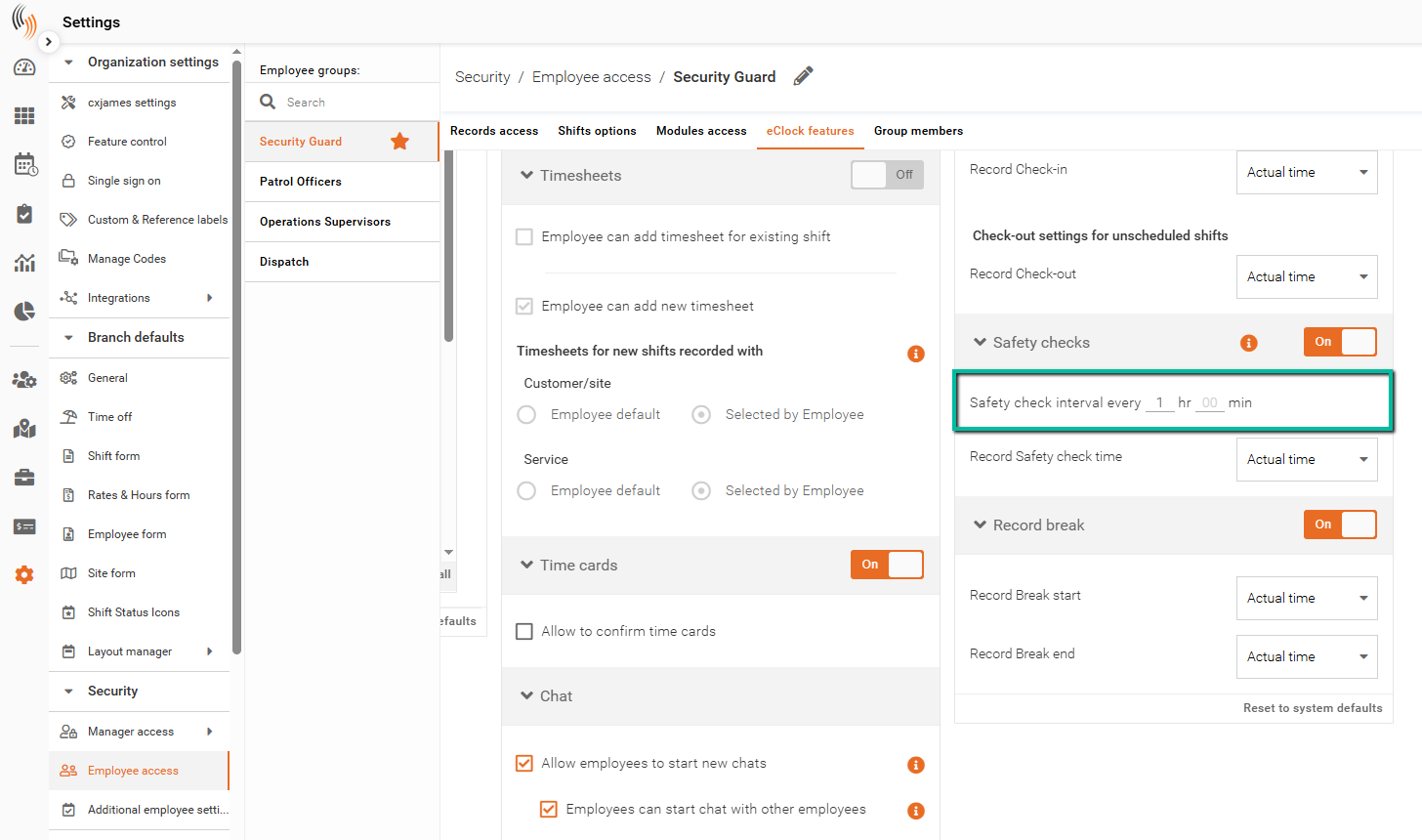
Safety Check Intervals
Set how frequently employees must complete a safety check during their shift.
For example, if set to 1 hour, employees must complete a safety check every hour. If a check is missed, a notification may be triggered.
Record Safety Check Time
You can choose how safety check times are recorded:
- Actual time – Logs the exact time the safety check is completed
- Rounded time – Rounds to the nearest 5, 10, 15, or 30 minutes
Safety Check Log Entries
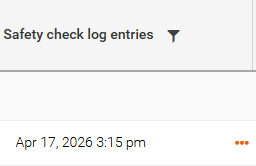
Safety check activity can be viewed in Time Processing by adding the Safety check log entries column to a layout filter.
If multiple safety checks are completed during a shift, they will appear under the same entry and can be viewed by clicking the three dots to see full details.
How Employees Perform a Safety Check
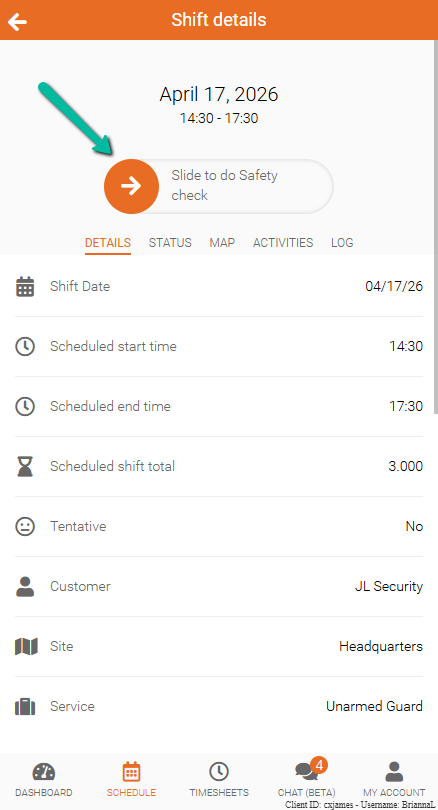
When Safety Checks are enabled, a Slide to do Safety check bar is visible throughout the employee’s shift.
The initial check-in counts as the first safety check.
Once completed, a confirmation message will appear indicating the safety check was performed.
Safety Check Notifications
Missed safety check alerts can be configured in:
Settings → Branch features → Notifications → eClock alerts
Enable the Missed safety check alert option to notify admins and employees when a safety check is missed.
Notifications can be sent via email or SMS.