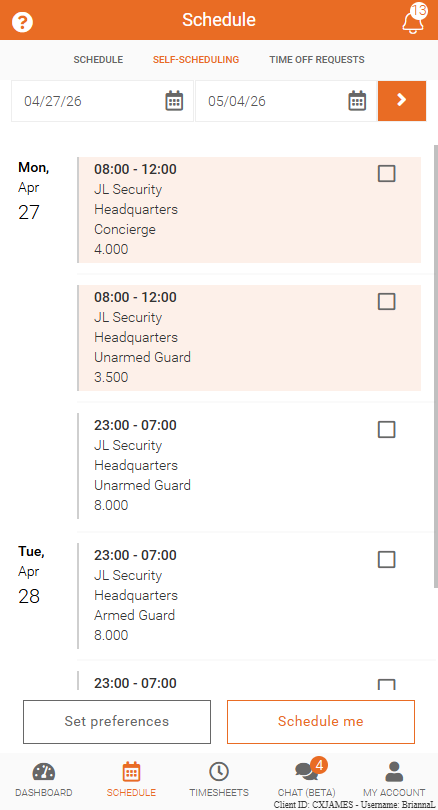
Set Self-Scheduling Preferences
Customize preferences to filter and display shifts that match scheduling needs.
Self-scheduling preferences help narrow available shifts so only relevant opportunities are shown. Preferences can be updated at any time.
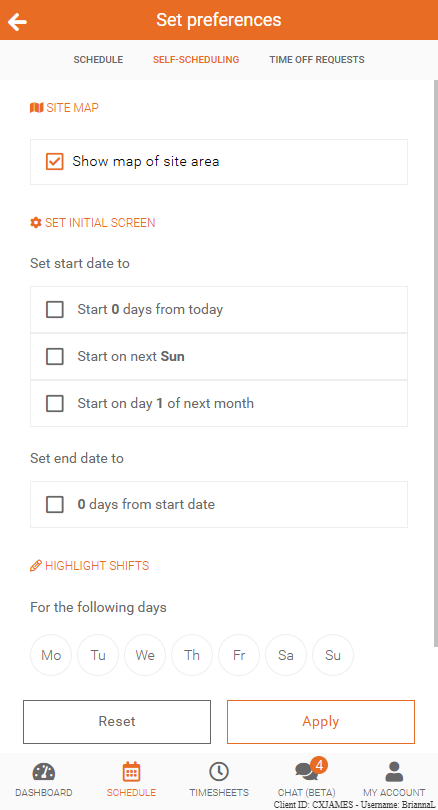
Set Preferences
To configure preferences:
- Open Self-Scheduling
- Select Set Preferences
- Update settings as needed
- Save or apply changes
This helps reduce manual searching and makes it easier to find suitable shifts.
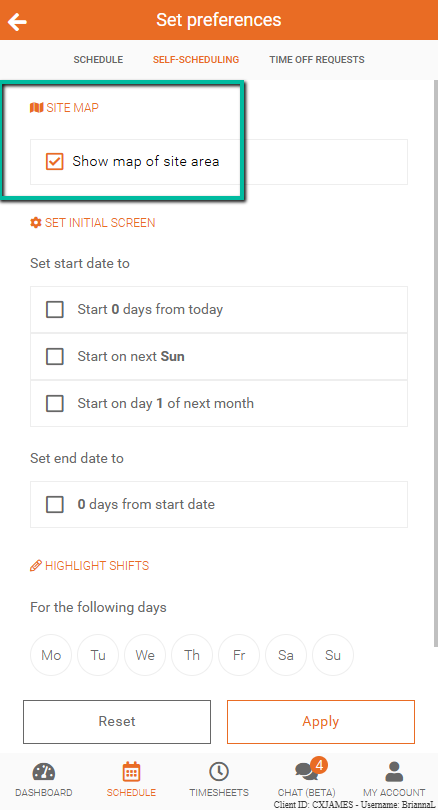
Show Map of Site Location
Enable Show map of site location to view where a shift takes place.
When enabled:
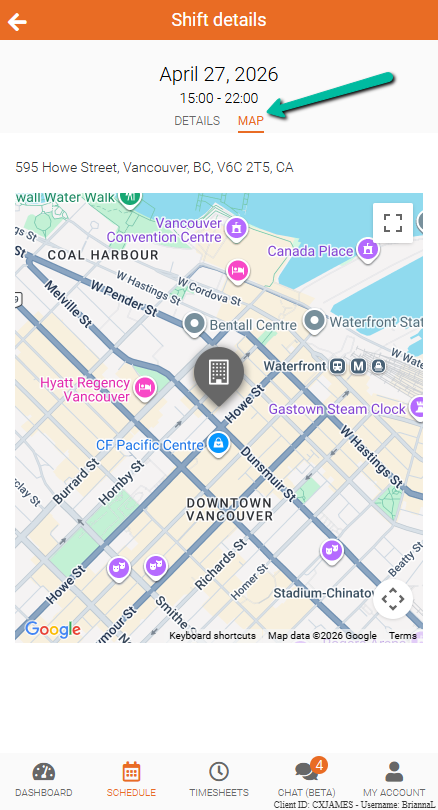
- A map will appear in shift details
- The site location can be reviewed before selecting a shift
To view the address:
- Select a shift from the list
- The Map will display next to the shift details
Set Start and End Dates
Define default start and end dates for shift searches.
This allows commonly used date ranges to be applied automatically when viewing available shifts.
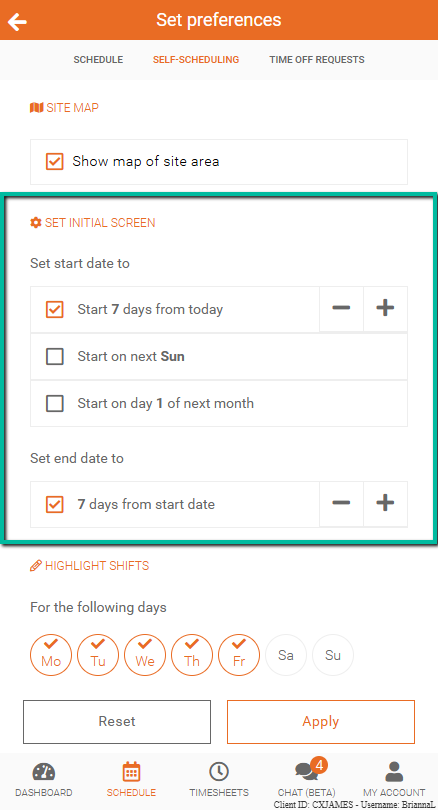
In the example shown:
- Start date is set to 7 days from today
- End date is set to 7 days from the start date
This means the system will display available shifts starting one week from today and continuing for one week after that.
Using these settings helps quickly filter shifts within a preferred time range without needing to enter dates each time.
Highlight Preferred Shifts
Highlight preferred days and times to match availability.
This helps display shifts that better align with preferred working hours.
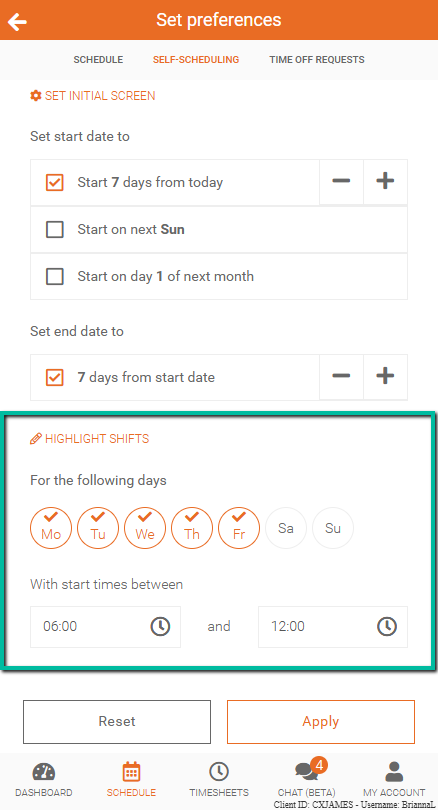
In the example shown:
- Preferred days are set to Monday through Friday
- Preferred times are set between 06:00 and 12:00
This means shifts that fall within these days and times will be highlighted in the results, making them easier to identify when reviewing available shifts.