Submit Availability
Submit availability to ensure schedules align with when work can be performed.
The Availability feature allows availability records to be created and managed directly in Team Xpress, helping support accurate and fair scheduling.
Why Submit Availability
Submitting availability helps:
- Ensure shifts are scheduled during times that fit your schedule
- Avoid being assigned shifts when unavailable
- Make it easier to receive shifts that match your preferences
- Reduce the need to decline or swap shifts later
Keeping availability up to date helps ensure schedules reflect when work can be performed.
Access Availability
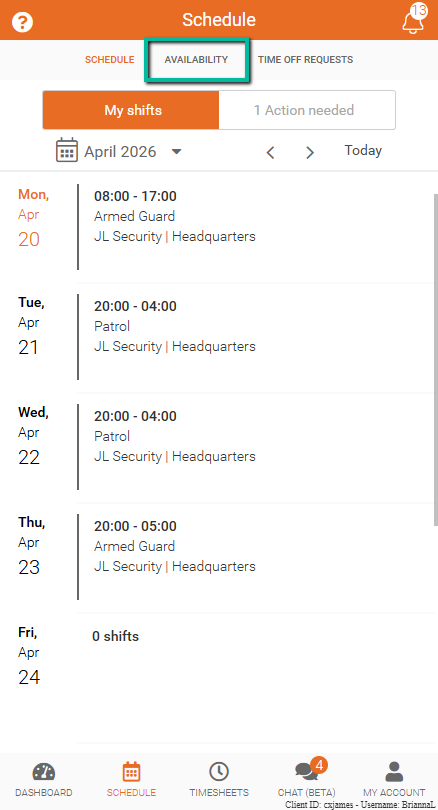
To access Availability:
- Open Team Xpress
- Go to Schedule
- Select Availability at the top of the screen
Note: Access to this feature depends on permissions. If it is not visible, contact an admin.
Add New Availability
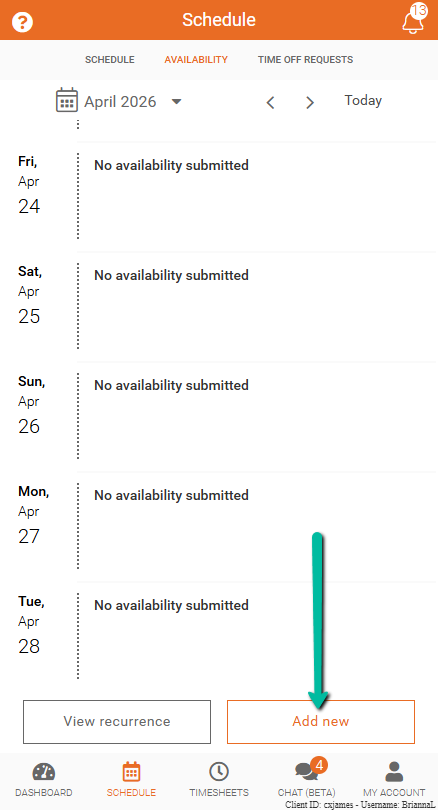
Use the Availability module to create a new availability record.
To add availability:
- Tap Add new at the bottom of the Availability screen
This will open the form where availability details can be entered.
Create an Availability Record
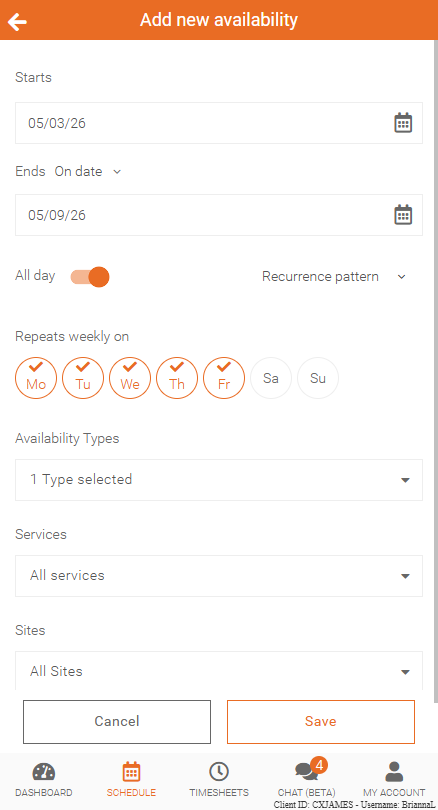
When creating a record, enter the details that apply. Available fields may vary based on company setup.
- Start Date – First date availability begins
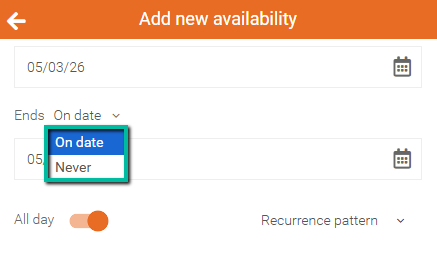
- End Date – Select an end date or choose Never
- Days Available – Select available days of the week
- Start Time / End Time – Set available time range
- All Day (24 Hours) – Select if available all day
- Site – Choose work location
- Service – Select role or service
- Type – Choose availability type (e.g., Available, Overtime, Shift Swap/Coverage)
Note: You can choose your Sites and Services only if your company allows it. If not, any availability record you create will apply to all.
End Date Options
When setting an end date:
- On date – Ends availability on a specific date
- Never – Keeps availability active until updated
Recurrence Options
Choose how availability is applied.
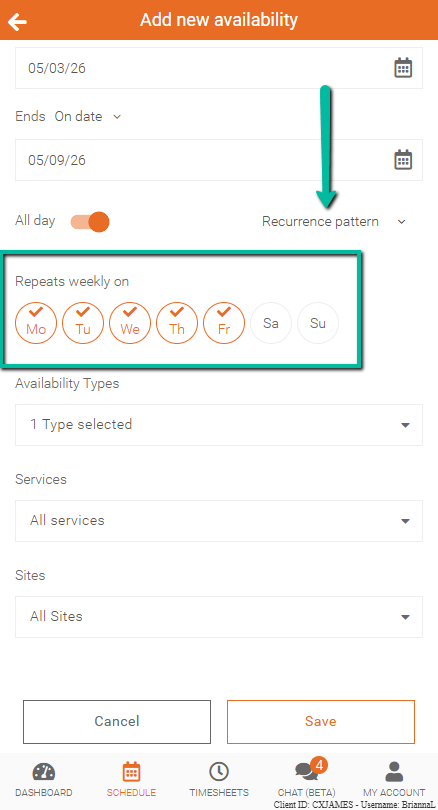
Recurrence Pattern
Use Recurrence Pattern to set availability on specific days and times that repeat over a period.
This is useful for consistent weekly schedules.
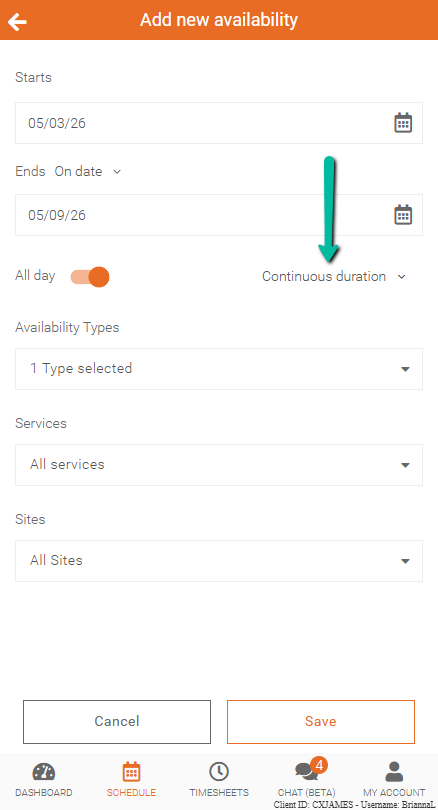
Continuous Duration
Use Continuous Duration to apply availability across the full date range selected.
This means availability will apply to every day within the selected period.
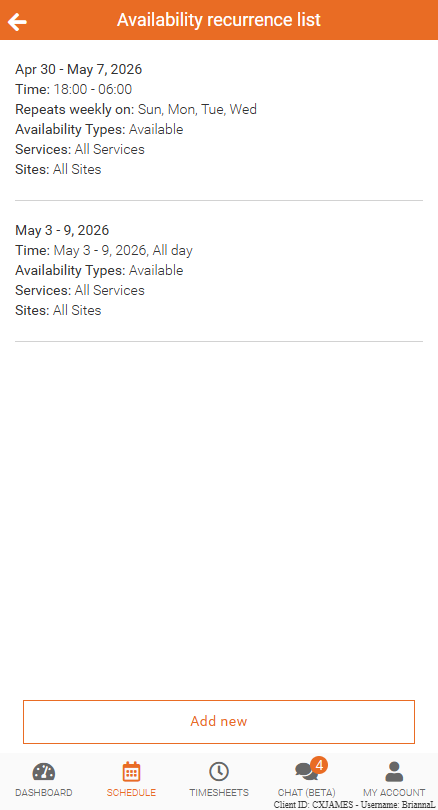
View Recurrence
Use View recurrence to review existing availability records.
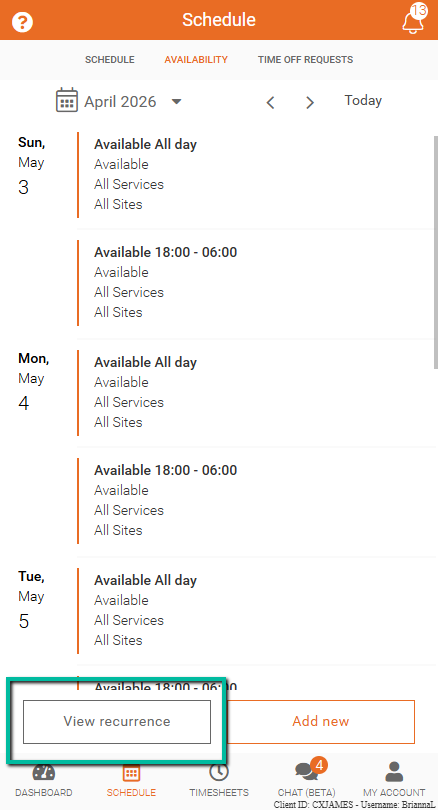
Click on View Recurrence to see all of your current recurring availability.
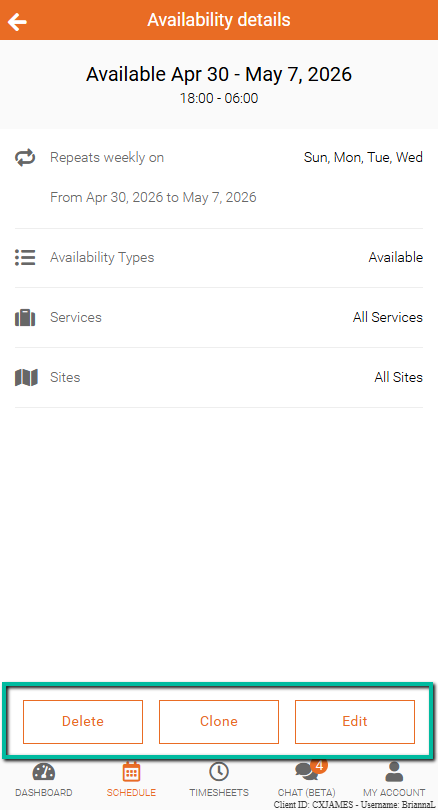
Edit, Clone, or Delete Availability
From the Availability details screen, you can manage the record using the options at the bottom of the screen.
- Edit – Update availability details such as dates, times, or recurrence
- Clone – Create a copy of the availability record to reuse similar settings
- Delete – Remove the availability record
Note: A confirmation is required before deleting a record.