Enable Shift Confirmations
Enabling Shift Confirmations allows employees to confirm their assigned shifts, giving administrators better visibility and reducing miscommunication.
Access Shift Confirmation Settings
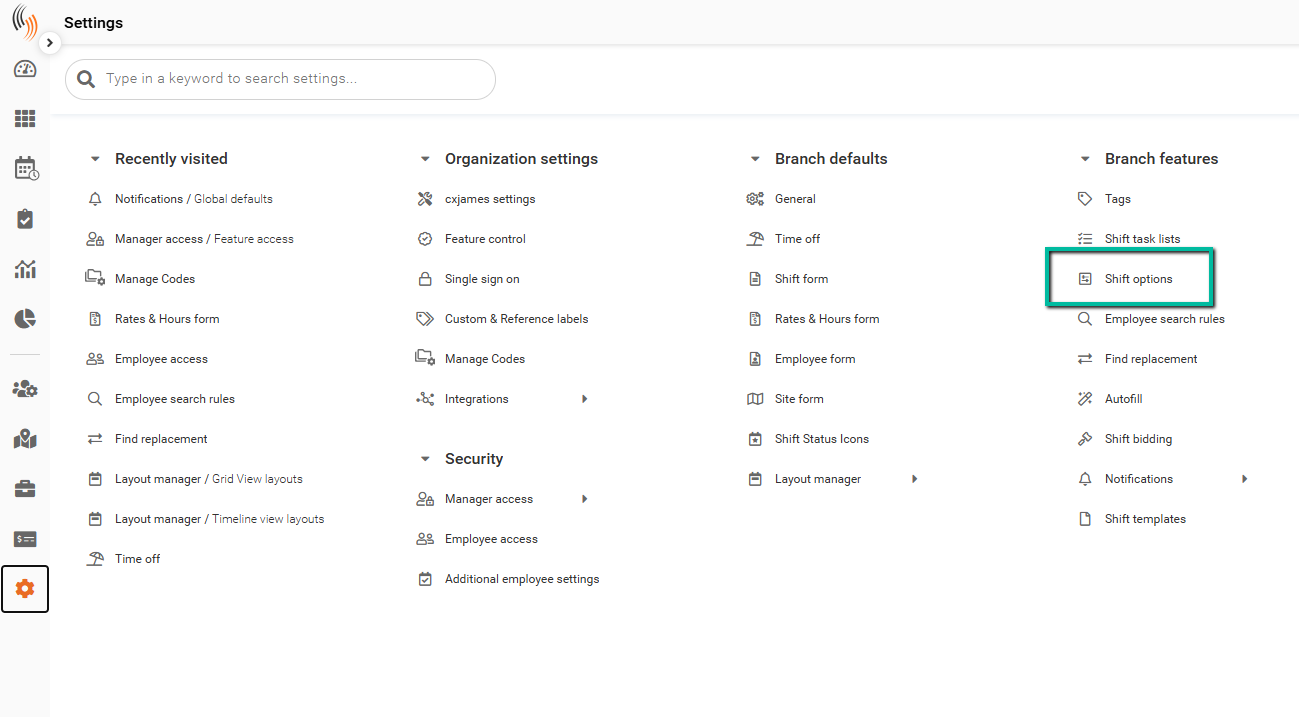
To access the Confirm Shift settings:
Settings → Branch features → Shift options
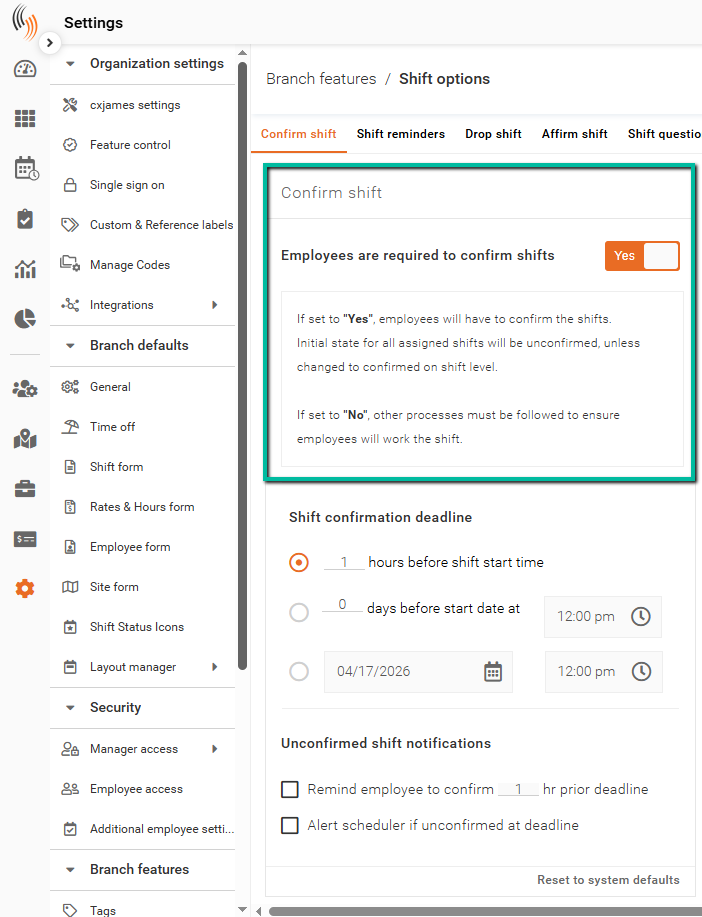
Enable Shift Confirmations
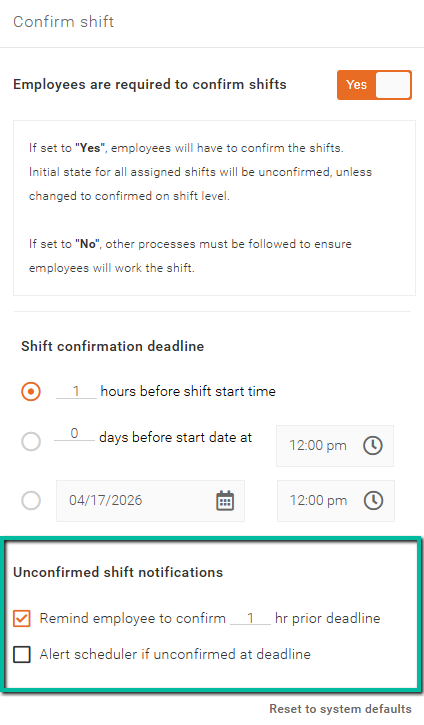
Enable Shift Confirmations by setting the Employees are required to confirm shifts option to Yes.
Set a Shift Confirmation Deadline
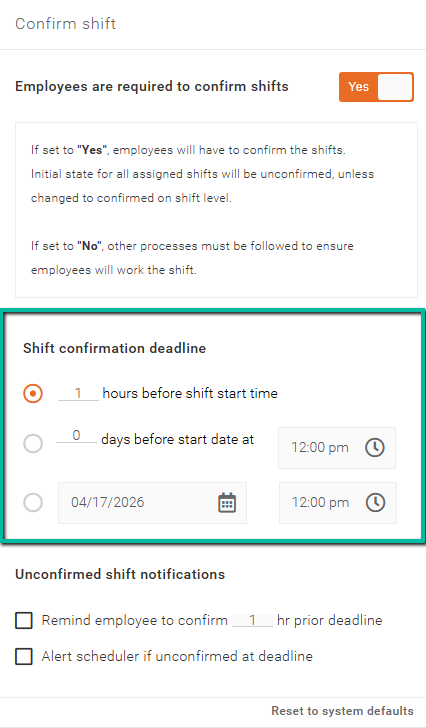
After enabling Shift Confirmations, you must define a confirmation deadline. This determines the latest time a shift can be confirmed.
Available options include:
- ‘X’ hours before shift start time
- ‘X’ days before start date at ‘X’ time
- A specific date at a specific time
Unconfirmed Shift Notifications
You can configure reminders and alerts for unconfirmed shifts under Unconfirmed shift notifications:
- Remind employee to confirm shift ‘X’ hr prior to deadline
- Alert scheduler if unconfirmed at deadline
Additional Considerations
- If a shift is not confirmed by the deadline, the scheduler will receive both a Schedule Xpress notification and an email alert.
- To receive Shift Confirmation notifications in the Schedule Xpress Notifications panel, ensure the option is enabled under the Filters section.
- To receive email alerts for unconfirmed shifts, add the administrator’s email address to the Scheduler email field in Global Defaults.
Enable Confirm Shift in Team Xpress
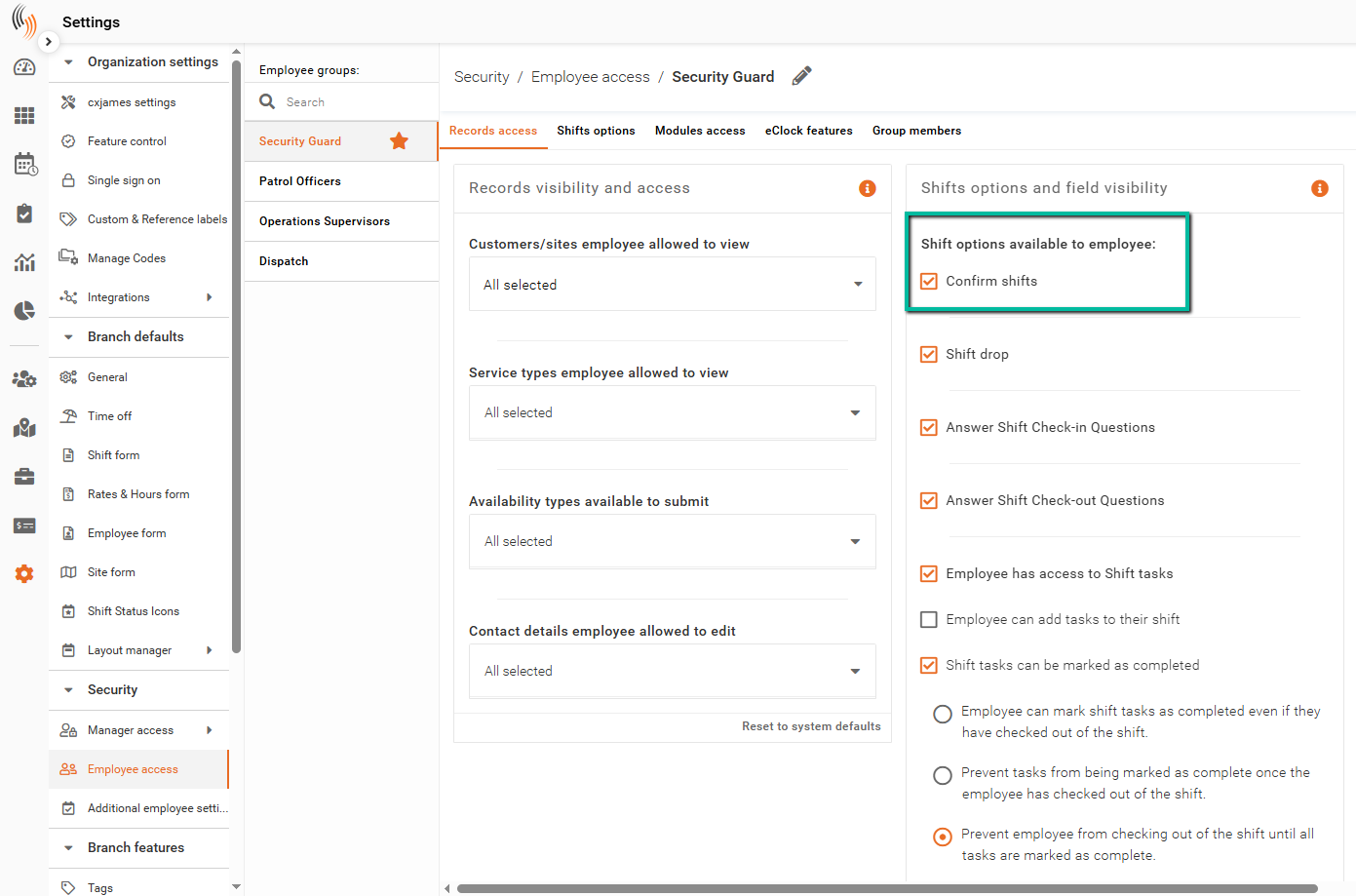
To allow employees to confirm their shifts, navigate to:
Settings → Security → Employee access groups
Select the appropriate access group, then enable the Confirm shift option to activate it.
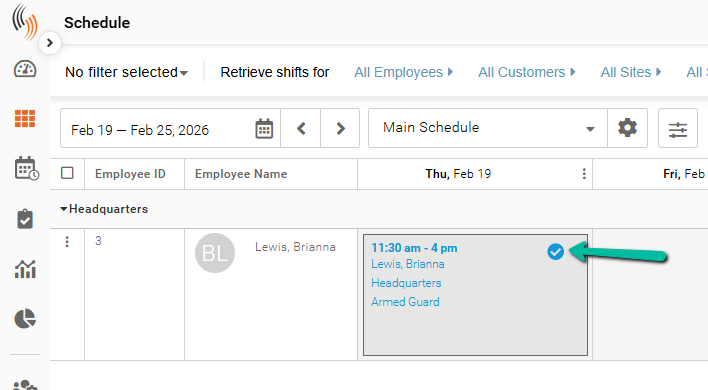
How Confirmed Shifts Appear in the Schedule
When a shift is confirmed, it will display a circle with a checkmark icon, indicating its confirmed status.
How Employees Confirm Shifts
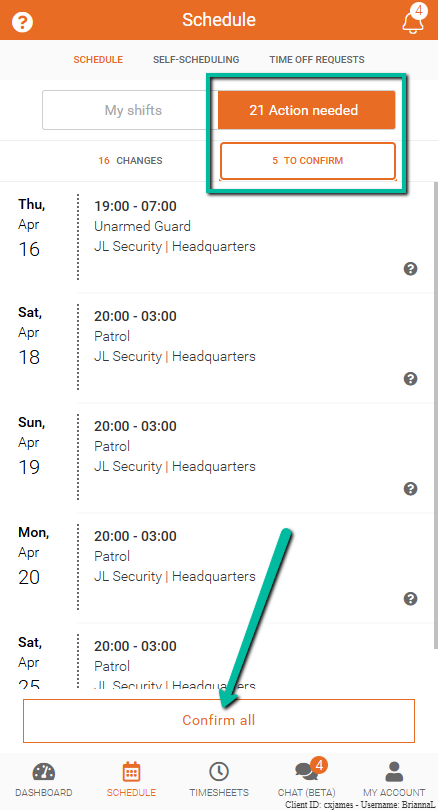
Employees can confirm their shifts directly in the Team Xpress app.
To confirm shifts:
- Go to the Schedule section
- Tap Action needed
- Select To confirm
From there, employees can:
- Tap Confirm all at the bottom to confirm all pending shifts, or
- Confirm individual shifts by selecting a specific shift and confirming it