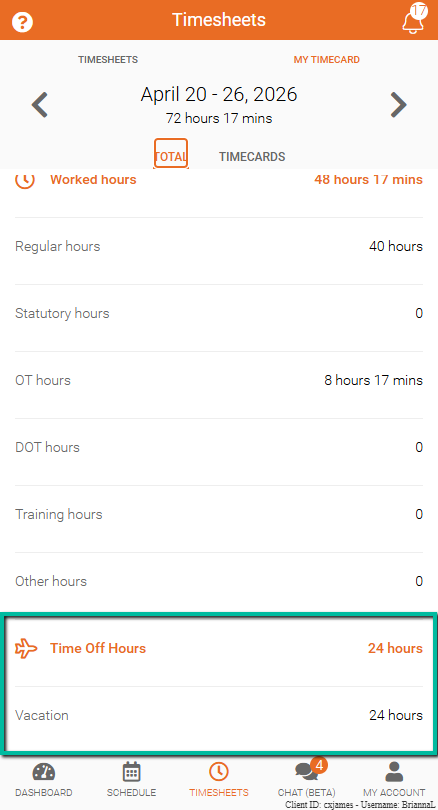
Track Hours in Timecard
Review all recorded work hours and time-off entries in one place.
My TimeCard in Team Xpress provides a complete view of recorded time by combining hours from all sources, including shifts and approved time off.
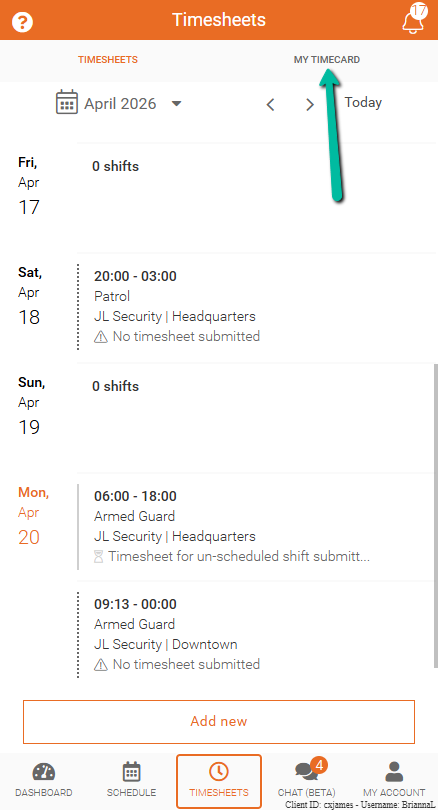
Access My TimeCard
To open My TimeCard:
- Open Team Xpress
- Go to Timesheets at the bottom of the screen
- Select My TimeCard from the top-right corner
Hours Breakdown
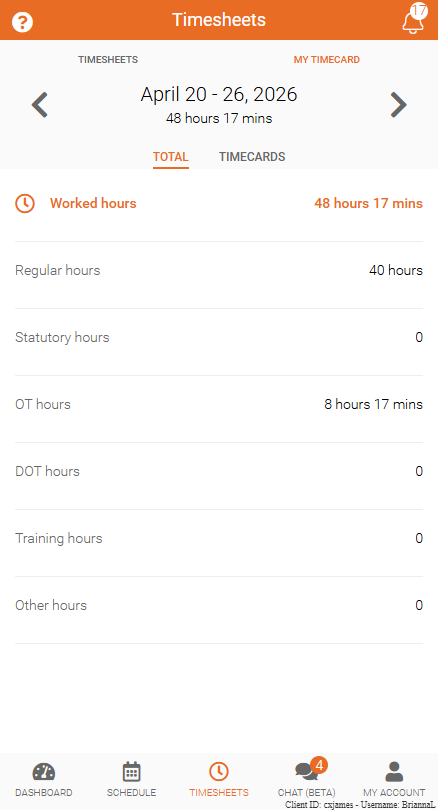
The summary divides total worked hours into categories:
- Worked hours – Total hours recorded for the selected period
- Regular hours – Standard scheduled working hours
- Statutory hours – Hours recorded for statutory holidays (if applicable)
- OT hours – Overtime hours worked beyond regular hours
- DOT hours – Double overtime hours (if applicable)
- Training hours – Hours logged for training shifts
- Other hours – Any additional hours that do not fall into the above categories
You can use the left and right arrows to move back and forward through weeks.
Review Timecard Entries
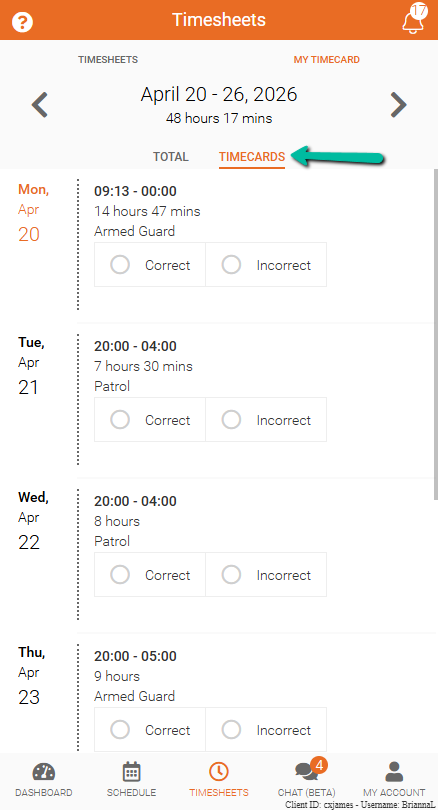
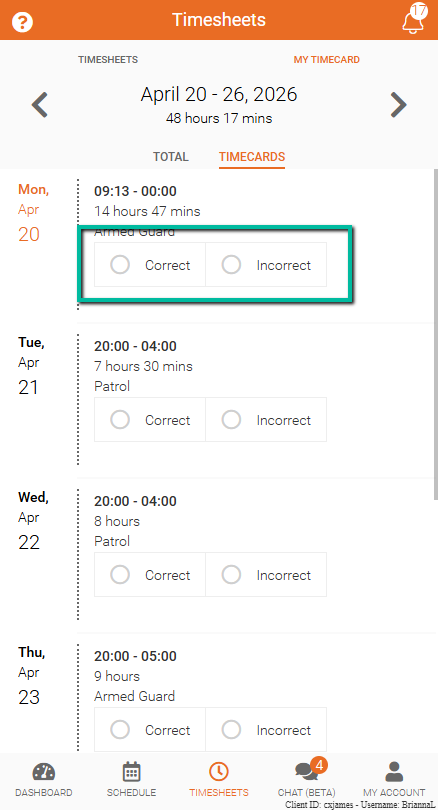
The Timecards tab shows a detailed list of all recorded shifts within the selected date range.
Each entry includes:
- Shift date
- Start and end time
- Total hours worked
- Service (role)
You can click on any entry for more information.
Mark Entries as Correct or Incorrect
For each shift, there are two options:
- Correct – Confirms the hours and details are accurate
- Incorrect – Flags the entry as needing review
Selecting Incorrect will notify an admin to review and resolve the issue.
Note: This option is only available if you're given permission to submit correct and incorrect timecards.
View Time-Off Records
Time-off entries appear alongside worked hours in the timecard.
To view details:
- Double-click the time-off entry
This opens the record details for review.
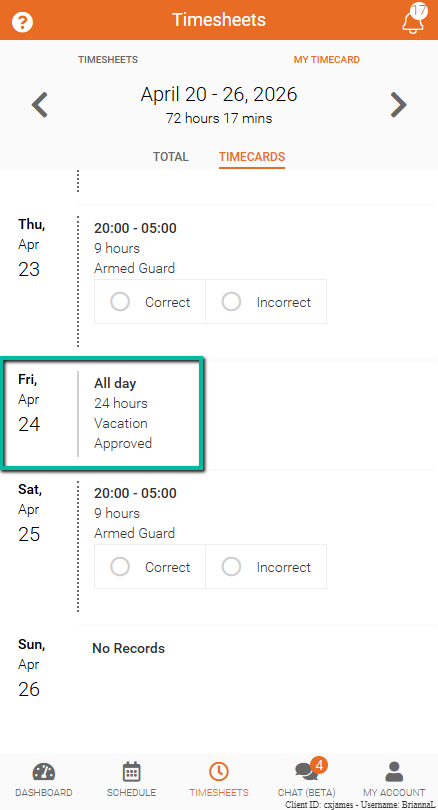
If you have a time off record in the week, it will also show on your hours summary.