General Settings
The General Settings section in Schedule Xpress serves as the central hub for managing default configurations, payroll, billing, and operational rules to align with your business processes.
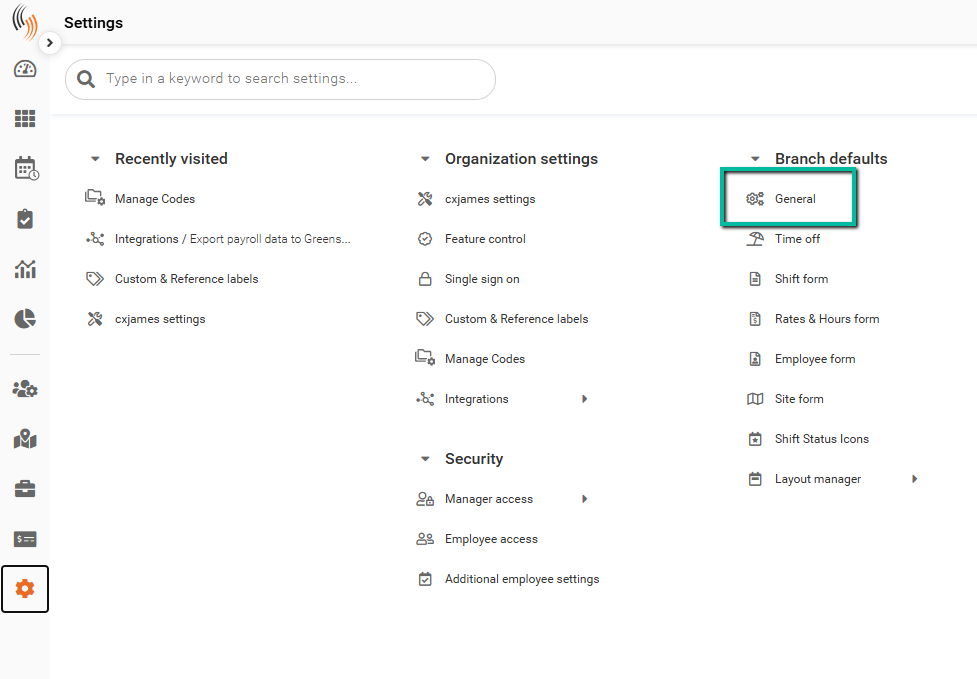
Access General Settings
To access General Settings:
Settings → Branch defaults → General
Only Full Admins have access to the General settings.
General Settings Overview
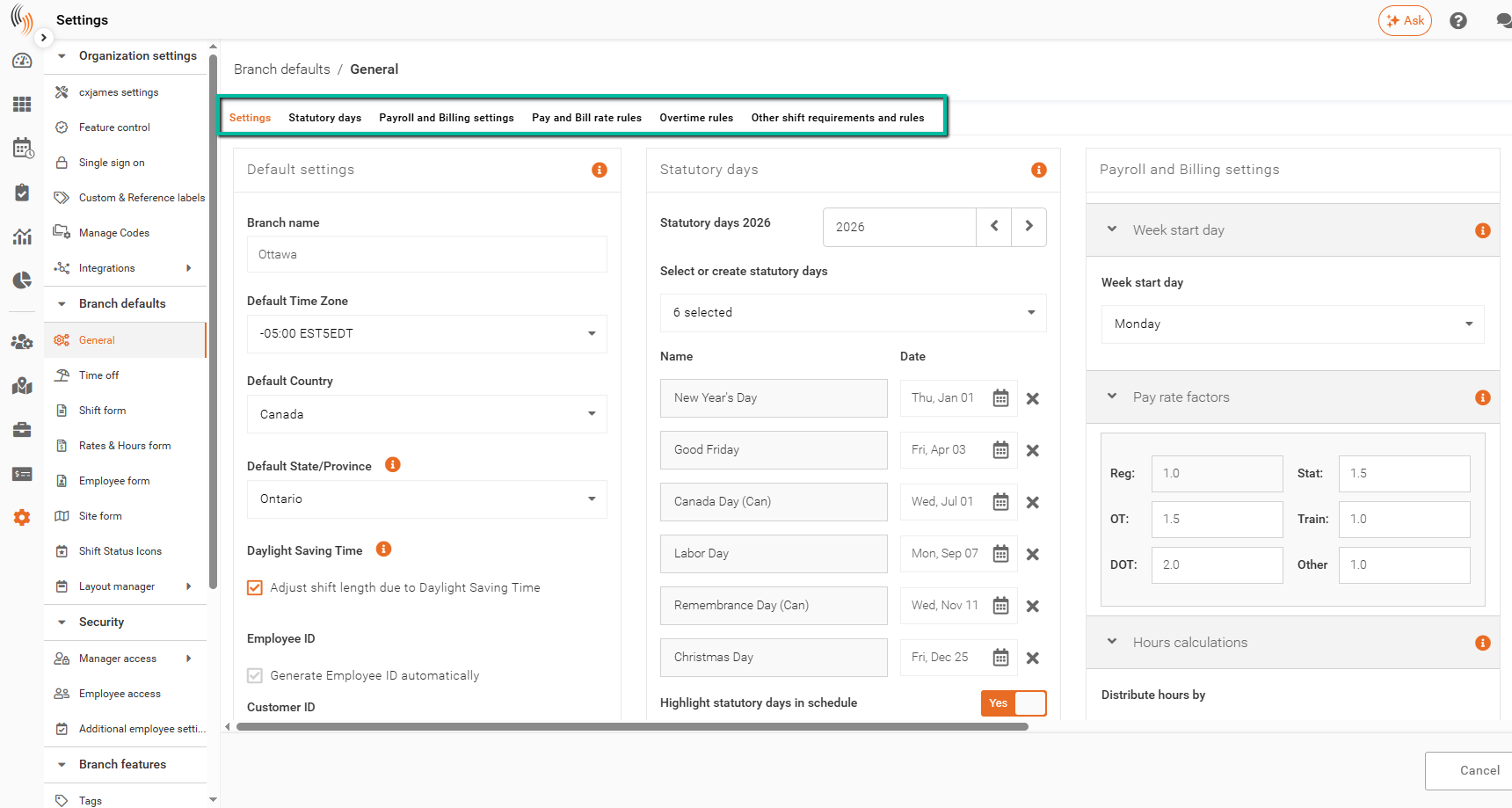
Within General Settings, configuration options are organized into the following sections:
- Default settings
- Statutory days
- Payroll and Billing settings
- Pay and Bill rate rules
- Overtime rules
- Qualifications
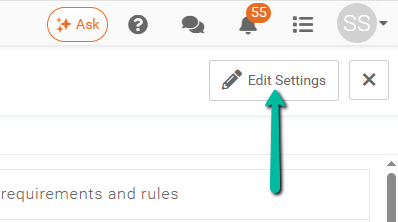
To make changes, click Edit settings in the top-right corner.
Default Settings
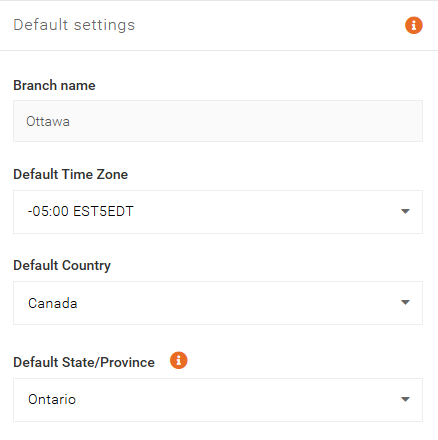
The Default Settings section allows you to configure foundational branch settings that apply to employee and site management.
Branch Settings
Configure your:
- Branch name
- Time zone
- Country and state/province
- Daylight saving time (enabled/disabled)
Note: Daylight saving time can also be configured at the site level.
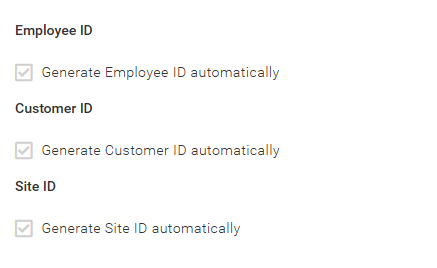
Generating IDs
Control whether Employee IDs, Customer IDs, and Site IDs are automatically generated when creating new records.
Note: This is a system-level setting and requires assistance from the Celayix Support Team to modify.
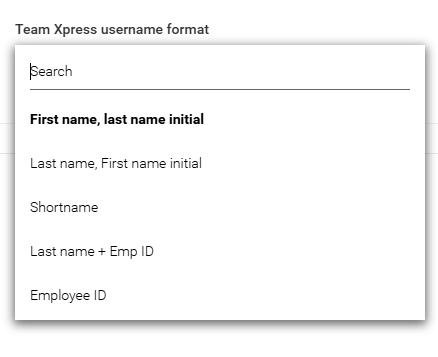
Team Xpress Username Format
Define how usernames are automatically generated for employees.
By default, usernames follow the format First name + last name initial (e.g., jamesb). Available format options include:
- First name, last name initial
- Last name, first name initial
- Shortname
- Last name + Employee ID
- Employee ID
Usernames can also be updated manually within an employee’s profile if a different format is required.
Statutory Days
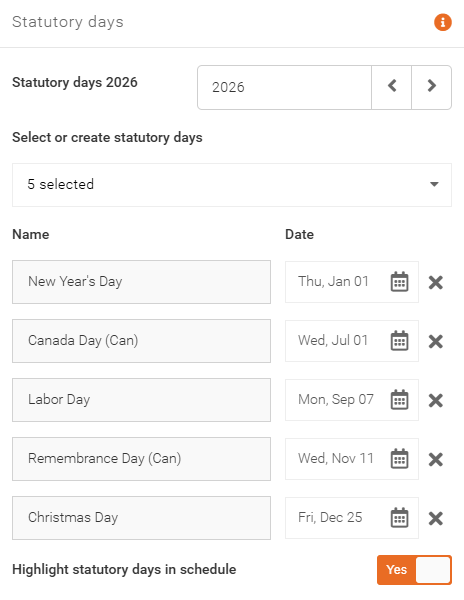
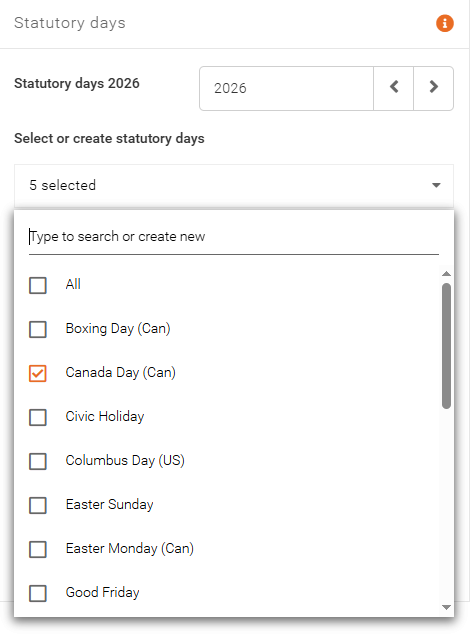
The Statutory Days section allows you to define statutory holidays used for scheduling and payroll calculations.
Predefined holidays (e.g., New Year’s Day, Christmas Day) are included by default.
Add a Statutory Day
To add a statutory holiday:
- Select a holiday from the dropdown list, or
- Type the name of a new holiday that is not listed and click Create new
Best Practice: Enter statutory holidays in advance each year to ensure accurate tracking and compliance.
Statutory Days at Site Level
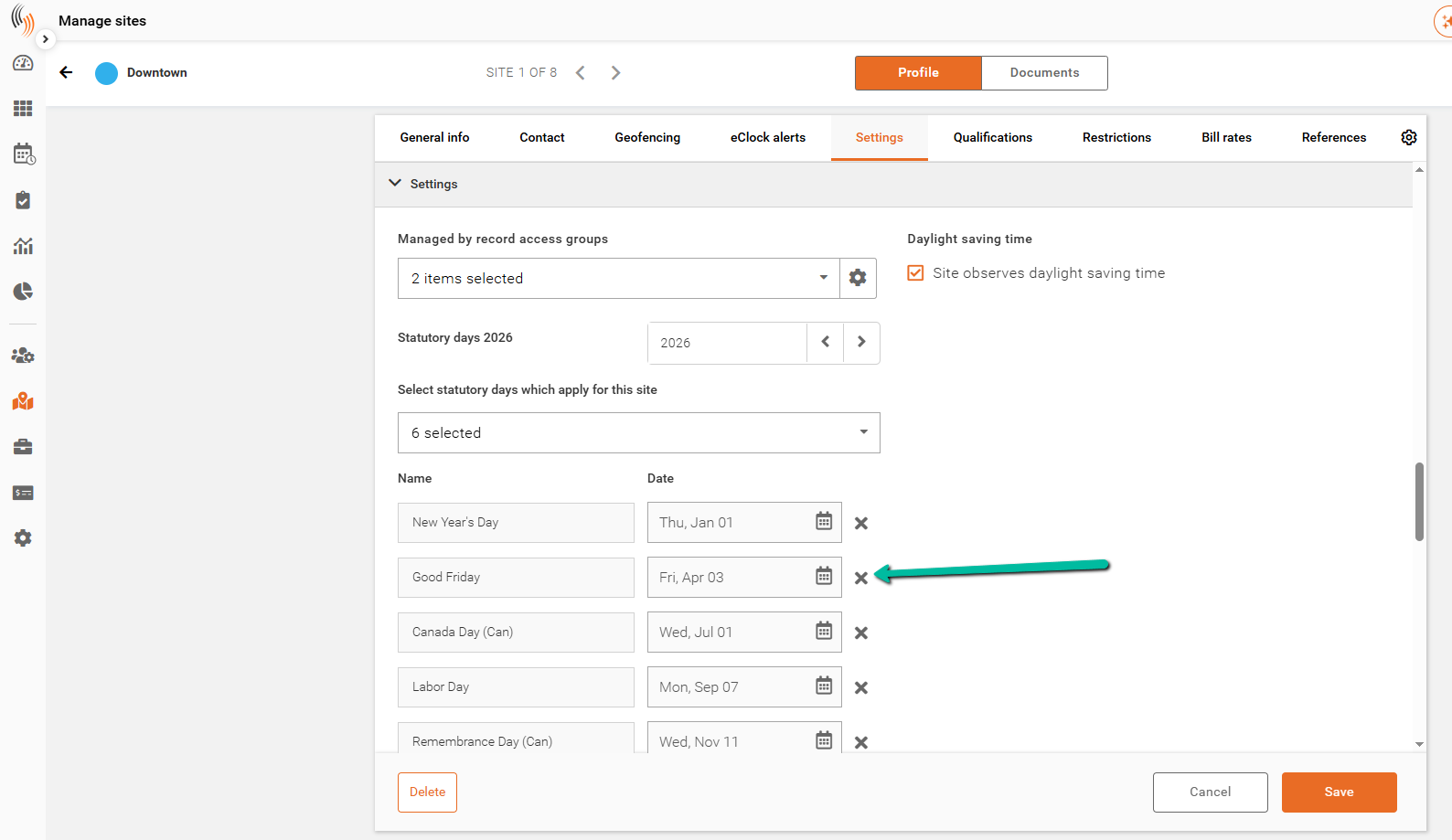
Statutory holidays defined here will also appear under each site in:
Manage Sites → Click into a site → Settings
You can remove statutory days by clicking the X next to each entry. When saving, choose whether to apply changes to all shifts or only new ones.
Payroll and Billing Settings
This section controls how payroll and billing values are calculated.
Week Start Day
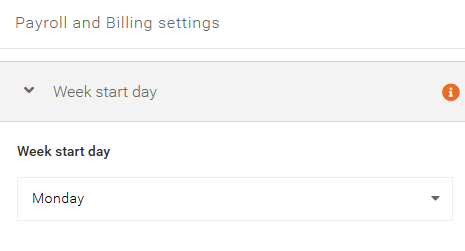
Defines how your scheduling weeks are structured and displayed in the system.
This setting determines the start of the week used across scheduling views and reporting. When generating payroll or billing data, you can still select a custom date range, so this setting does not restrict your reporting periods.
Example: If set to Monday, weeks in the schedule will display from Monday through Sunday.
Pay Rate Factors
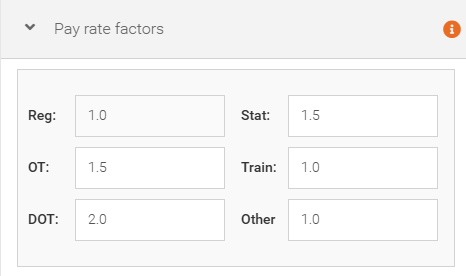
Pay rate factors are multipliers applied to base pay rates.
Example:
- Regular rate: $20.00/hour (factor 1.0)
- Overtime rate: $30.00/hour (factor 1.5)
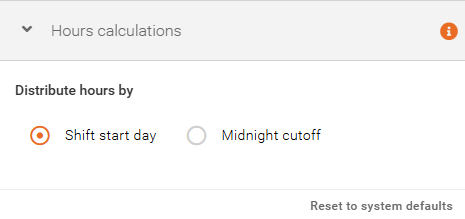
Hours Calculation Method
Choose how worked hours are calculated:
- Shift Start Day – All hours are assigned to the shift start date
- Midnight Cutoff – Hours are split between days based on time worked
Warning: We do not recommend changing this setting without first consulting the Celayix Support Team. Modifying this setting can have significant impacts on payroll calculations, reporting, and historical data.
Pay and Bill Rate Rules
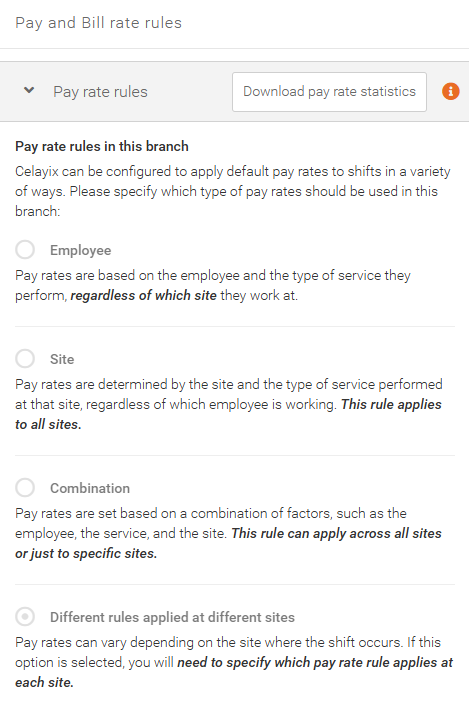
Pay and Bill Rate Rules define how pay rates for employees and billing rates for customers and sites are applied to shifts.
You can configure different rule types depending on how your organization calculates rates:
Pay Rate Rule Options
- Employee – Pay rates are based on the employee and the type of service they perform, regardless of which site they work at.
- Site – Pay rates are determined by the site and service, regardless of which employee is assigned. This rule applies across all sites.
- Combination – Pay rates are based on a combination of employee, service, and site. This rule can apply across all sites or be limited to specific ones.
- Different rules applied at different sites – Pay rates vary by site. You must define which pay rate rule applies to each individual site.
Bill Rate Rule Options
- Employee – Bill rates are based on the employee and the type of service they perform, regardless of which site they work at.
- Site – Bill rates are determined by the site and service, regardless of which employee is assigned. This rule applies across all sites.
- Combination – Bill rates are based on a combination of employee, service, and site. This rule can apply across all sites or be limited to specific ones.
- Bill by markup – Bill rates are calculated as a percentage or fixed amount above the assigned pay rate. This is typically used when markup is consistent across all sites.
- Different rules applied at different sites – Bill rates vary by site, requiring you to define which rule applies to each site individually.
Warning: We do not recommend changing Pay or Bill Rate Rules without first consulting the Celayix Support Team. These settings directly impact payroll and billing calculations and may affect historical data, reporting, and system behavior.
Overtime Rules
Overtime rules are divided into two categories:
- Payroll overtime rules
- Advanced rules (managed in eTime Xpress)
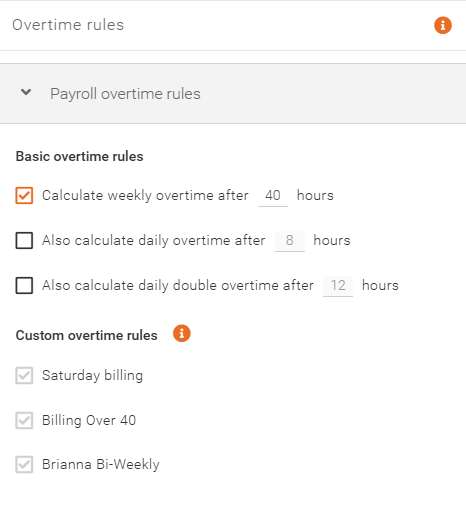
Payroll Overtime Rules
Define thresholds for:
- Weekly overtime
- Daily overtime
- Daily double overtime
Example:
- Weekly OT after 40 hours
- Daily OT after 8 hours
- Double OT after 12 hours
To exclude an employee from overtime, disable the Pay OT option in their profile under Manage People.
Custom Overtime Rules
Custom overtime configurations (e.g., billing OT, DOT compliance, employee-specific rules) are available.
To configure these, contact the Celayix Customer Support Team.
Advanced Rules
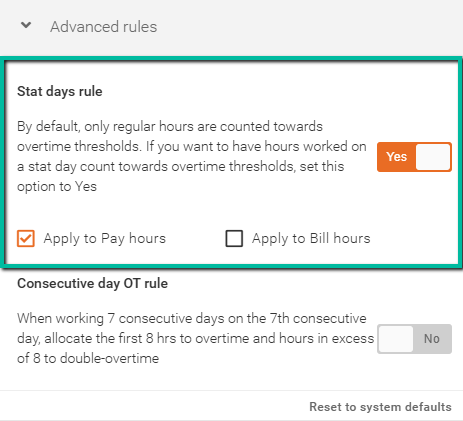
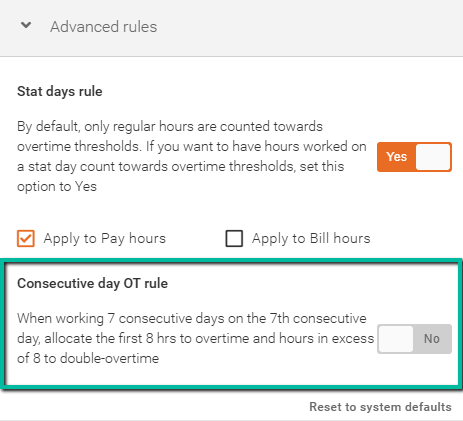
Statutory Holiday Rule
Include statutory holiday hours in overtime calculations by enabling this setting.
By default, only regular hours count toward overtime thresholds. When enabled, hours worked on statutory holidays can also be included. You can choose to apply this to Pay hours, Bill hours, or both.
Consecutive Day Overtime Rule
When enabled, the 7th consecutive workday automatically triggers:
- First 8 hours → Overtime
- Additional hours → Double overtime
Qualifications
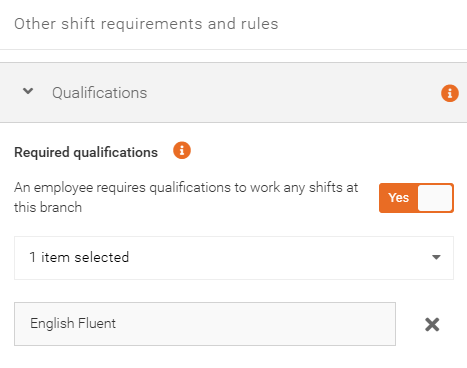
The Qualifications section helps ensure the right employees are assigned to shifts.
Required Qualifications
Define required credentials for working shifts at the branch (e.g., certifications, language requirements).
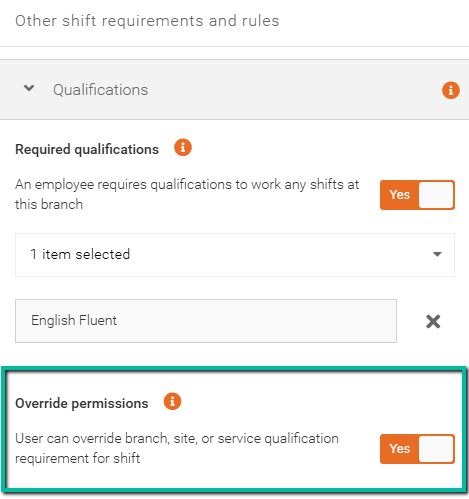
Override Permissions
Enable this setting to allow users to bypass qualification requirements when assigning shifts.
Site Restrictions
The Site Restrictions section controls how scheduling restrictions related to sites and employees are enforced.
Ignore Site Restrictions
When enabled, any site or employee-level restrictions will be ignored.
This allows schedulers to assign employees to shifts regardless of existing restrictions, such as site eligibility or assignment rules.
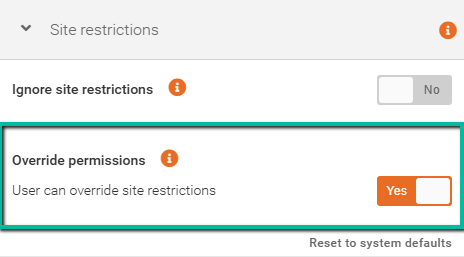
If this setting is set to Yes, the Override permissions option will no longer be available.
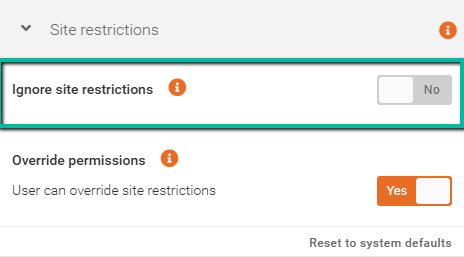
Override Permissions
This setting determines whether a scheduler can override site restriction rules when assigning shifts.
When enabled, schedulers can assign employees to shifts even if they are restricted or not typically allowed to work at a specific site.