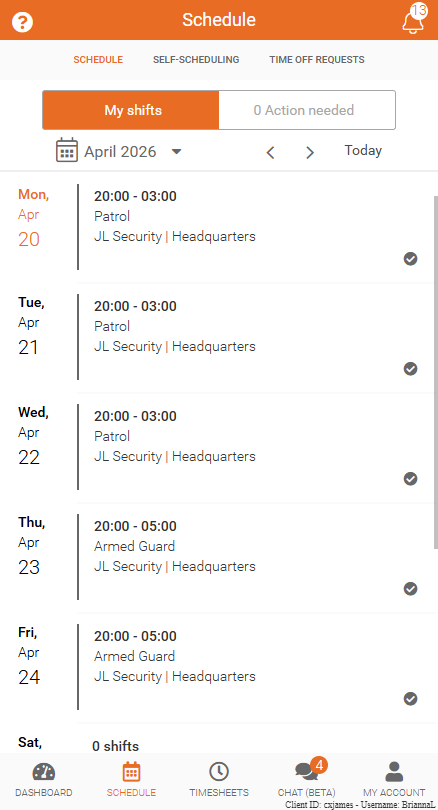
View Your Schedule
Quickly access and review your scheduled shifts in Team Xpress.
When you log in to the Team Xpress app, your schedule is displayed automatically, showing all shifts for the current week.
Shifts scheduled for the current day are highlighted in orange, making them easy to identify.
View Upcoming Shifts
You can scroll down in the schedule to view upcoming shifts.
The number of future shifts shown will depend on how far in advance your organization allows schedules to be displayed.
View and Select Dates
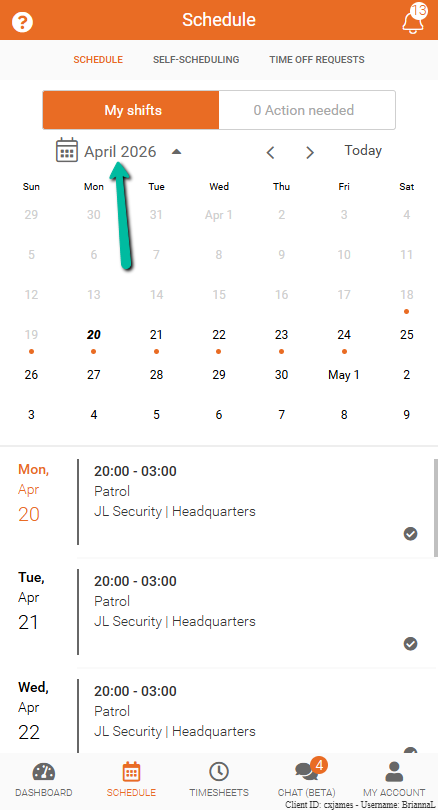
At the top of the Schedule screen, you can view and navigate dates within the calendar.
- The current month and year are displayed above the calendar
- Tap a date to view shifts scheduled for that day
- The selected date will update the shift list below
- Orange dots indicate that you have scheduled shifts on that day
- Use the arrow icons to move between months
- Select Today to quickly return to the current date
This makes it easy to view your schedule for any specific day.
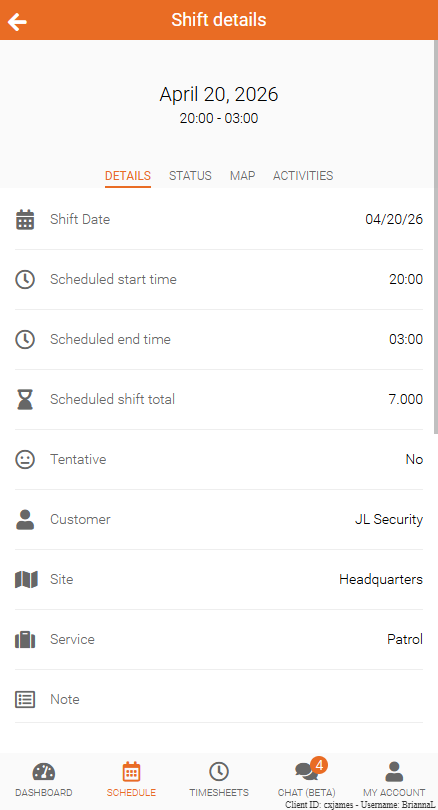
View Shift Details
In the Schedule section, you can see key information for each shift at a glance.
To view full details:
- Tap on any shift in the list