Add Allowances to Shifts
The Add Allowances section in Update Rates and Hours allows you to apply additional pay or bill amounts to a shift. These are typically used for premiums such as bonuses, travel pay, or special conditions.
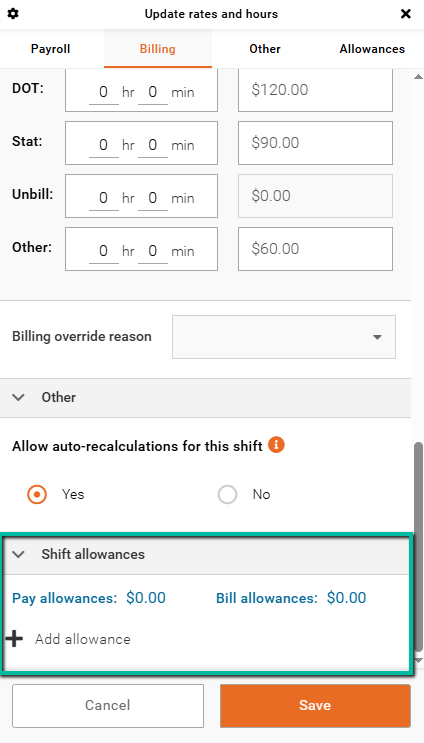
Access Add Allowances
To add allowances to a shift, select a worked shift and click Update Rates and Hours, then go to the Allowances tab.
Add an Allowance
Use the Allowances tab to apply additional pay or bill items to the shift.
Click + Add allowance, then select an allowance type from the list.
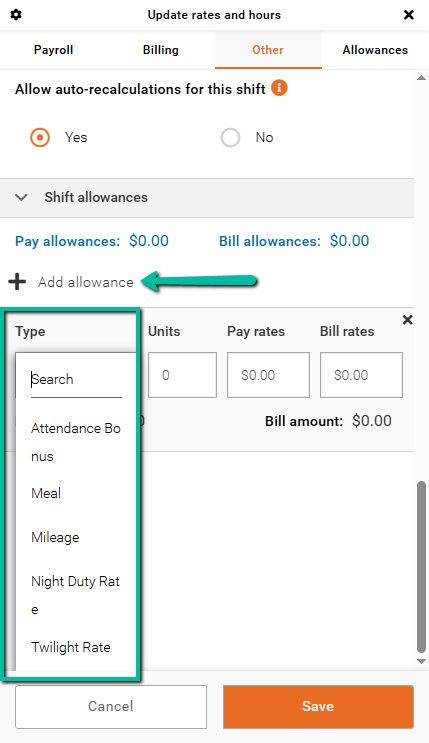
After you select the allowance type, enter the required values.
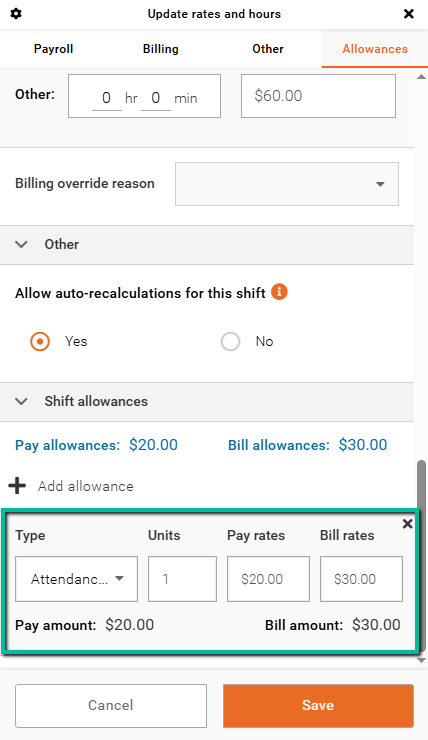
Enter the number of units. Use 1 for a flat rate, or enter multiple units to match the number of hours or occurrences.
Enter the Pay rate and Bill rate as required. The system calculates the total based on the units and rates entered.
Select Save to apply the changes. The updated values appear in red in the grid.
Bulk Add Allowances
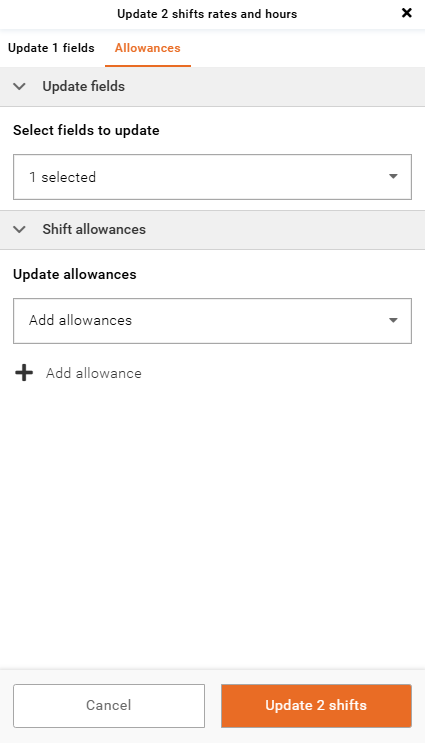
You can apply the same allowance to multiple shifts at once.
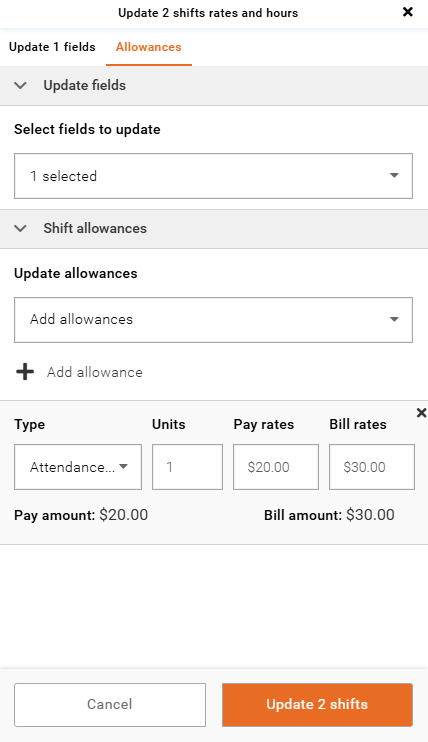
Select more than one shift → click Update # Shifts Rates and Hours → choose Update Allowances in Select fields to update → select Update allowances → click + Add allowance → select the allowance type, then enter the units, pay rate, and bill rate to apply the same allowance in bulk.
Modify an Allowance
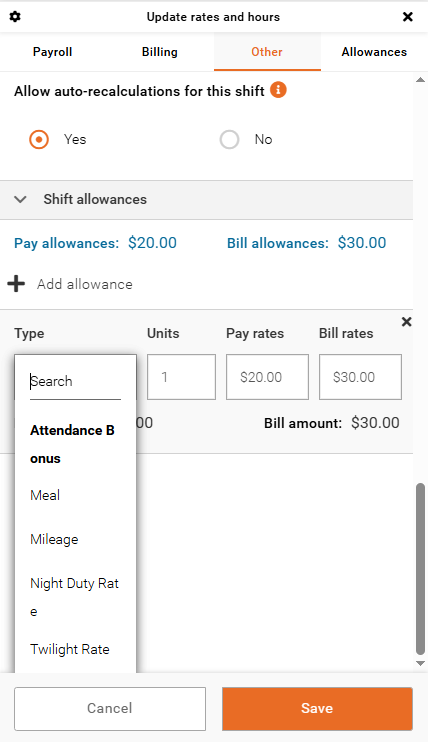
Select a shift → click Update Rates and Hours → go to Shift Allowances.
Make any required changes to the allowance type, units, pay rate, or bill rate.
Click Save to complete.
Remove an Allowance
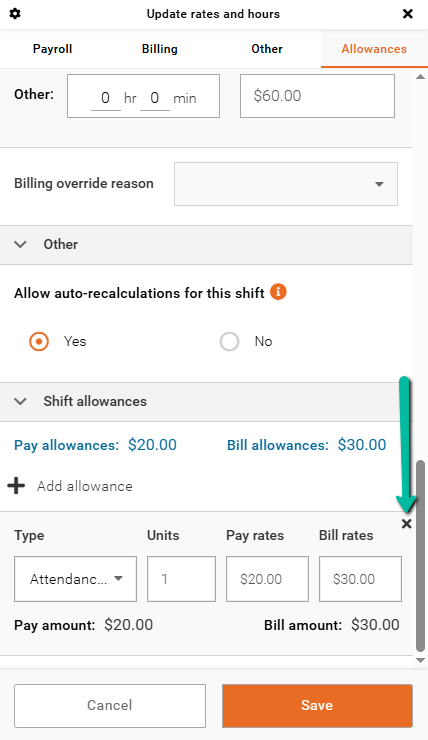
To remove an allowance, click the X in the top right corner of the allowance.
Select Save to apply the changes.
Bulk Update Allowances
You can update allowances for multiple shifts at once.
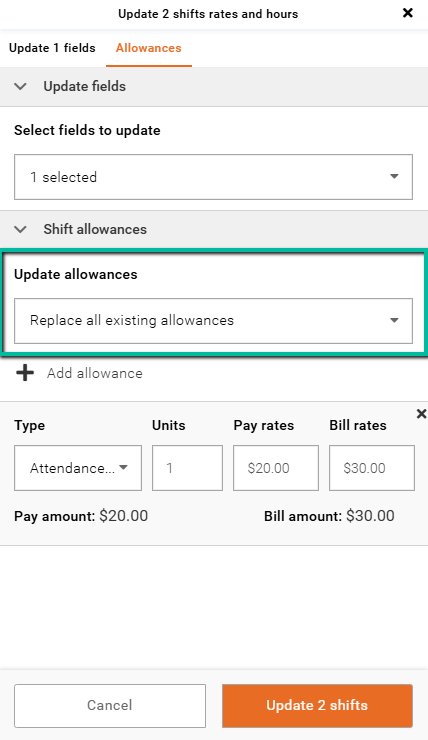
Select more than one shift → click Update # Shifts Rates and Hours → choose Add Allowance in Select fields to update → select Update allowances → choose Replace all existing allowances → click + Add allowance → select the allowance type, then enter the units, pay rate, and bill rate to apply the changes in bulk.
Bulk Remove Allowances
You can remove allowances from multiple shifts at once.
Select more than one shift → click Update # Shifts Rates and Hours → choose Update Allowances in Select fields to update → select Update allowances → choose Replace all existing allowances → do not select or add any allowance → click Update # Shifts to remove all allowances in bulk.