Build Employee Search Rules
Employee Search Rules allow you to control how employees are filtered and selected across the system. This helps ensure that only the most relevant employees appear when assigning shifts, running searches, or applying rules.
By configuring search rules, you can match employees based on criteria such as location, role, availability, or other attributes, improving both accuracy and efficiency.
Access Employee Search Rules
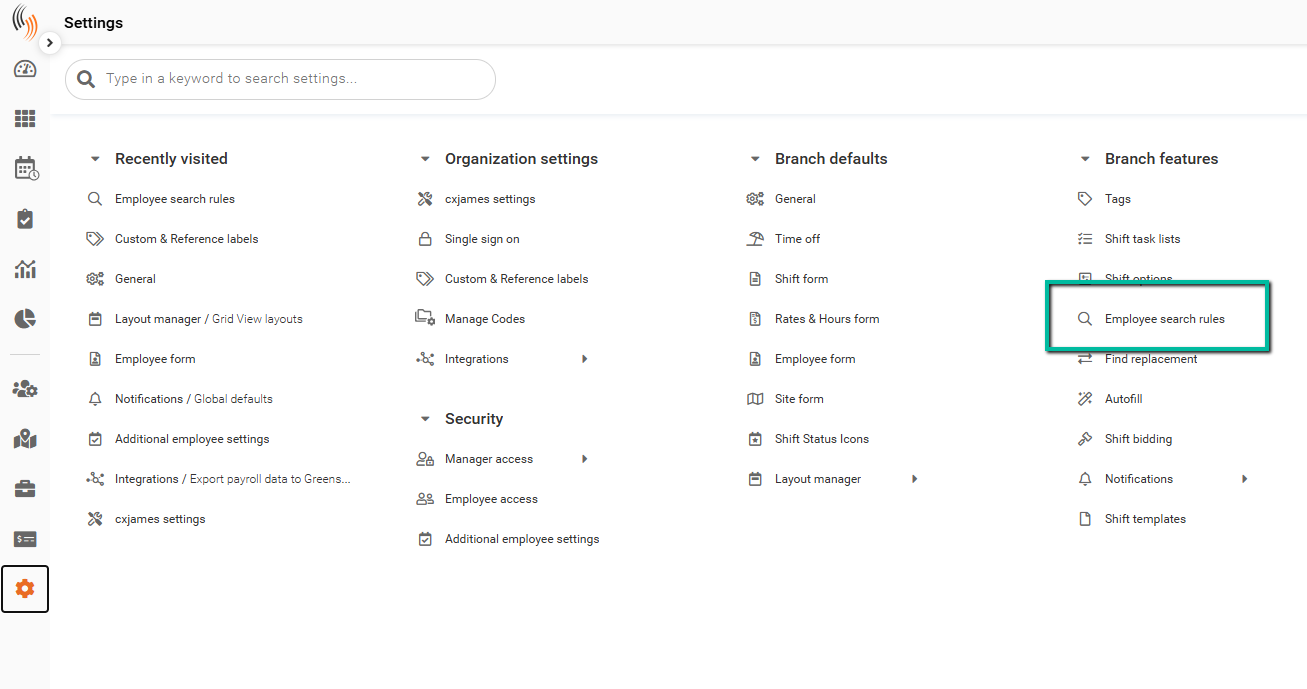
To create or manage Employee Search Rules, navigate to Settings → Branch features → Employee search rules.
From here, you can add, edit, and manage the rules used to filter employees across scheduling, searches, and rule-based assignments.
What Can Employee Search Rules Be Used For?
Employee Search Rules are used across multiple features to control which employees are eligible or shown in different workflows.
They can be applied to:
- Notify Employees
When using the notify employees feature on a shift, search rules determine which employees are eligible to receive notifications. - Find Replacement
When finding a replacement for a shift, the rule filters and displays only qualified and available employees. - Shift Bidding
Controls which employees can view and bid on available shifts based on the defined criteria. - Autofill
Determines which employees are automatically selected when filling shifts, based on the rule’s filters and requirements.
These use cases ensure consistency and accuracy when selecting employees across scheduling and communication workflows.
Default an Employee Search Rule
You can set a default Employee Search Rule to ensure it is automatically used in applicable workflows.
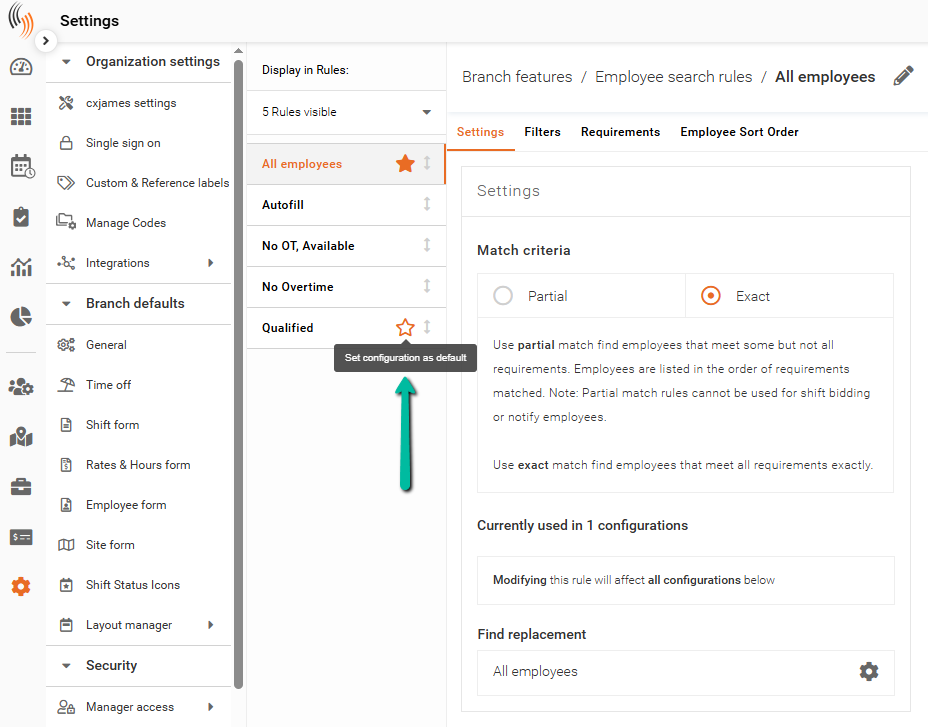
To set a rule as default, click the star icon next to the rule name. Once selected, the star will be highlighted, indicating it is the default configuration.
This default rule will be applied automatically for the Notify Employees feature.
Note: Other features such as Find Replacement, Autofill, and Shift Bidding use defaults configured at the filter or configuration level, not the rule level.
Create an Employee Search Rule
To build a search rule, complete the following steps:
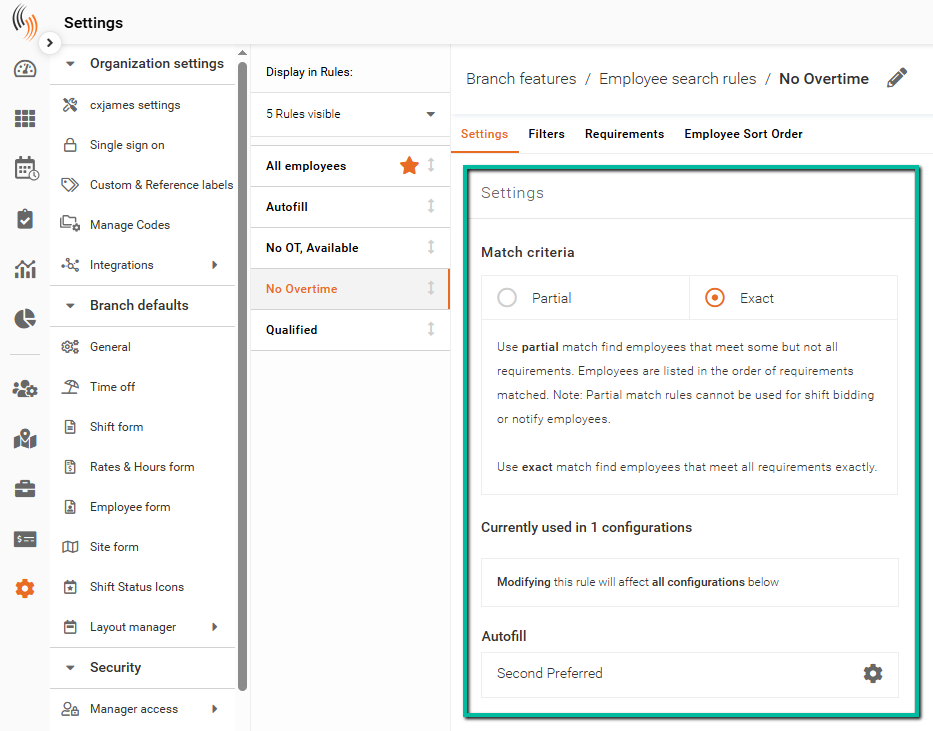
Settings
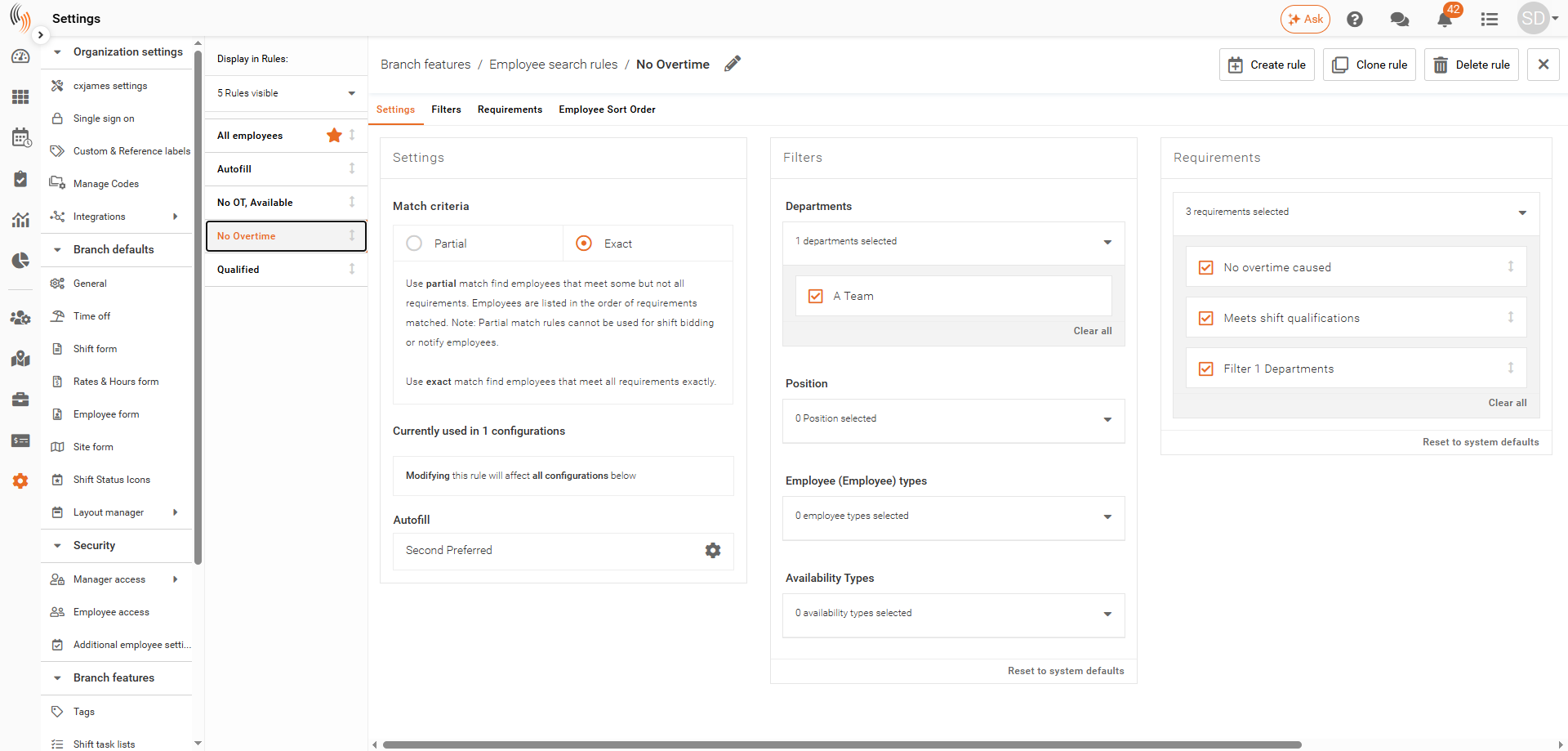
The Settings section defines how strictly the rule is applied and how employees are matched.
- Match criteria
- Partial – Returns employees who meet some of the selected requirements. Results are ranked based on how many conditions are matched.
- Exact – Returns only employees who meet all selected requirements.
- Currently used in X configurations
Indicates where this rule is being used. Changes to the rule will affect all linked configurations.
Filters
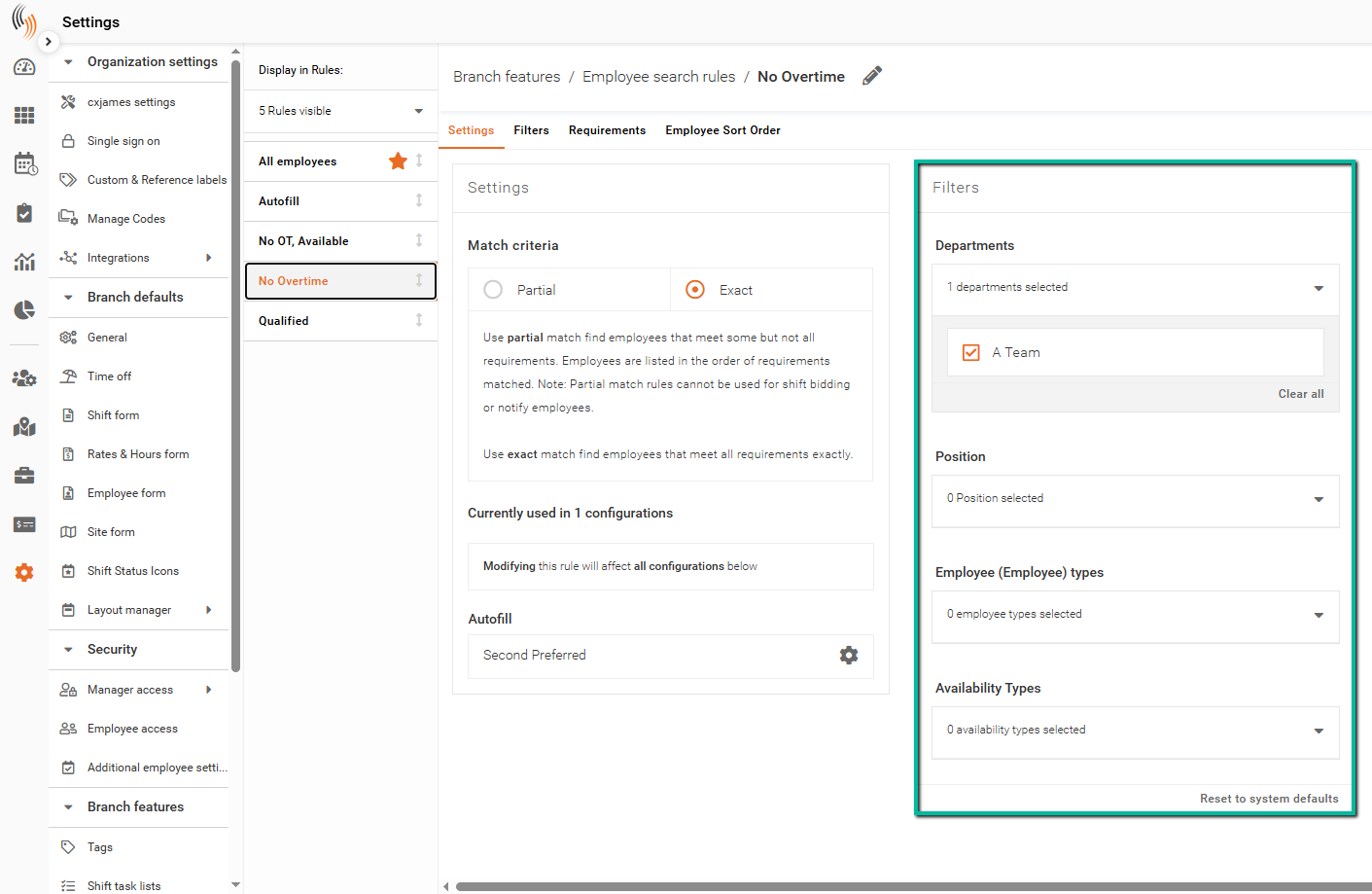
The Filters section is used to narrow down which employees are included before applying requirements.
You can filter employees by:
- Departments
- Roles
- Employee types
- Availability types
These filters act as the first level of selection, reducing the pool of employees the rule will evaluate.
Important: If you apply a filter (e.g., Departments, Services, etc.), you must also select the corresponding Filter # option under the Requirements section for it to take effect.
Requirements
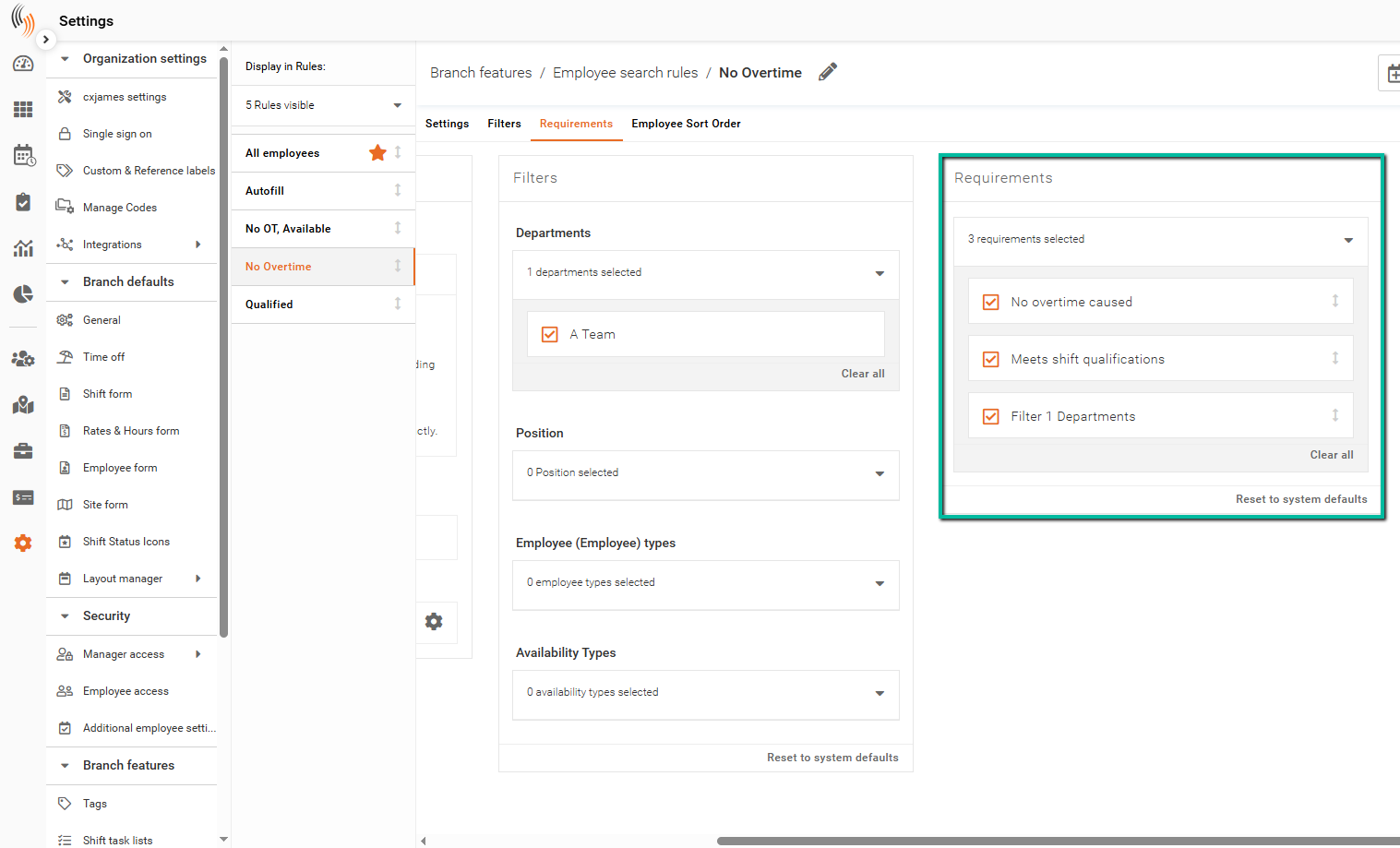
The Requirements section defines the conditions employees must meet to be included in the results.
Examples shown:
- No overtime caused – Ensures assigning the employee will not result in overtime
- Meets shift qualifications – Employee must meet all required qualifications for the shift
- Filter (e.g., Departments) – Applies additional rule-based conditions tied to selected filters
Only employees who meet these requirements (based on your match criteria) will be returned.
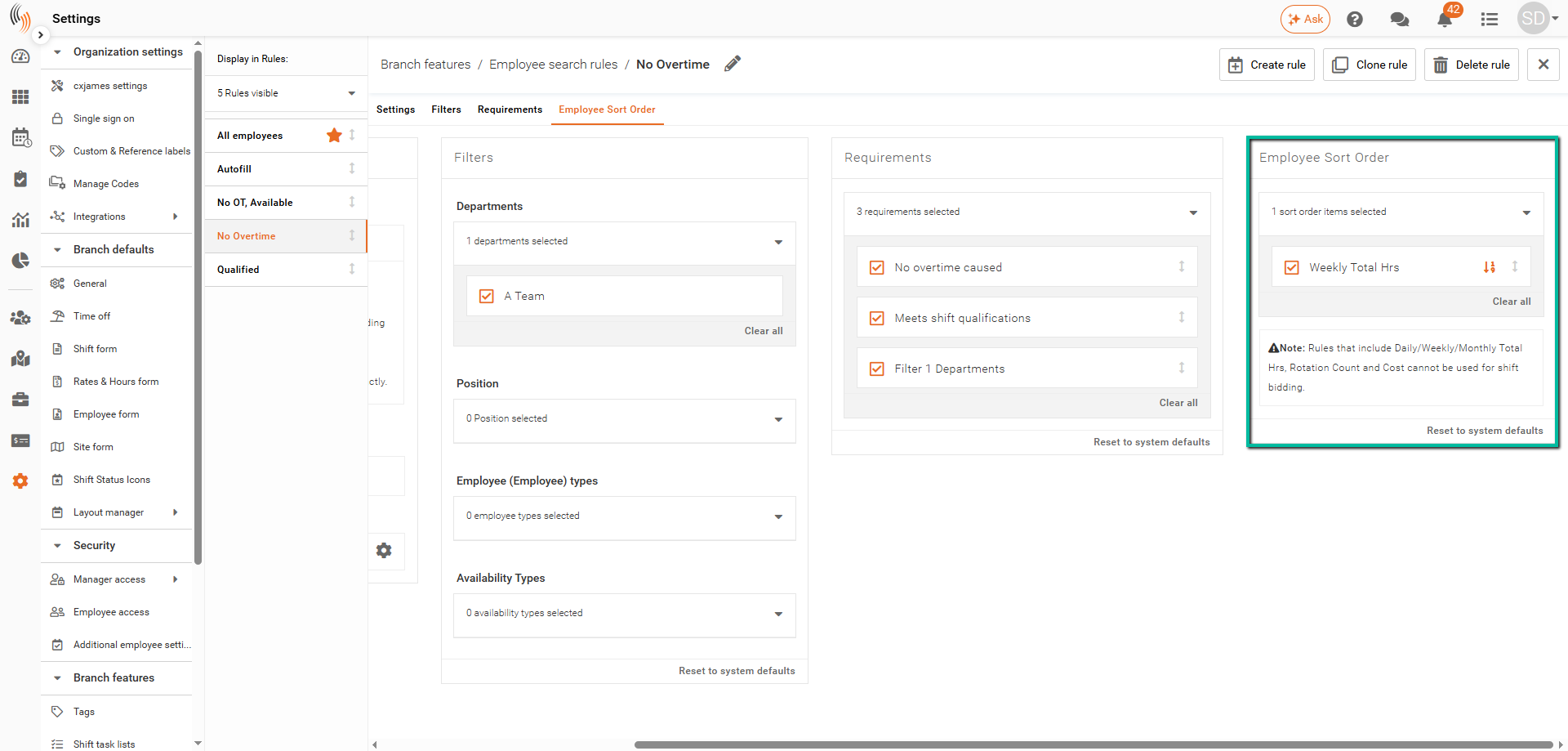
Employee Sort Order
The Employee Sort Order section controls how matching employees are displayed in the results.
This allows you to:
- Prioritize certain employees over others
- Control ranking based on defined criteria (e.g., least weekly hours or seniority)