Acknowledge Shift Changes
Acknowledging shifts lets your administrator know that you have reviewed newly added, updated, or removed shifts.
Note: This feature may be enabled by your company and may not be required for all employees.
View Shift Changes
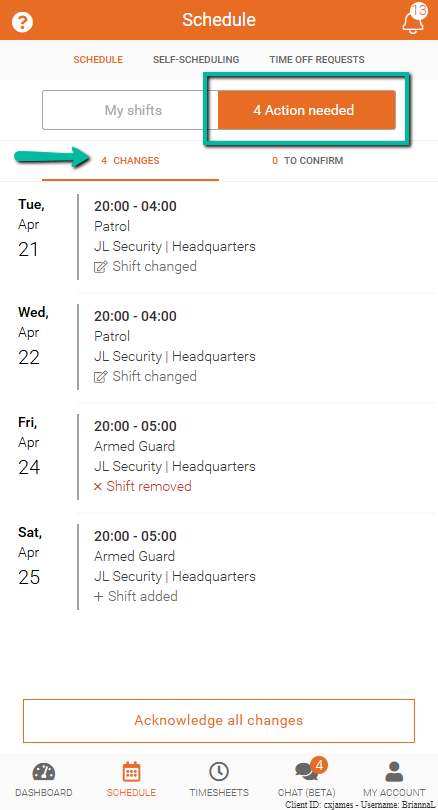
Shifts that require acknowledgement appear in the Changes section of the Action needed tab.
To view these shifts:
- Open Team Xpress
- Go to Schedule
- Select Action needed
- Tap Changes
If you do not see this option, shift acknowledgement may not be required for your role.
Identify Shift Changes
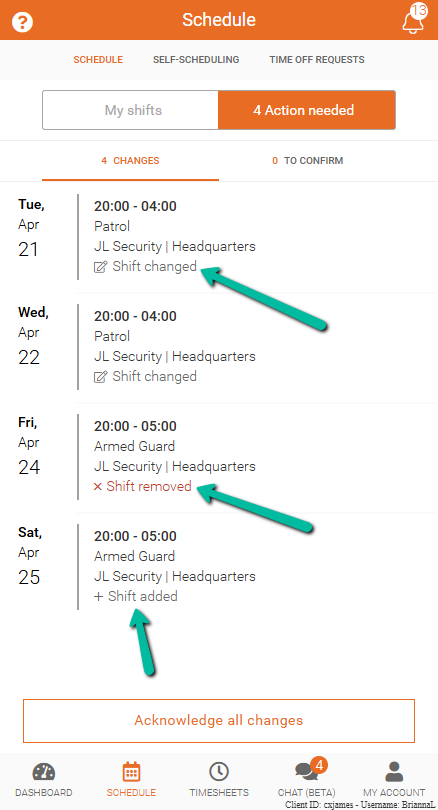
Changes are shown at the bottom of each shift so you can quickly see what has been updated.
- Shift changed indicates an existing shift has been modified
- + (Plus) indicates a newly added shift
- × (X) indicates a removed shift
This helps you quickly understand what has changed before acknowledging your shifts.
Acknowledge Multiple Shifts
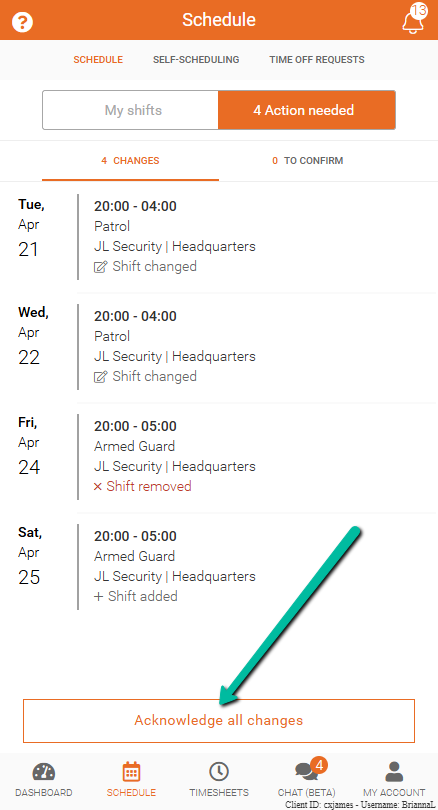
If you have several shifts to review, you can acknowledge them all at once.
- Select Acknowledge all at the bottom of the Changes section
This is the fastest way to confirm multiple updates.
Acknowledge Individual Shifts
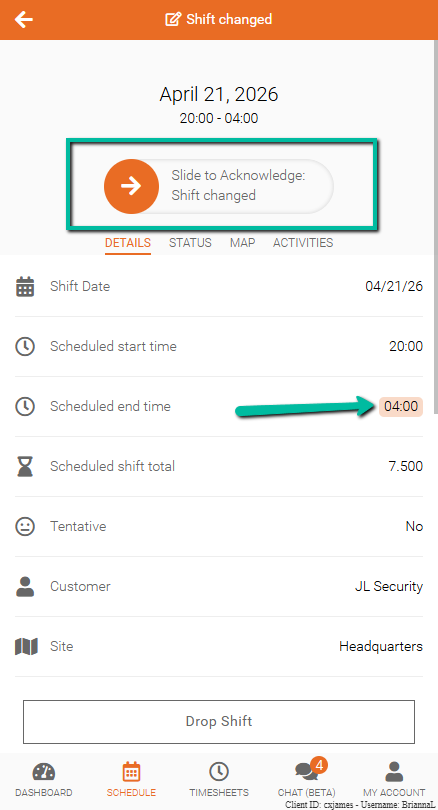
To review and acknowledge shifts one at a time:
- Open a shift from your Schedule or the Changes section
- Review the shift details (updated fields will be highlighted in orange)
- Slide to acknowledge the shift
This allows you to review each change in detail before confirming.