Global Defaults
Global Defaults act as the foundational configuration settings in Schedule Xpress, allowing administrators to define standardized parameters for notification timing and delivery across the entire system.
Access Global Defaults
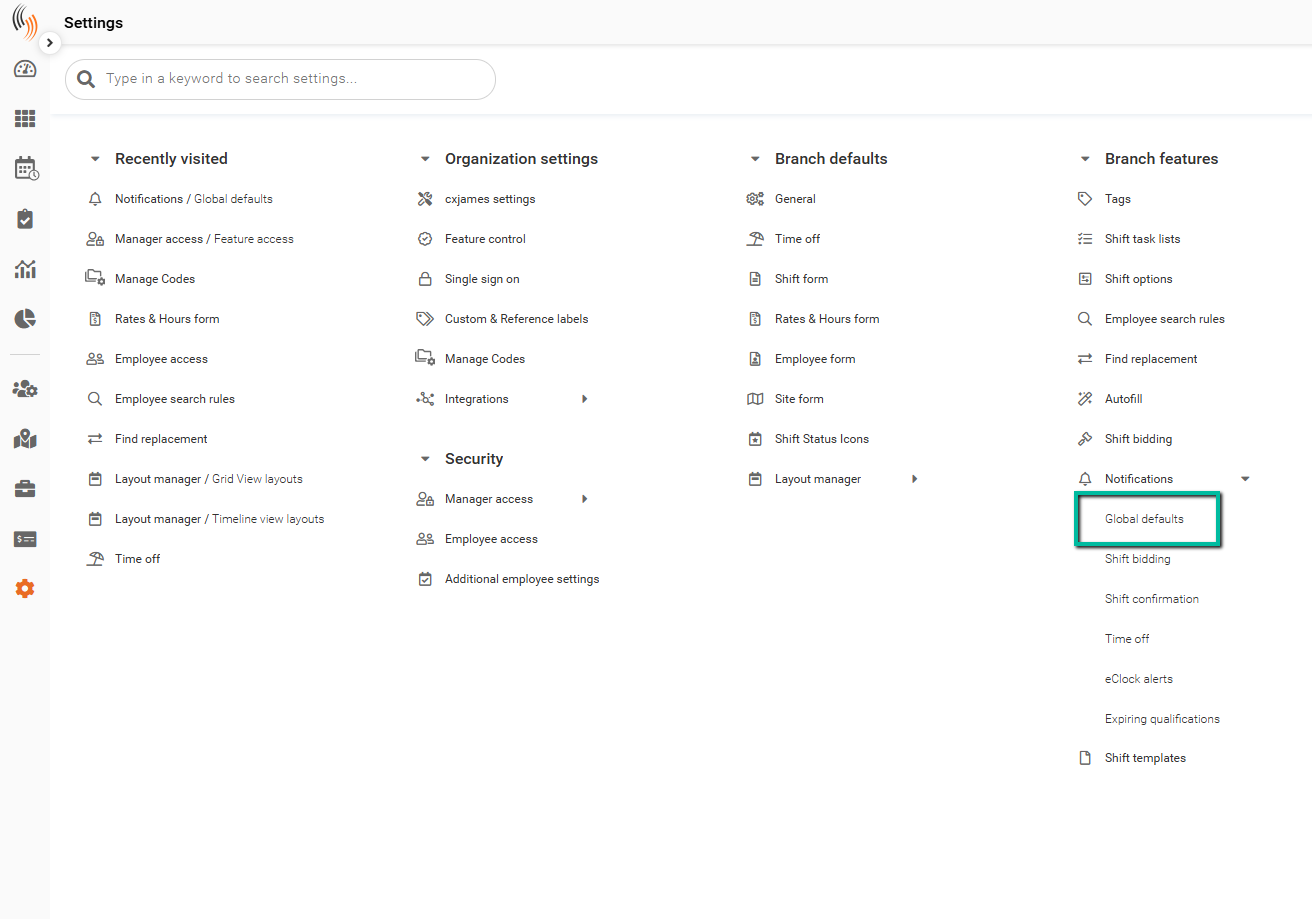
To access Global Defaults:
Settings → Branch features → Notifications → Global defaults
Global Defaults Overview
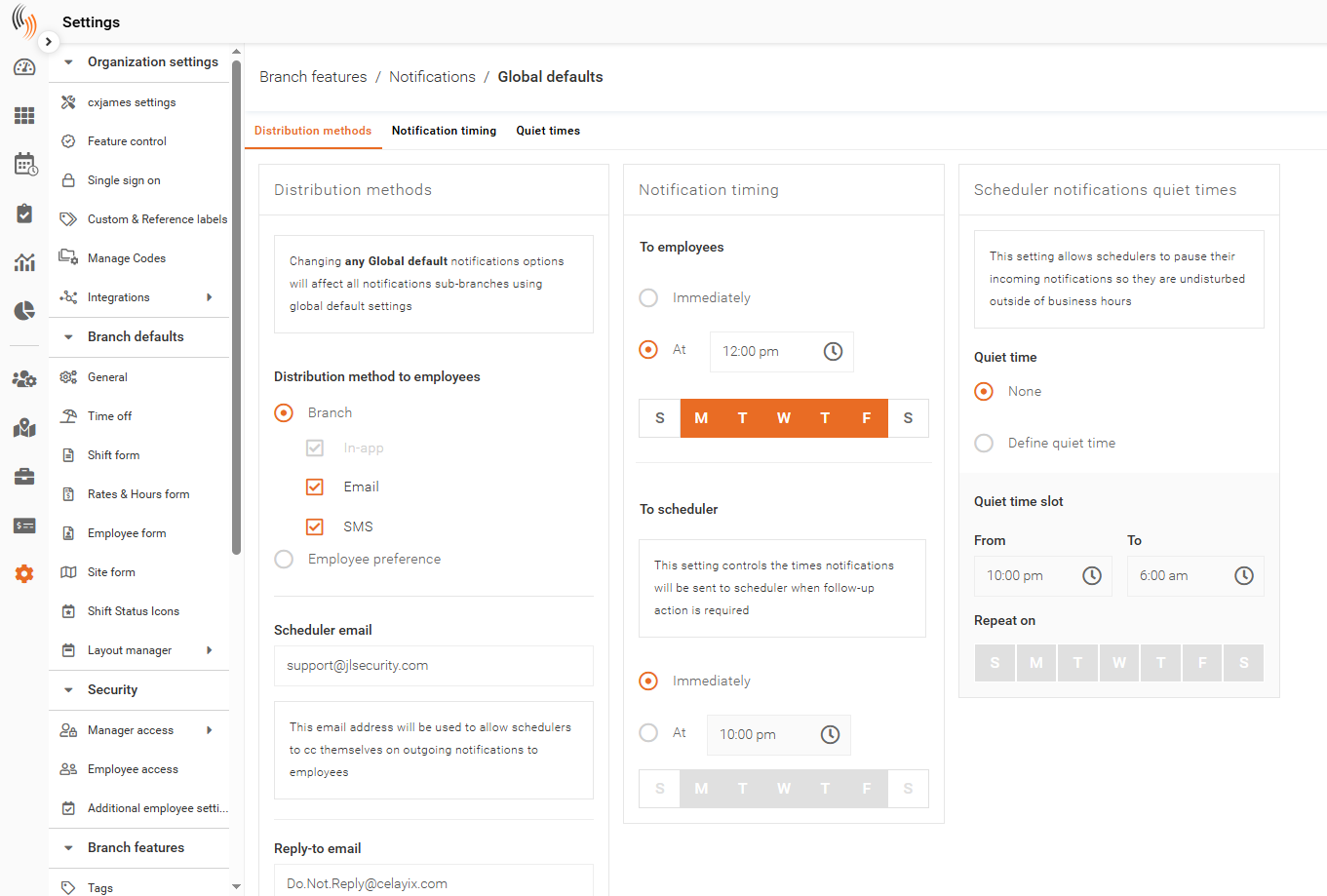
Upon accessing this section, you’ll see that Global Defaults are organized into three main components: Distribution Methods, Notification Timing, and Scheduler Notification Quiet Times.
Distribution Methods
Distribution methods determine how notifications are delivered to employees and which scheduler email address is used as the sender.
Important: Changes made to global default notification settings are automatically applied to all notifications in sub-branches that inherit these configurations.
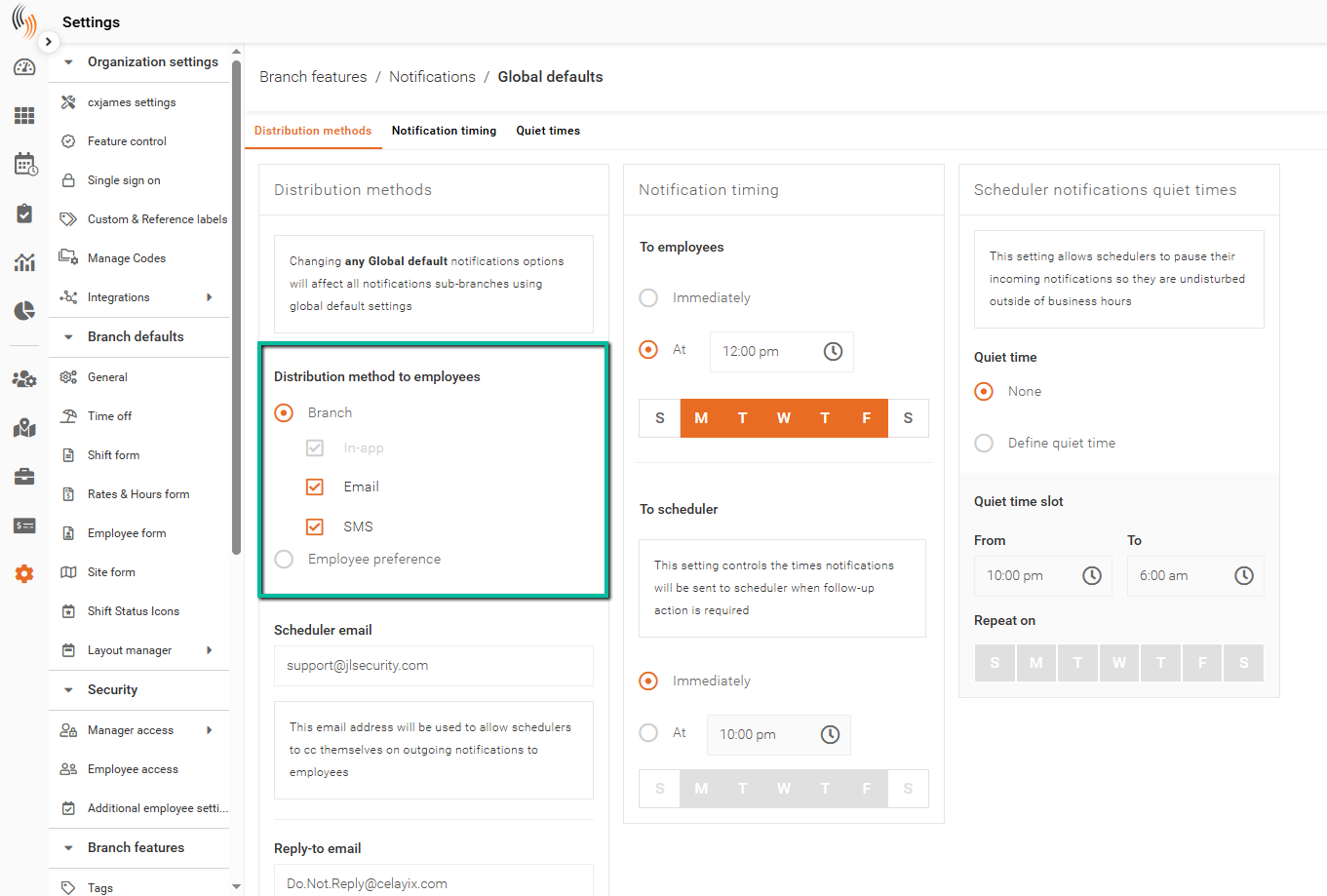
Distribution Methods to Employees
You can choose how notifications are distributed by selecting either Branch or Employee preference:
- Branch – Notifications are delivered based on the organization’s defined method.
- Employee preference – Notifications are delivered based on each employee’s selected preferences.
Note: In-app notifications are always enabled by default to ensure messages are received in Team Xpress, but the employee must consent to receive SMS or email.
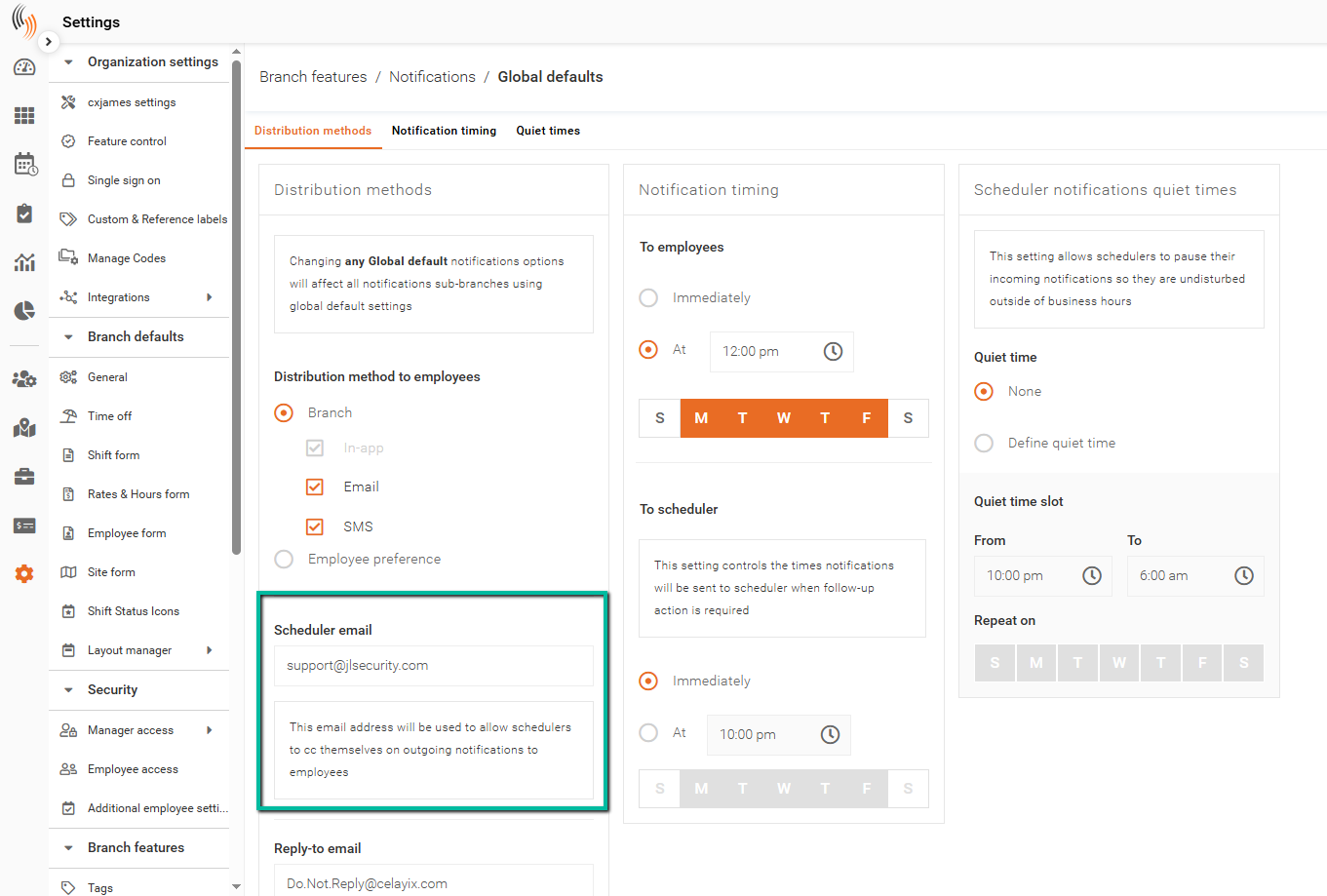
Scheduler Email
The final distribution method is Scheduler Email. This setting allows you to specify an email address that will automatically be copied (CC’d) on all outgoing notifications.
If multiple schedulers need to receive these notifications, you can enter multiple email addresses separated by a semicolon (;) with no spaces.
Notification Timing
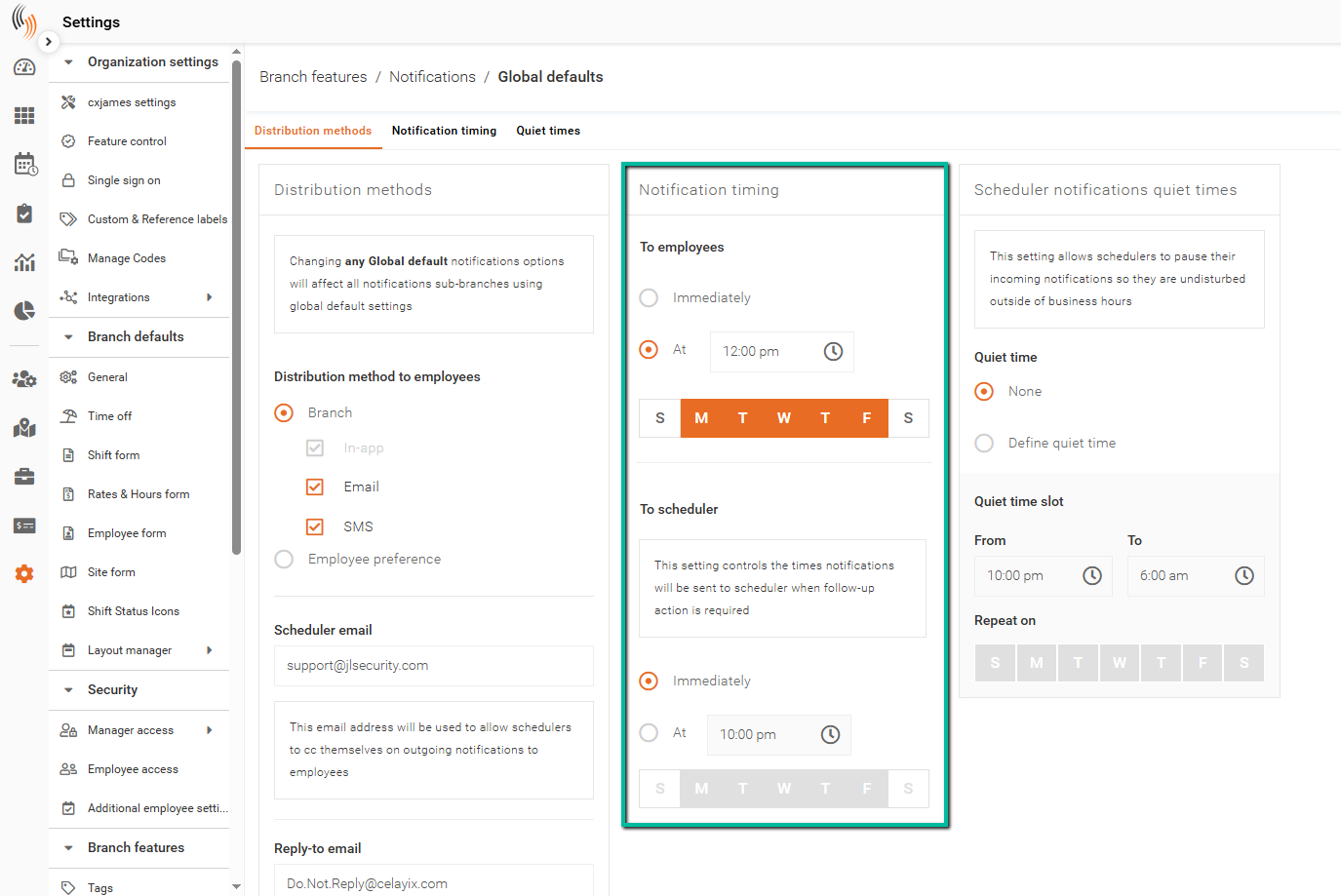
This setting defines when notifications are sent to employees and the scheduler.
Notification Timing Options
- Immediately – Notifications are sent in real time as events occur.
- At – Notifications are sent at a specific time on selected days of the week.
Scheduler Notification Quiet Times
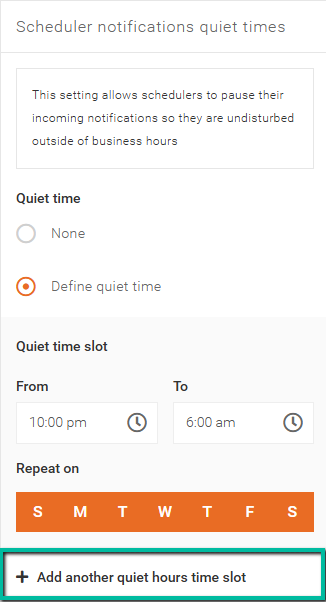
This setting allows users to pause notifications during specified time periods, helping prevent interruptions outside of working hours.
By default, this is often set to None, meaning notifications are delivered at all times.
For users who prefer not to receive notifications during certain periods, quiet times can be defined.
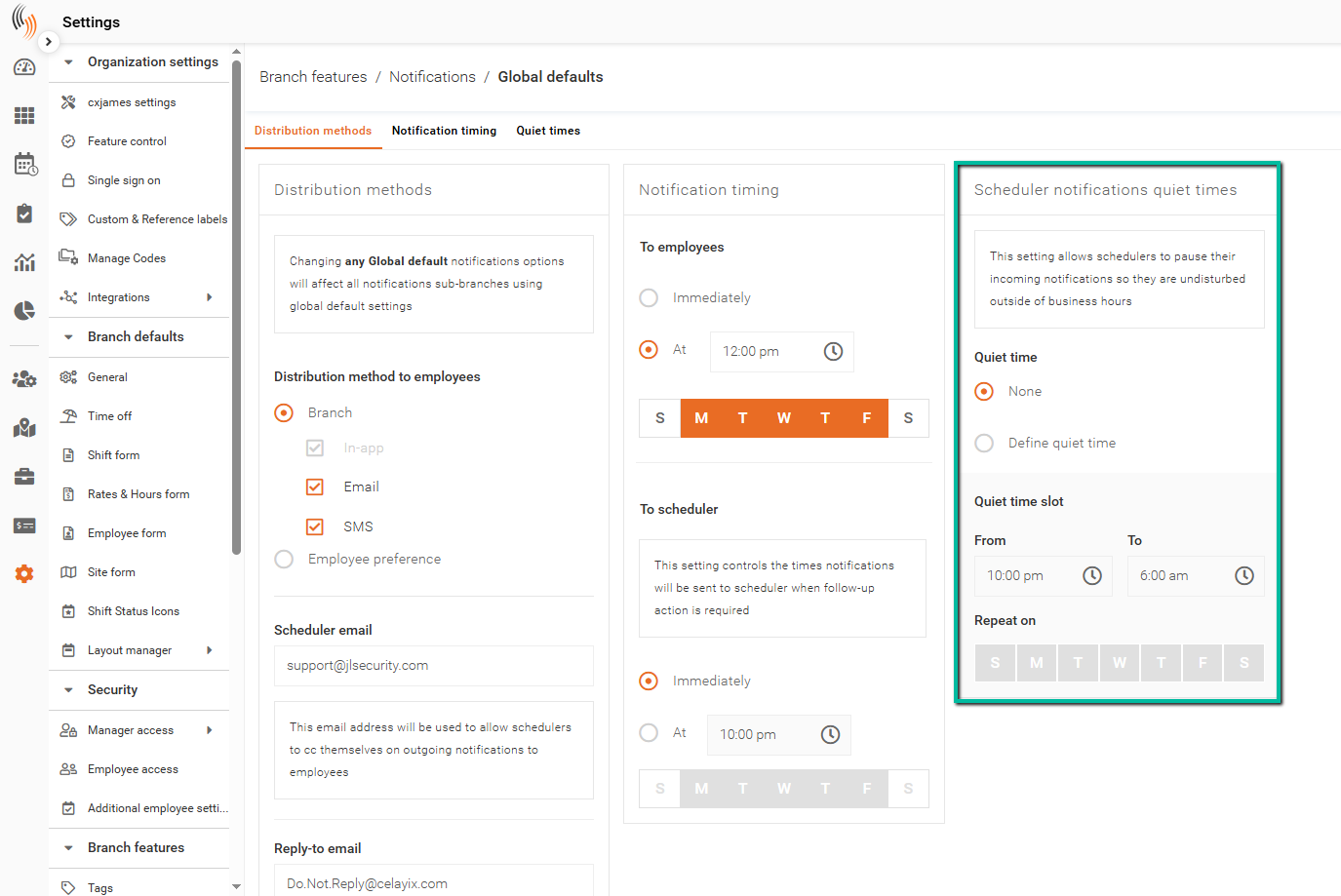
If a quiet time has already been defined, additional quiet time slots can be added as needed by clicking Add another quiet hours time slot at the bottom of the panel.