
Drop a Shift
Request to drop a scheduled shift and track the status of the request in Team Xpress.
Request to remove a scheduled shift when availability changes.
The Drop Shift feature allows a shift to be released so the schedule can be adjusted as needed.
Note: This feature must be enabled by the company. If not visible, contact a supervisor.
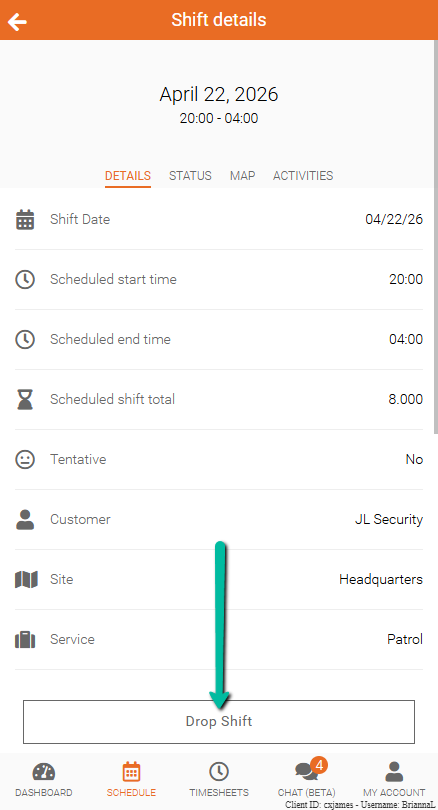
Find Drop Shift
To locate the option:
- Go to Schedule
- Select a shift
The Drop Shift option will appear if:
- Permission has been granted
- The drop deadline has not passed
Drop Shift Deadline
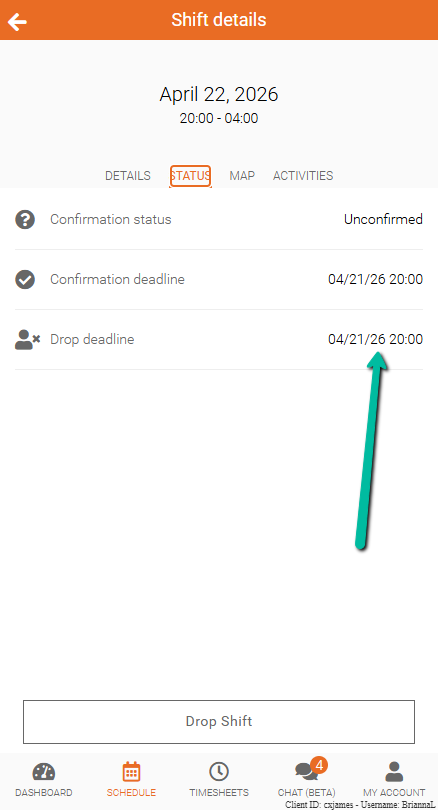
Each shift has a deadline for submitting a drop request.
To view the deadline:
- Open the shift
- Go to the Status section
If the deadline has passed, the request cannot be submitted in the app.
Submit a Drop Request
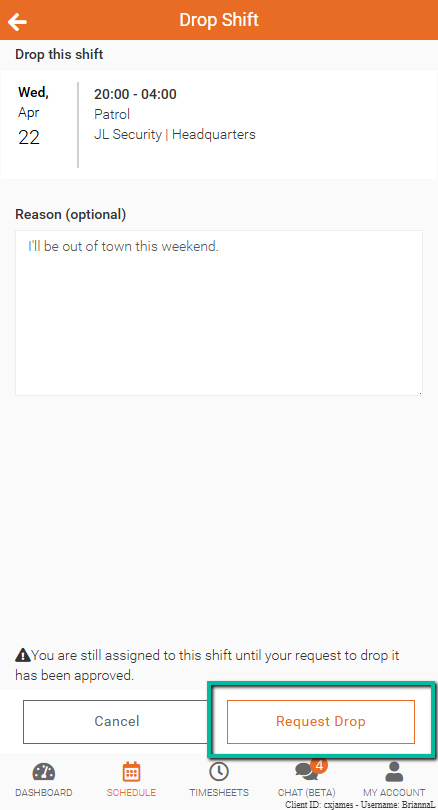
To drop a shift:
- Open the shift from Schedule
- Select Drop Shift
- (Optional) Enter a reason
- Click Request Drop
Drop Request Status
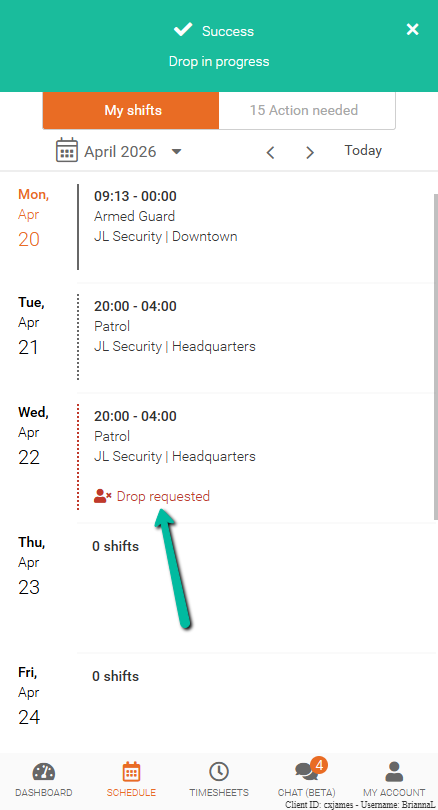
After submitting, the request may:
- Be approved automatically
- Be sent for review
If review is required, the shift will show Drop Requested until a decision is made.
Once approved, the shift that you requested to drop will be removed from your Schedule.
Notifications
Notifications may be sent when the request status changes.
- Email notifications are sent if enabled
- Updates may also appear in the Changes section under Action Needed (if enabled)