Manage Notification Preferences (Employees)
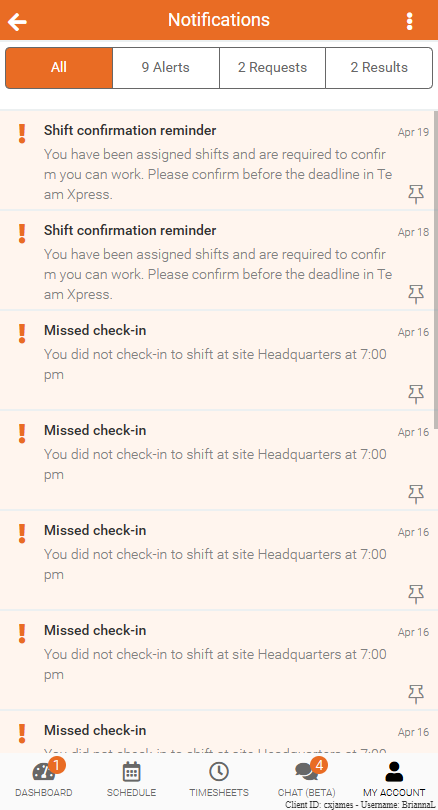
Learn how notifications work in Team Xpress and how you can choose to receive updates, so you never miss important schedule changes or messages.
Notifications help you stay informed about schedule updates, shift opportunities, and communication from your supervisor. In Team Xpress, in-app notifications are always enabled, with the option to also receive updates by email or SMS.
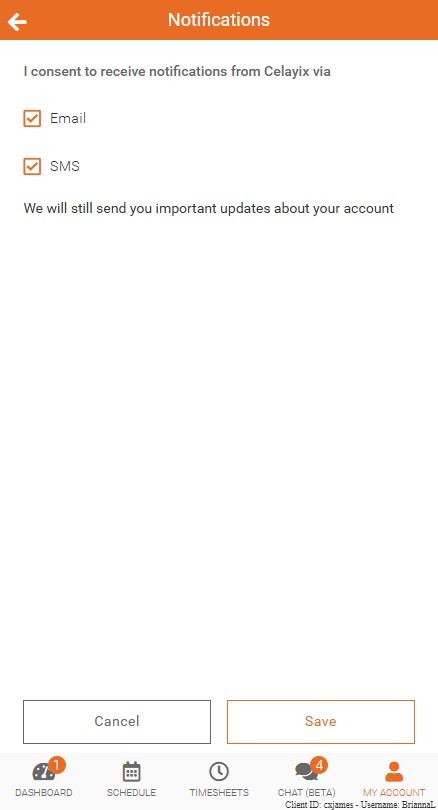
Turn On Email and SMS Notifications
As an employee, you can choose to receive notifications outside of the app by enabling email and/or SMS in your preferences.
To turn on notifications:
- Open Team Xpress
- Go to My Account → Preferences → Notifications
- Select Email and/or SMS
Note:
- Admins can require (force) email and/or SMS notifications to be enabled. If this is configured, you may not be able to change these settings.
- SMS notifications are only available if your company has this feature enabled.
When You’ll Receive Notifications
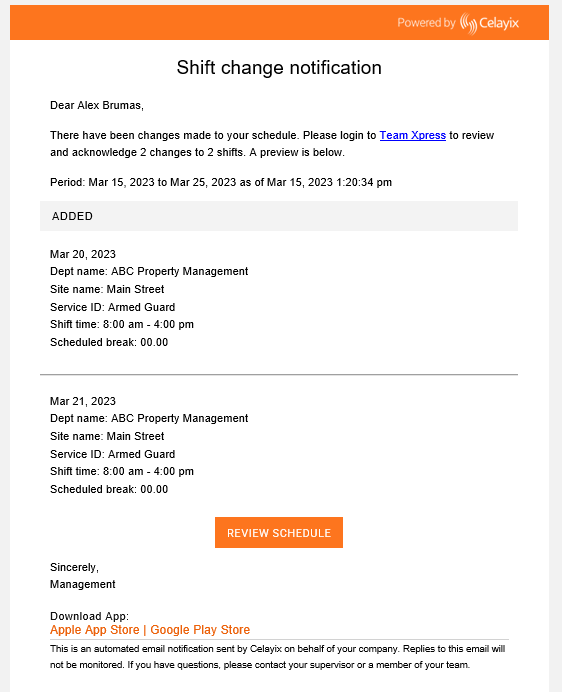
You may receive email or SMS notifications for:
- New shifts added to your schedule
- Changes to existing shifts
- Removed or canceled shifts
- Invitations to apply for available shifts
- Updates about assigned or open shifts
- Messages from your supervisor
We suggest discussing with your supervisor to understand which notifications you can expect to receive.
In-App Notifications
In-app notifications are always enabled for employees and cannot be turned off.
You can view notifications:
- On your phone’s home screen when they arrive
- In the Notifications panel within Team Xpress
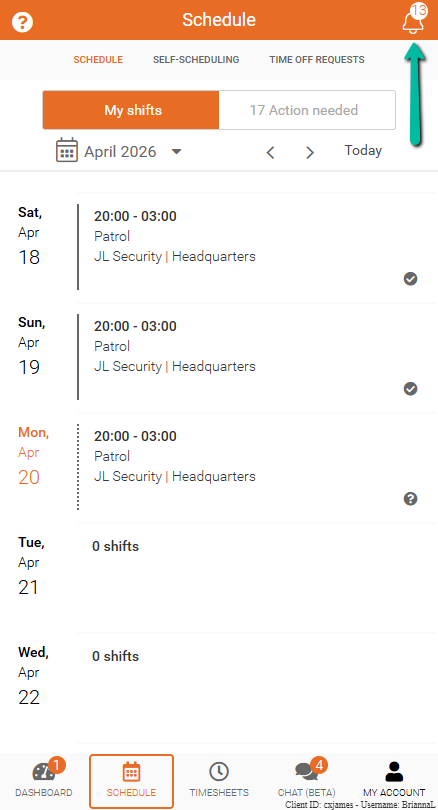
This helps you stay informed in real time and review past updates when needed.