Manage Schedule Errors and Warnings
Errors and warnings appear when scheduling conditions are not met, helping you detect issues such as double bookings, time-off conflicts, and qualification mismatches. By reviewing and resolving these alerts, you can ensure shifts are valid and ready for publication.
Validation Types
Validations are system checks that determine how scheduling issues are flagged and handled.
- Error – Prevents the shift from being saved. The issue must be resolved or the changes discarded before proceeding.
- Warning – Flags a potential issue but allows the shift to be saved. Warnings can be ignored or addressed later.
- Ignore – Disables the validation, so no error or warning will appear for that rule.
These settings control how strictly scheduling rules are enforced.
Warnings
Warnings do not prevent shifts from being saved and can be overridden directly within the Schedule.
Warnings appear as a grey strip with an exclamation mark on the shift block, with details shown in the Validation panel. Common examples include:
- Failed qualifications
- Employee daily budget exceeded
- Maximum hours per day or week reached
Bypass a Warning
If you choose to proceed with assigning an unqualified employee:
- Click the three dots on the right side of the warning
- Select Ignore Warning
- Click Save to confirm
If you prefer to assign a qualified employee:
- Select Discard Changes
- Assign an employee who meets the required qualifications
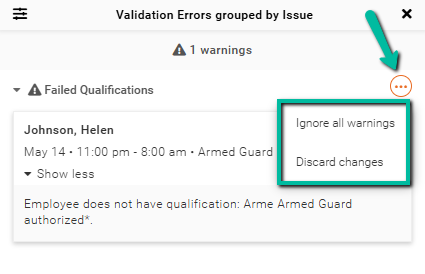
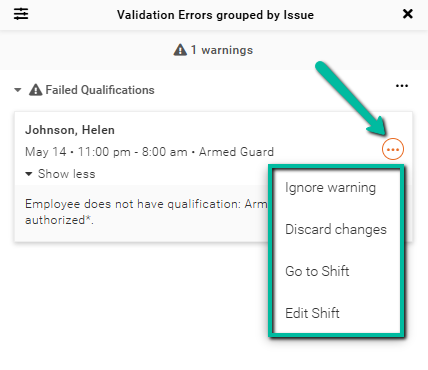
If you click the three dots at the shift level, you will also have additional options:
- Go to Shift – Opens the selected shift
- Edit Shift – Allows you to modify the shift details
Errors
Errors cannot be bypassed within the Schedule view. To proceed, you must discard the shift.
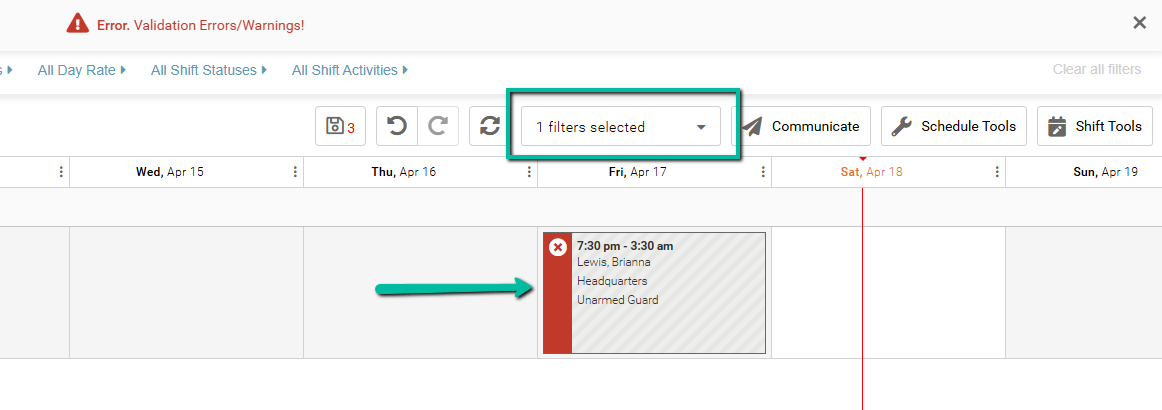
Errors appear as a red strip with an X icon on the shift block, with details shown in the Validation panel.
To resolve an error:
- Review the issue in the Validation panel
- Discard the shift
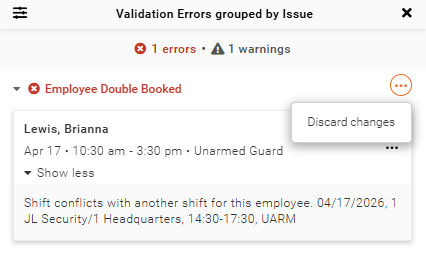
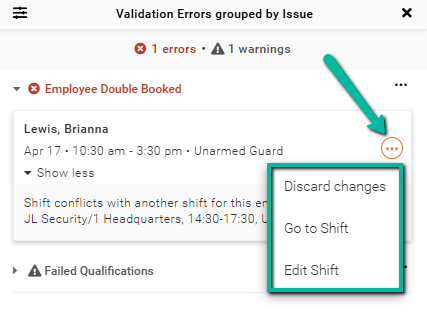
When interacting with an individual shift error using the three-dot menu, the following options are available:
- Discard Changes – Removes the selected shift
- Go to Shift – Opens the affected shift for review
- Edit Shift – Allows you to modify the shift details
These actions apply only to the selected shift, not all errors in the schedule.
Override Errors in Time Processing
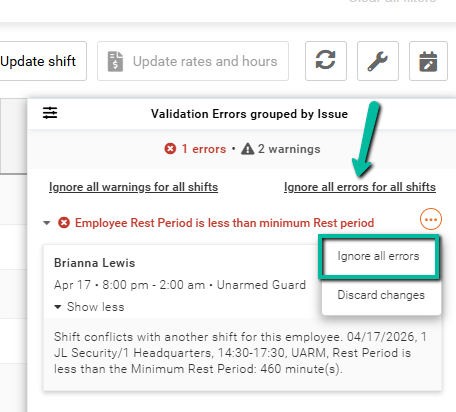
Users can override errors in Time Processing if they have the appropriate permissions.
This is available if the user is a Full Admin, or if they're a Manager, Can override errors on save is enabled in their Feature Access Group.
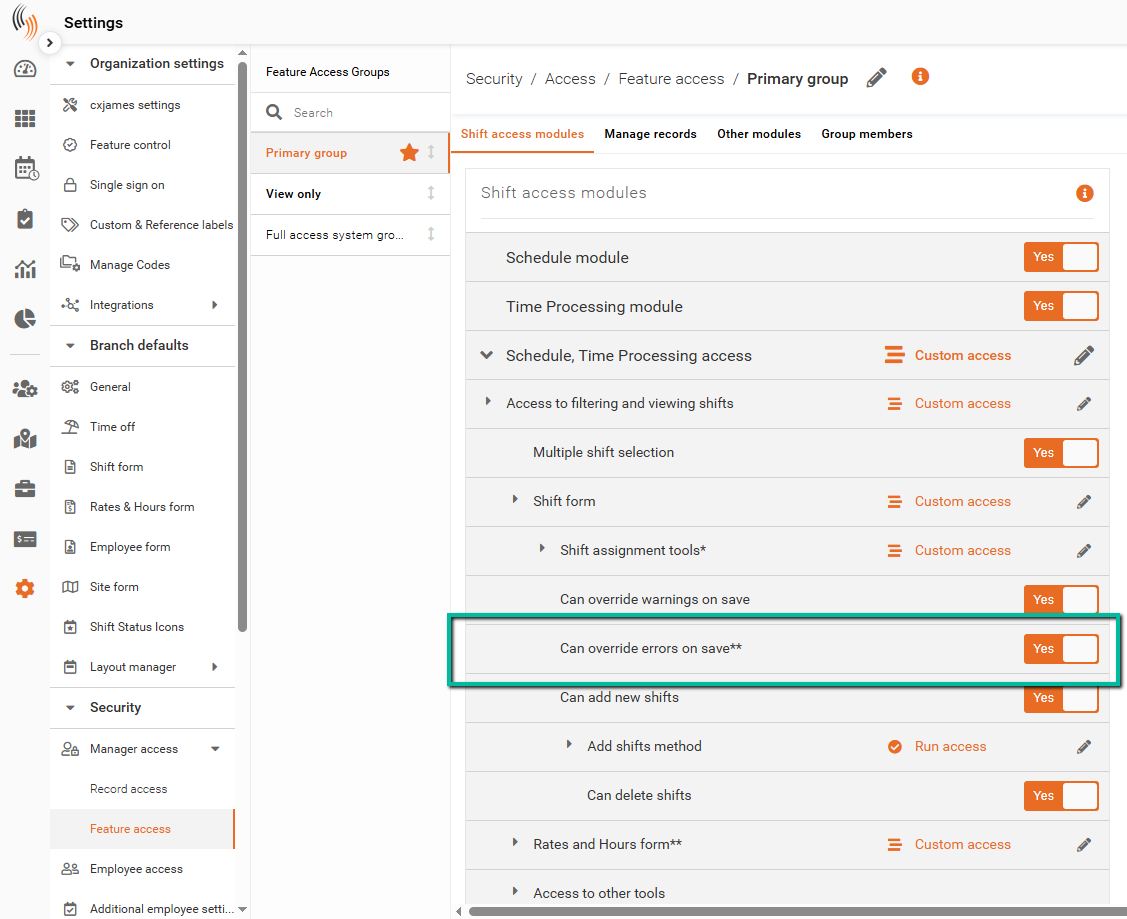
This allows shifts to be added or modified in Time Processing despite validation errors.
Error Banners
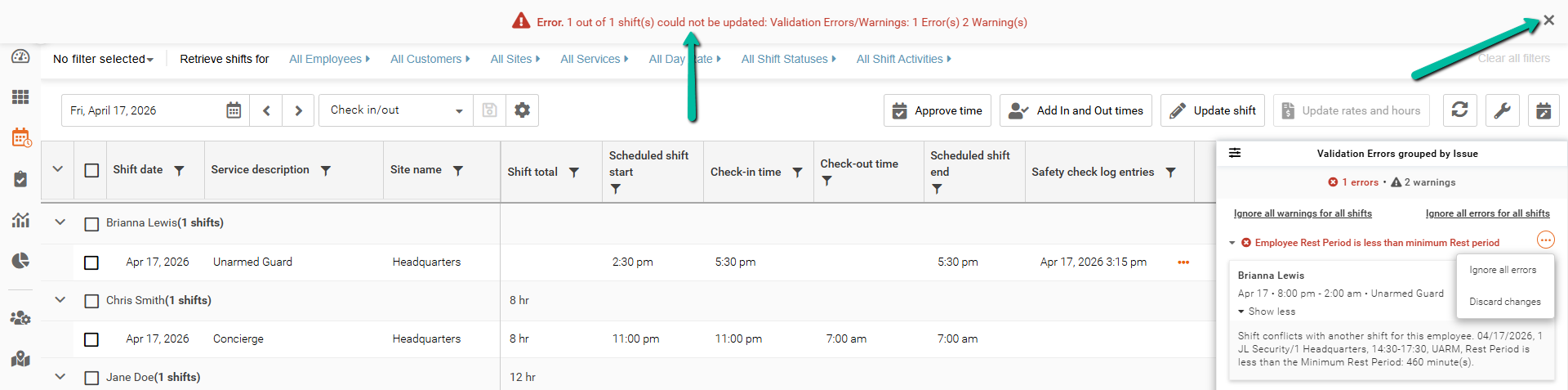
If invalid changes are made to an employee, site, or service profile, an error banner will appear at the top of the screen and remain visible until dismissed.
Filter Errors and Warnings
Use Dynamic Filters in the Schedule to quickly locate shifts with errors or warnings.
Select either:
- Shifts with Errors
- Shifts with Warnings
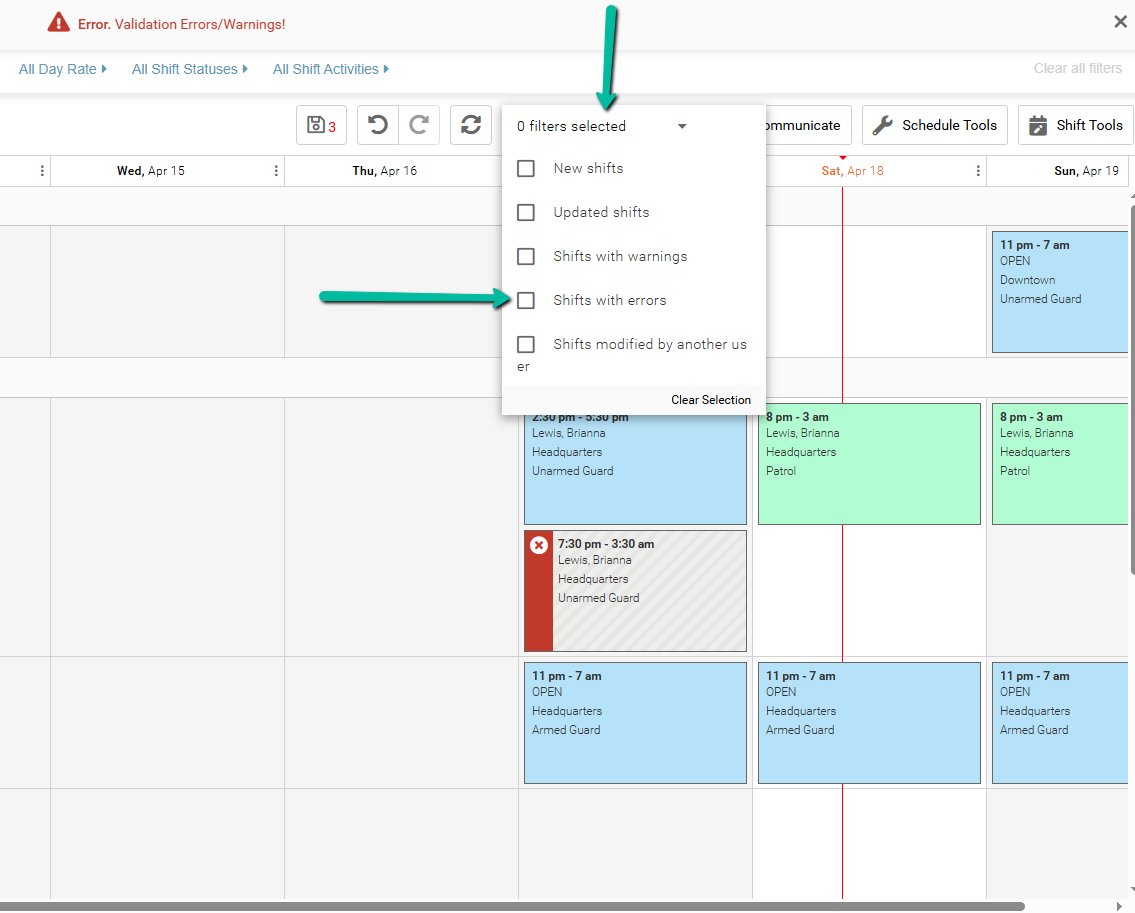
This allows you to isolate and resolve issues without manually searching through the schedule.