Confirm Shifts
Shift confirmation helps finalize schedules and ensures accurate staffing. You may be required to confirm your shifts before they are finalized.
Note: If you do not see a confirmation option, your shifts are already confirmed or this feature is not enabled.
View Shifts to Confirm
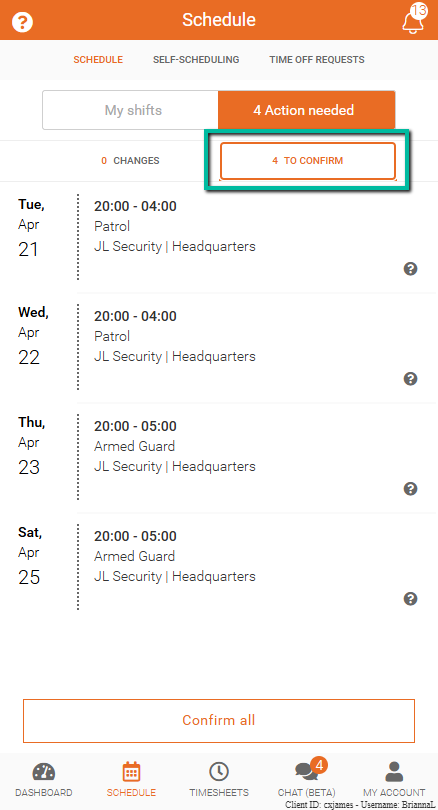
Shifts that require confirmation appear in the To Confirm section.
You may also see an Action needed message showing how many shifts are waiting for your response.
Confirm All Shifts
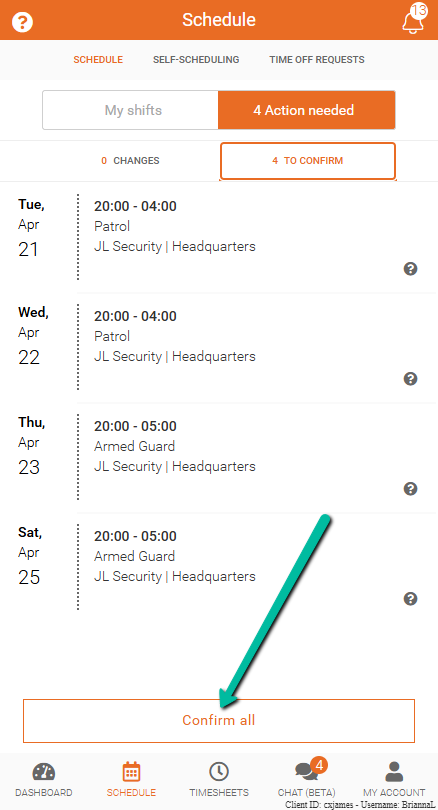
To confirm all pending shifts at once:
- Go to the To Confirm section
- Select Confirm all at the bottom of the screen
This is the fastest way to confirm multiple shifts.
Confirm Individual Shifts
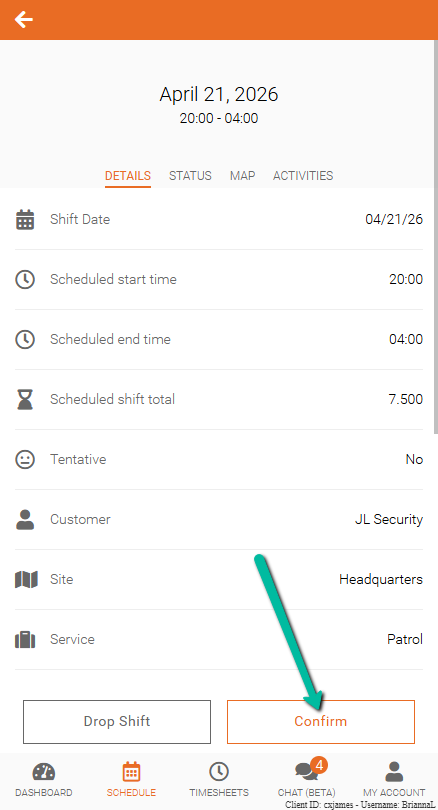
To review and confirm shifts one at a time:
- Open Team Xpress
- Go to Schedule or the To Confirm section
- Select the shift
- Confirm the shift
This allows you to review each shift before responding.
Confirmation Deadlines
Each shift has its own confirmation deadline, typically set in advance of the shift start time.
To view the deadline:
- Open the shift
- Check the Status section
Make sure to confirm your shifts before the deadline to avoid scheduling issues.
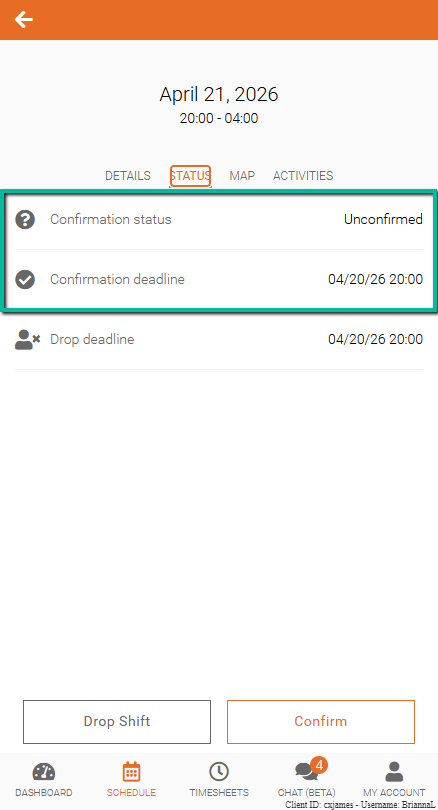
Shift Confirmation Status
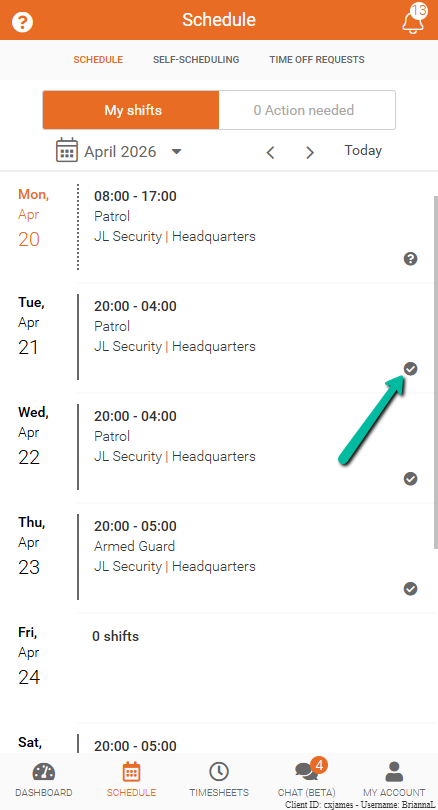
Once a shift has been confirmed, a checkmark will appear beside the shift to indicate it has been approved.
If a shift has not yet been confirmed, a question mark (?) will be displayed, indicating that confirmation is still required.
This allows you to quickly see which shifts have been confirmed and which still need your response.