Create an Unscheduled Shift
Start a shift even if it was not scheduled in advance by selecting where and what work is being performed.
Unscheduled shifts allow a shift to be created directly in Team Xpress when needed. Depending on company settings, options may be available to select the customer, site, and service before starting the shift.
Note: This feature must be enabled by the company. If it is not visible, contact your supervisor.
Start an Unscheduled Shift
To create an unscheduled shift:
- Open Team Xpress
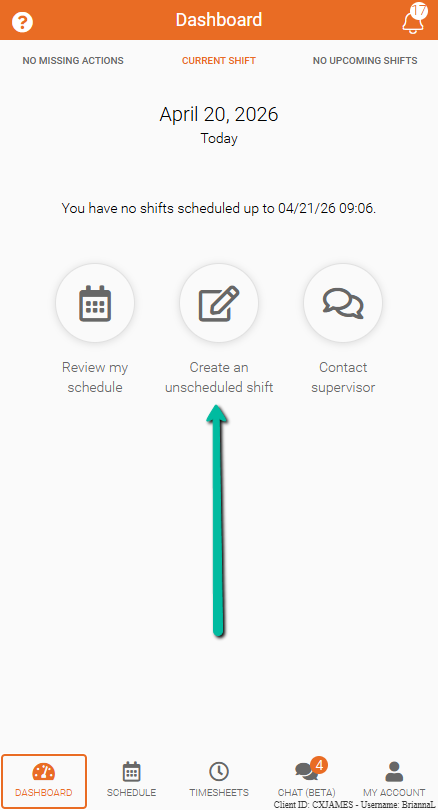
- Go to the Dashboard
- Select Create an unscheduled shift
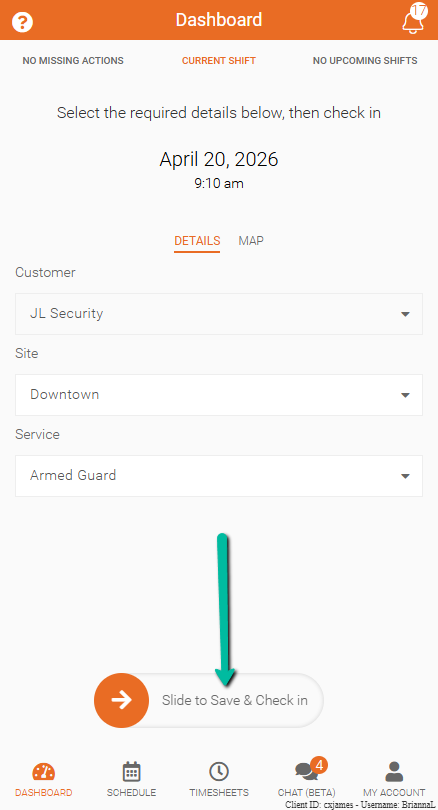
Select Site and Service
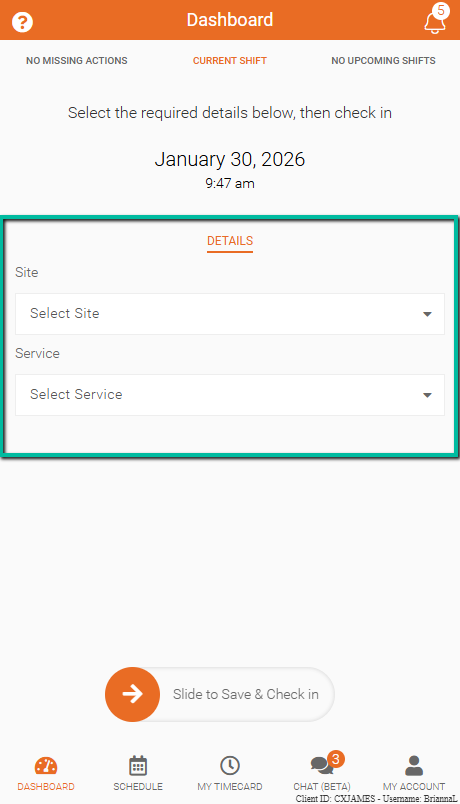
Depending on permissions, dropdown options may be available to select:
- Site – Choose the work location
- Service – Select the type of work being performed
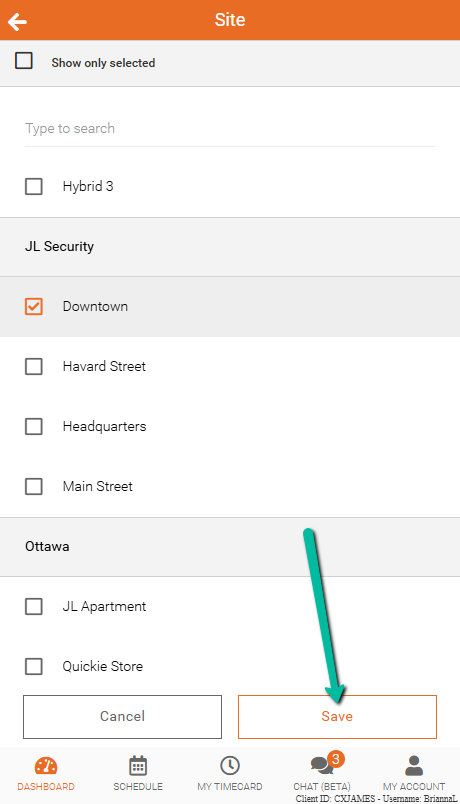
When selecting a Site, the Customer may be automatically assigned based on the system setup.
Note:
- If selection options are not available, default values from the profile will be used
- Available options may be limited based on permissions
Complete Check-In
Once selections are made:
- Review the selected Site and Service
- Slide to Save & Check-In at the bottom of the screen
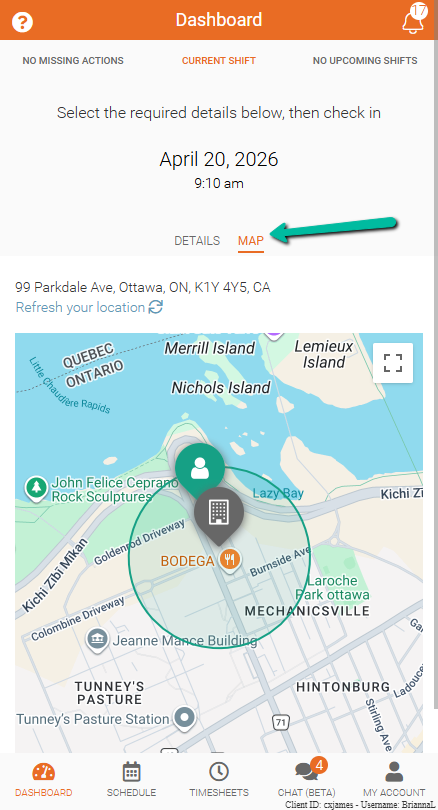
To be sure you're inside the site geofence, click the Map to check.
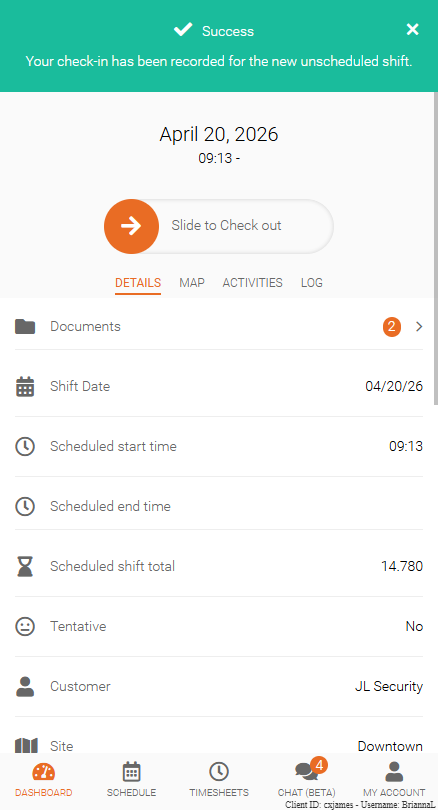
If your slide is successful, an unscheduled shift will be created.
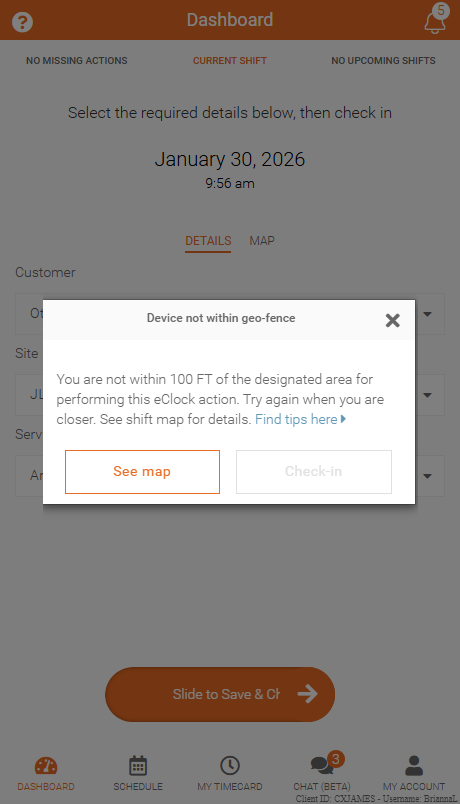
Geofence Requirements
Check-in depends on location settings:
- If within the required area, a success message will appear
- If outside the required area, a Device not within geo-fence message will appear
Move within the required location to proceed if needed.