Submit Timesheets
Submit timesheets to ensure worked hours are recorded accurately.
In Team Xpress, most time tracking is handled automatically through check-in and check-out. However, in some cases, timesheets may still be required.
Note: If timesheet options are not visible, this feature may not be enabled.
Access Timesheets
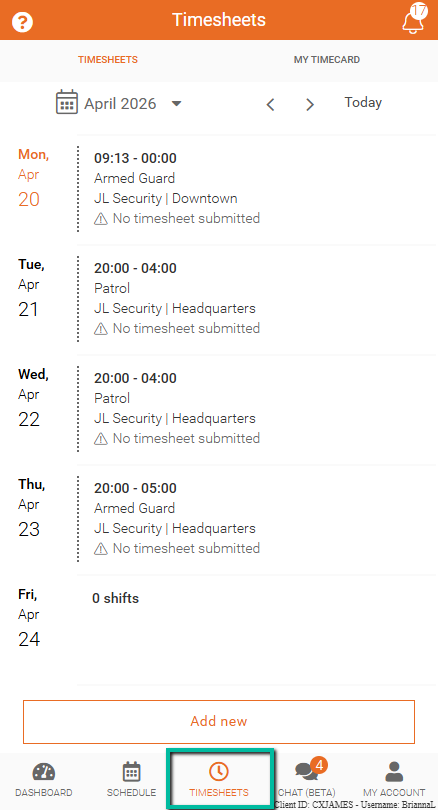
To access timesheets:
- Click the Timehsheets option at the bottom of your screen in Team Xpress
Create a Timesheet
Timesheets can be submitted for an existing shift or created when no shift exists.
Submit a Timesheet for an Existing Shift
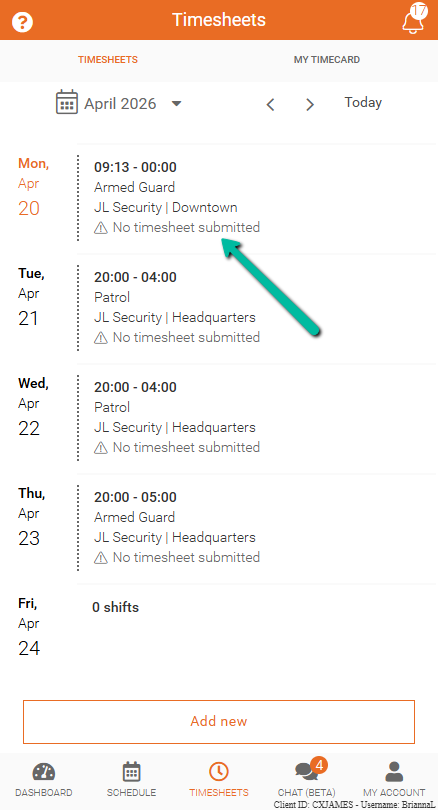
To submit a timesheet for a scheduled shift:
- Open the Timesheets tab
- Select a completed shift from the list
Enter and Submit Details
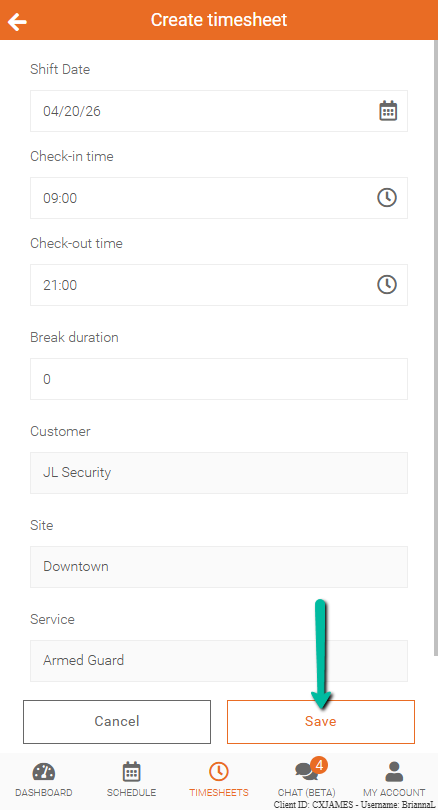
To complete the timesheet:
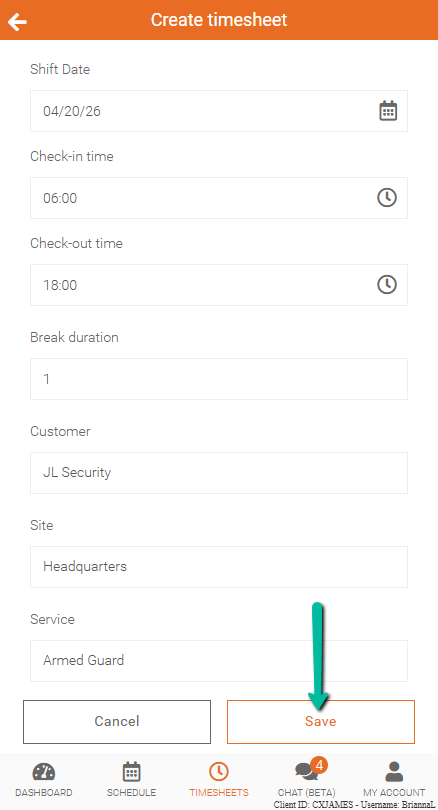
- Enter all required shift details, including date, times, and break duration
- Click Save at the bottom of the screen
Note: If submitting a timesheet for an existing shift, the Customer, Site, and Service fields will be locked and cannot be edited.
Once submitted, the timesheet will be available for review.
Create a New Timesheet (No Existing Shift)
If no shift exists, a new timesheet can be created:
- Open the Timesheets tab
- Select the option to create a new timesheet
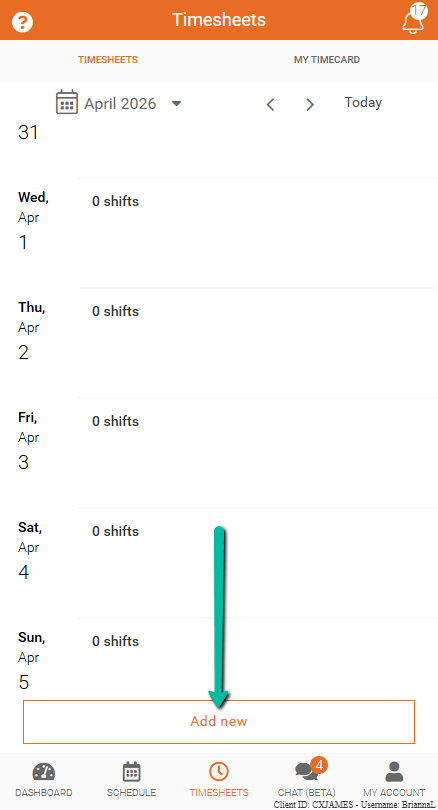
To complete the timesheet:
- Enter the required shift details
- Click Save at the bottom of the screen
Once submitted, the timesheet will be available for review.
This allows hours to be recorded even if a shift was not scheduled in advance.
Note: Your company must grant permission to create a timesheet without an existing shift.
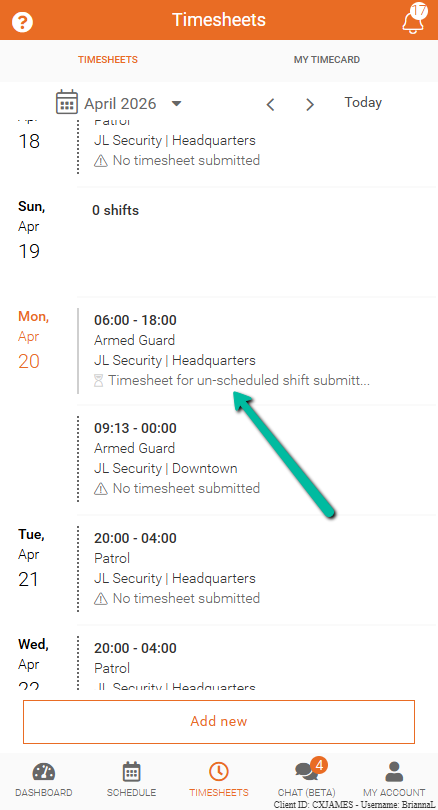
When a timesheet is created without being linked to a specific shift, it will be labeled as Timesheet for Unscheduled Shift Submitted.